With the current beta, Microsoft has taken on the Start menu. For example, we are currently testing to completely change the Lock/Logout menu in the Start menu. If you right-click on the name, the Microsoft account details will be displayed.
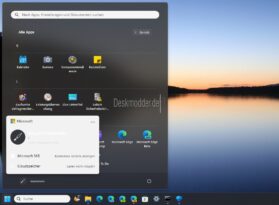
As you can see in the image, Lock has been moved to the On/Off menu. Maybe not so bad after all. The other menu becomes rather uninteresting. Unless you want to unsubscribe using the 3 points.
Microsoft has now made another change in the Start menu -> All Apps that is currently hidden. We already reported at the end of March that Microsoft wanted to integrate a different view here. But it was probably still in its early stages.
Now the apps are still sorted by letter, but up to 6 apps are now displayed next to each other. This means you no longer have to scroll so hard until you get to the end of the list. One can only hope that Microsoft will soon incorporate this into Windows 11 23H2.
[Update 27.04.2024]: Additional changes have been made
With the new beta update KB5037002, Microsoft has made another change. The individual tools, which were previously displayed individually, are now packed into folders and displayed again.
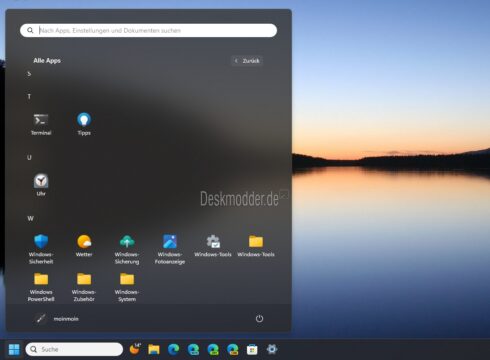
That looks pretty good and I could imagine that we will get this view as a highlight in the release notes with one of the next updates. Until then, only manual activation remains.
Anyone who has installed the beta can try both.
- Download and unzip ViVeTool
- Right-click in the folder and open the terminal while holding down the Ctrl and Shift keys
- Start Menu Account Manager
- .vivetool /enable /id:46892085,48433719
- Start menu all apps
- .vivetool /enable /id:47205210 /variant:2
Now restart.