If you got a new router and want to add your PlayStation to the MAC filter or make other network settings, you first need the MAC and/or IP address of your console. There are several ways to do this. There are several ways to do this. We’ll show you how to find the addresses on PS5 and PS4.
PS5: Find out IP and MAC address
The The first way is through the network settings:
- Turn on the PS5 and open it Settings (gear symbol).
- Select the point here “Network” to.
- Vote at “Connection status” the item “Show connection status” out of.
- Here you can find them now MAC addresses for LAN and WiFi connection as well as yours IPv4 and IPv6 address.
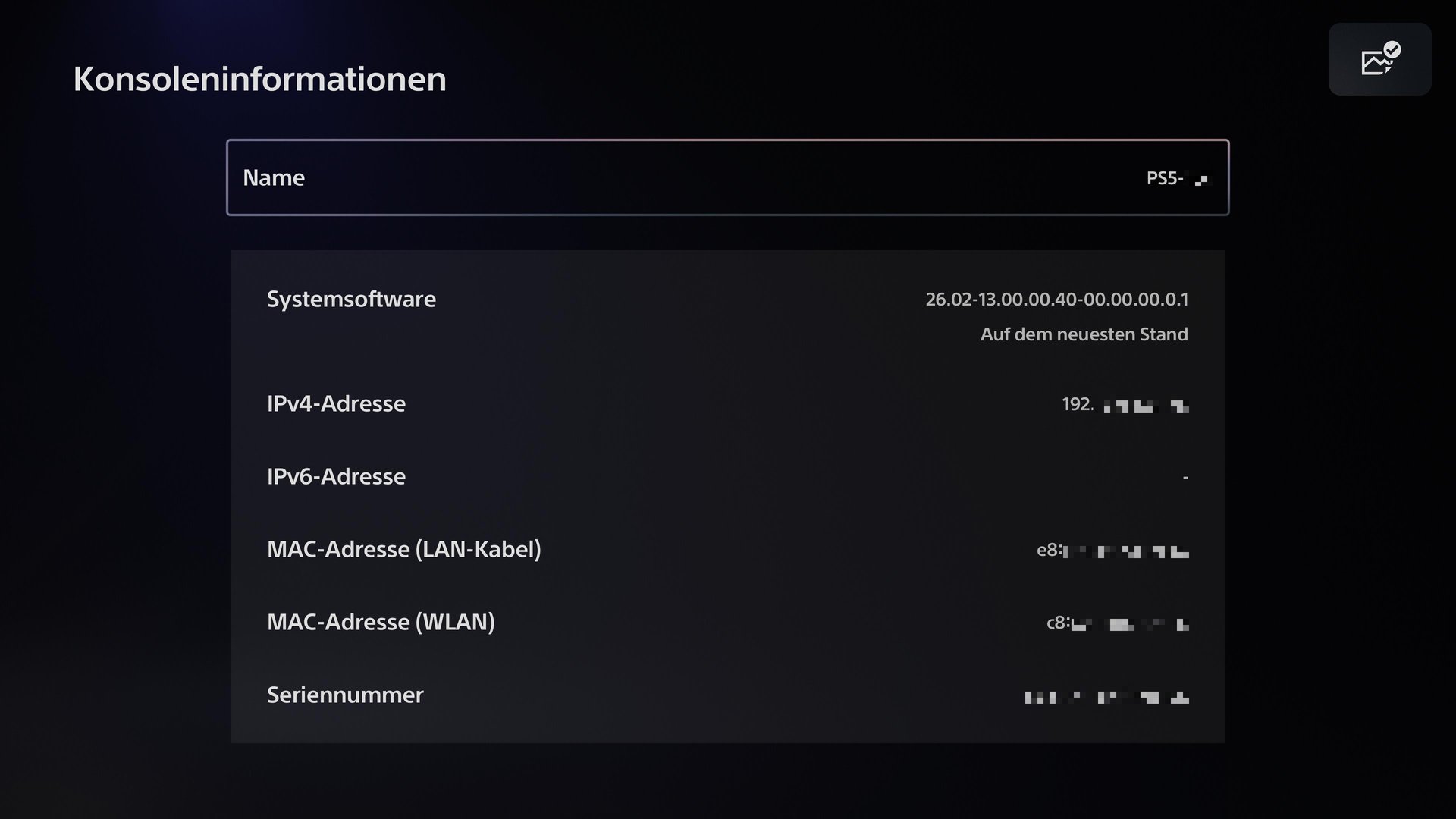
Alternatively You can also find the IP and MAC addresses in the console information:
- Turn on the PS5 and open it Settings (gear symbol).
- Opens the menu item “System”.
- Choose among “System Software” the item “Console Information” out of.
- Here you can also see the different IP and MAC addresses.
PS4: Find IP and MAC address
It also leads on the PS4 first way via the network settings:
- Turn on the PS4 and opens the settings.
- Navigate down until you get to the point “Network” arrives and selects it.
- Choose “Show connection status” out of.
- Here you can find the different addresses:
- IP address: Your current IP address
- MAC address (LAN cable): The MAC address for a LAN connection
- MAC address (WLAN): The MAC address for a WiFi connection
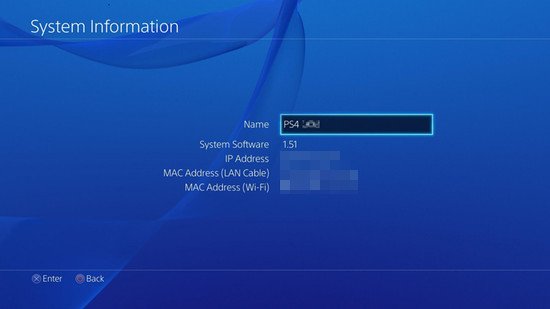
If you get an error the first time, you can change the addresses Alternatively, access it via the system settings:
- Opens the menu item “System”.
- Navigates to the penultimate menu item “System” and selects it.
- Open the first menu item here “System information”.
- Here too, the IP and MAC address are displayed via cable and WLAN.
Find IP and MAC address via the router interface
If the PlayStation is already integrated into your network, you can also view the MAC and IP address on the router’s user interface. The exact route depends on the router. We have separate instructions for some common routers:
- Asus
- Speedport
- TP Link
- Vodafone
We show them Steps using the example of a Fritz!Box. However, the basic principle should work similarly for other models:
- Opens in browser of a device connected to your network, the router’s user interface.
With a Fritz box, for example, you can access the user interface viafritz.boxor192.168.178.1. - Open “Home network” and then “Network”, to view your connected devices.
- Usually You can find the console here under its network name (PS5-XXX or PS4-XXXXXX).
- Next to the entry you can see the IP and MAC address.
If the MAC address is not displayed, activate the corresponding column at the beginning of the table.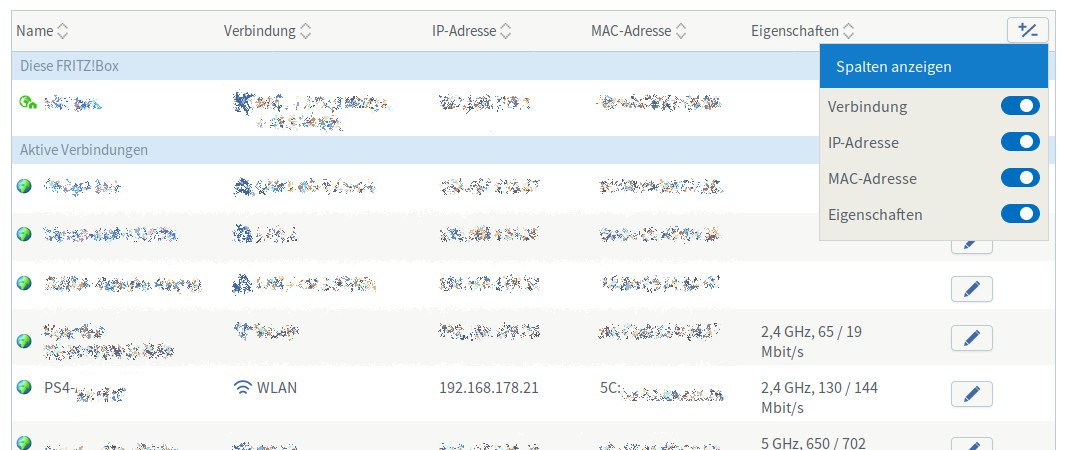
(Image source: GIGA)