A few examples: Under Settings > System > HDMI can you do that HDMI device connection Activate so that your TV turns on automatically when you start the PS5. In the same menu you can also Disable HDCP – a must for anyone who uses a capture card and wants to record gameplay.
And if you have the feeling that the controller battery is empty too quickly: mute the controller’s built-in microphone and reduce the lighting on the gamepad. Both save noticeably energy.
Customizes notifications
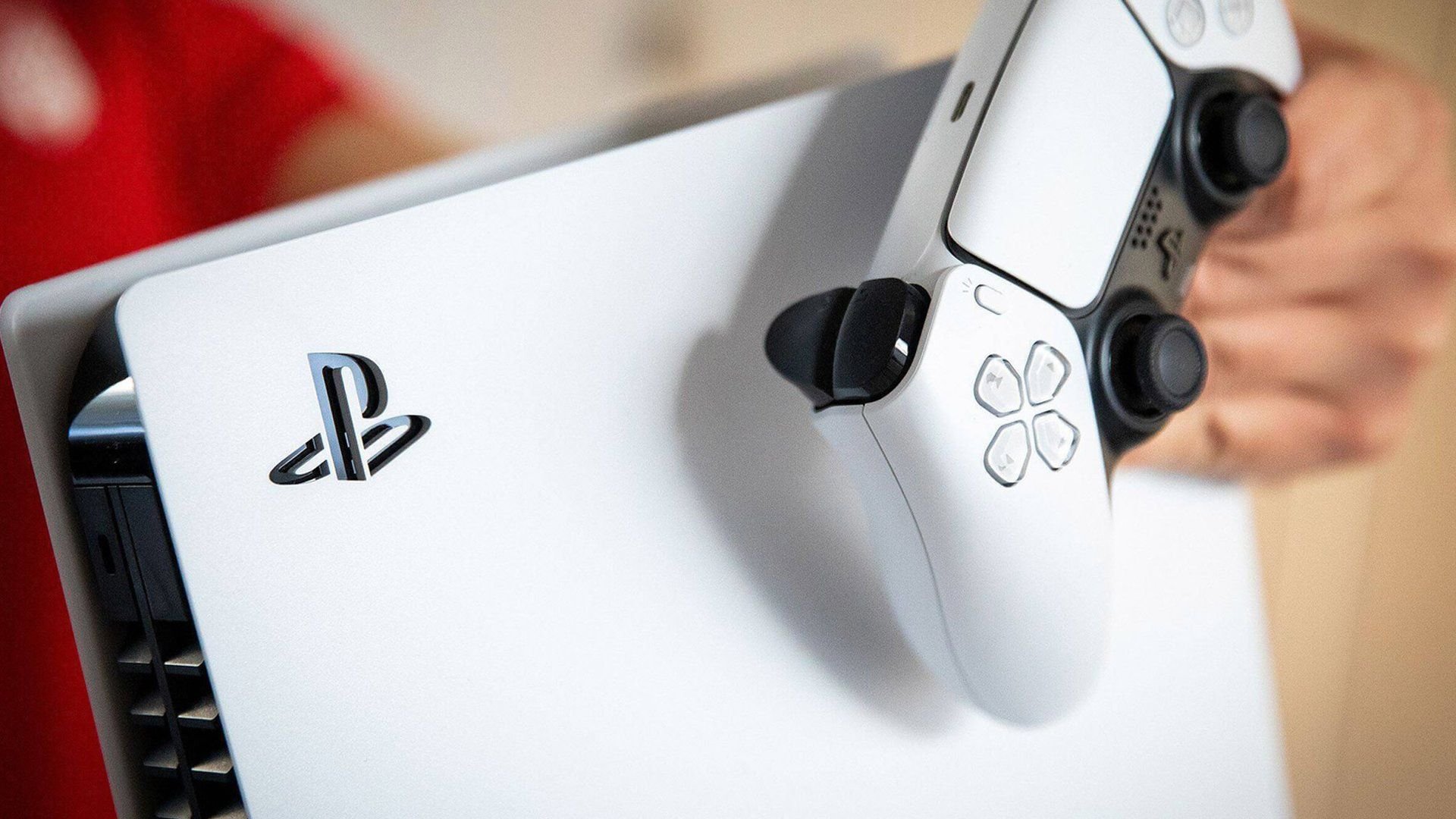
Trophy notifications, friend requests, game invitations – the PS5 sends you a flood of notifications by default. This can be quite annoying when playing.
Under Settings > Notifications You can turn each type of notification on or off individually and determine when they should be displayed. This means that no more pop-ups will disrupt your game flow.
Enables automatic updates
Updates are important – they fix bugs, improve stability and ensure that your games run smoothly. But update manually every time? Doesn’t have to be.
For game updates go to Settings > Saved data and game/app settings > Automatic updates and activate automatic downloads there. For system software updates, navigate to Settings > System > System Software > System Software Update and Settings and activates “Download update files automatically” and “Automatically install update files”.
In order for the updates to load in rest mode, you must also ensure that your console remains connected to the Internet in rest mode.
Consider a PS Plus subscription
As a PS5 owner, you have the option of subscribing to PlayStation Plus. The service is divided into three levels: Essential, Extra and Premium. Depending on your level, you get access to online multiplayer, monthly free games, an extensive game catalog and other extras.
All three levels can be taken out monthly, quarterly or annually – with the annual subscription being significantly cheaper than the monthly version. Since prices change regularly, it’s best to check the current conditions directly in the PlayStation Store.
Grab the right accessories

The PS5 is solidly equipped out of the box, but with the right accessories you can get even more out of the hardware. A few recommendations:
One M.2 SSD expands the internal memory and is almost mandatory if you want to have more than a handful of games installed. A Headset not only improves the sound, but also saves you from having to use the controller microphone. And one Charging station for the DualSense controller ensures that your gamepad is always ready for use.
» Watch video: PS5 accessories: must-haves for the new Playstation generation!

Don’t let your PS5 run idle
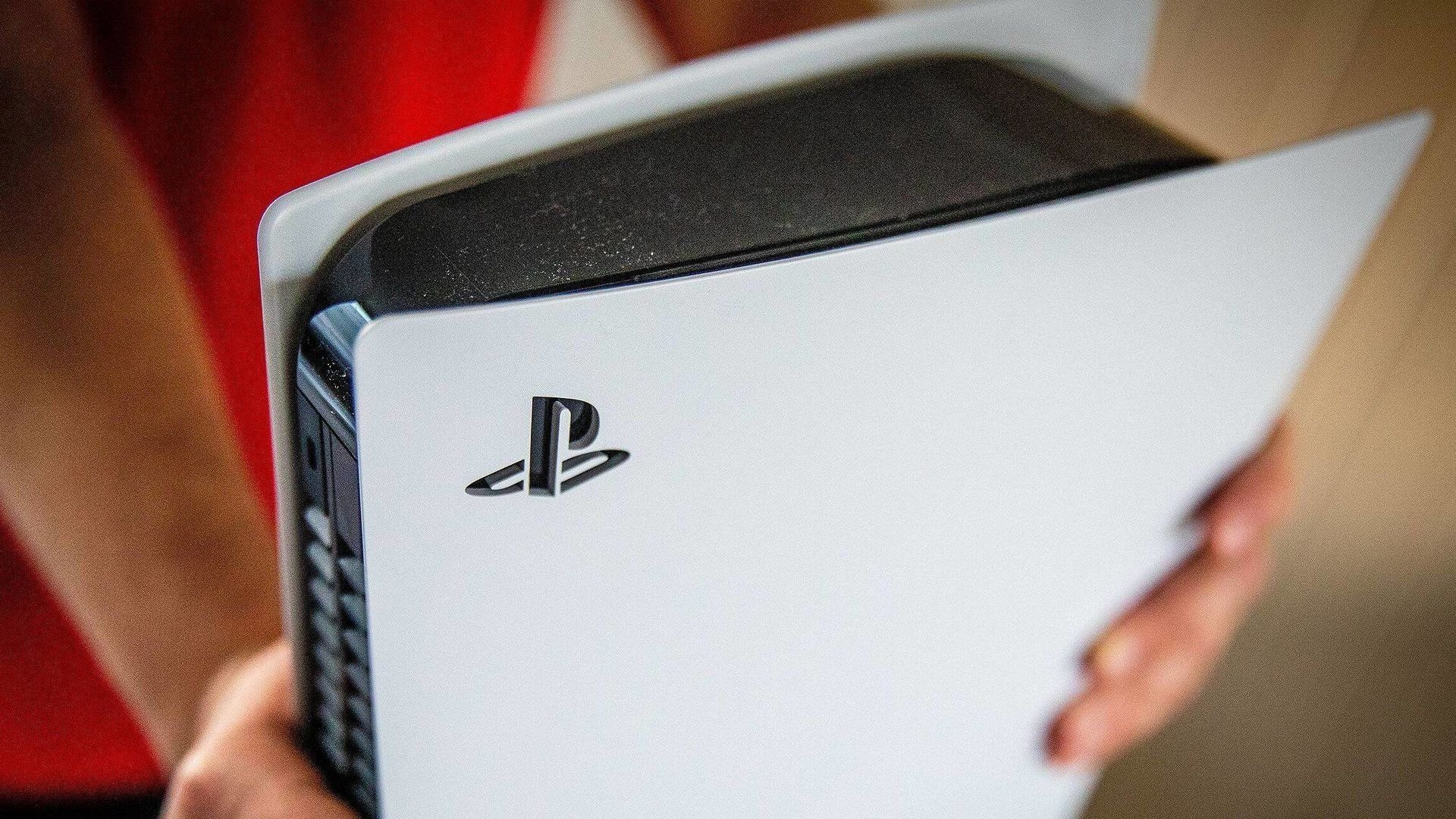
It can easily happen that the console is left on even though no one is playing anymore. In the long run, this can harm your PS5 because it generates heat even when idle – and if there is poor ventilation, there is a risk of overheating.
Tip: Switch your console to either Sleep mode or completely off if you don’t play. If your PS5 actually overheats, hold it Power button about seven seconds until a second beep sounds. Then let it cool down completely before you start it again.
Pay attention to the correct ambient temperature
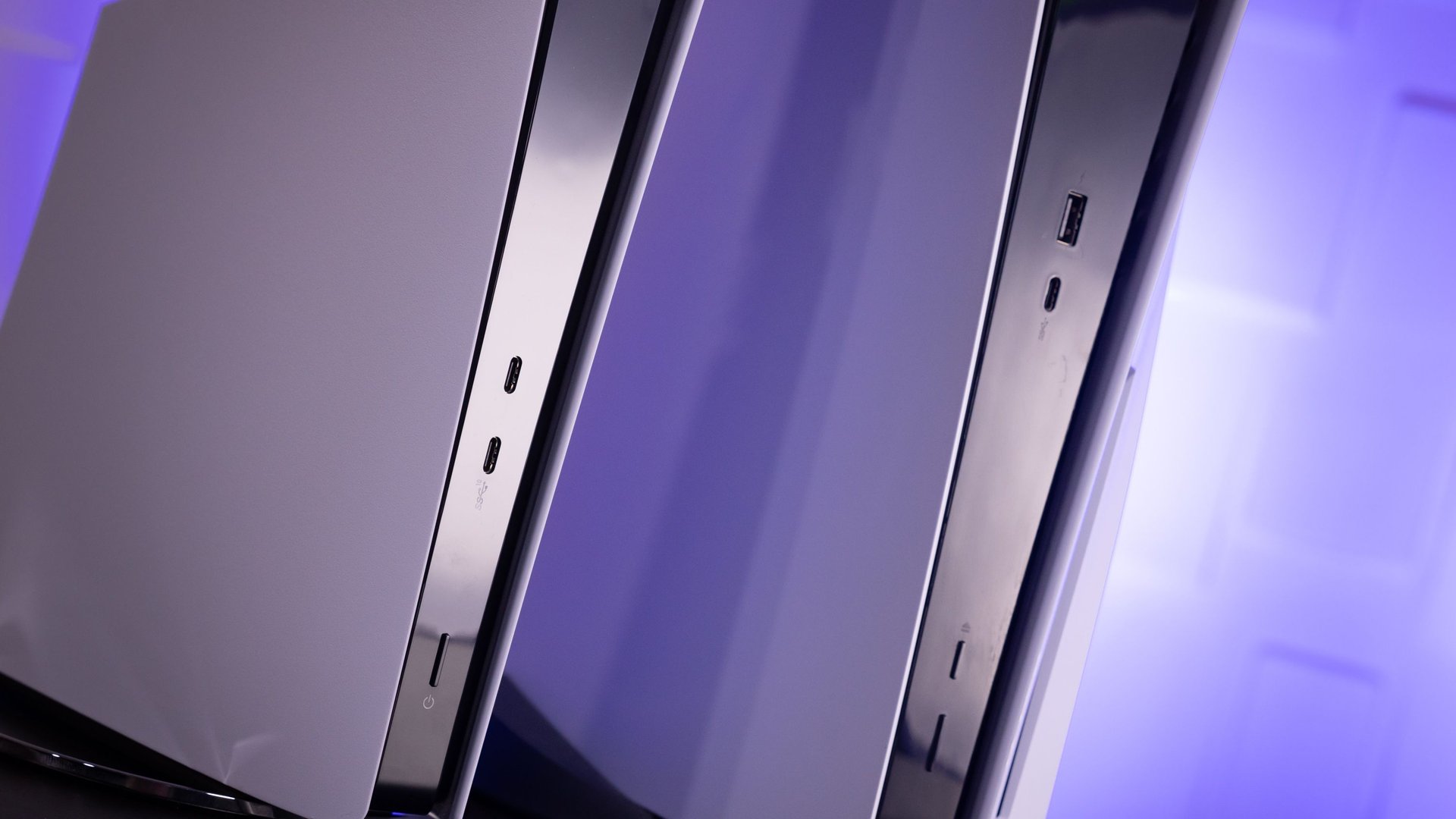
Extreme heat and extreme cold are poison for your PS5. According to Sony’s official safety guide, the permissible limit is Operating temperature between 5°C and 35°C.
Also make sure that around the console enough space for air circulation remains – the ventilation slots must not be covered. And regularly clean dust from your PS5, especially the ventilation openings. A clogged fan is one of the most common reasons for overheating.
Only uses discs in good condition
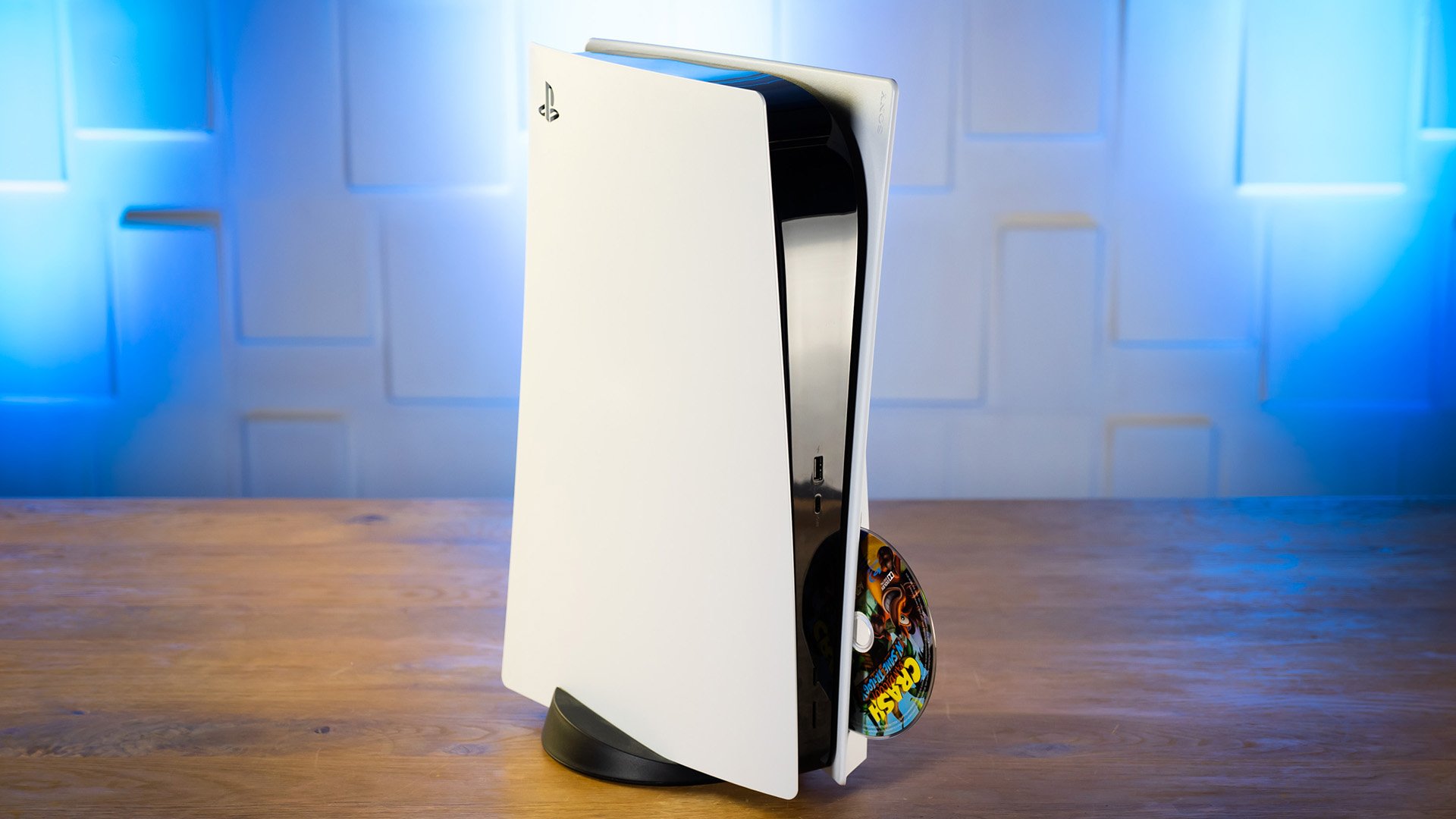
This tip applies to everyone who owns a PS5 with a disc drive – not the Digital Edition. Although Blu-ray discs are more scratch-resistant than old DVDs, they are not invulnerable. Scratched or dirty discs can lead to reading errors and, in the worst case, cause the console to crash.
Always keep your discs in a case and clean them with one if necessary lint-free clothwhich is suitable for Blu-ray discs. You should no longer insert discs with deep scratches.
Make sure you choose the right version for cross-gen games
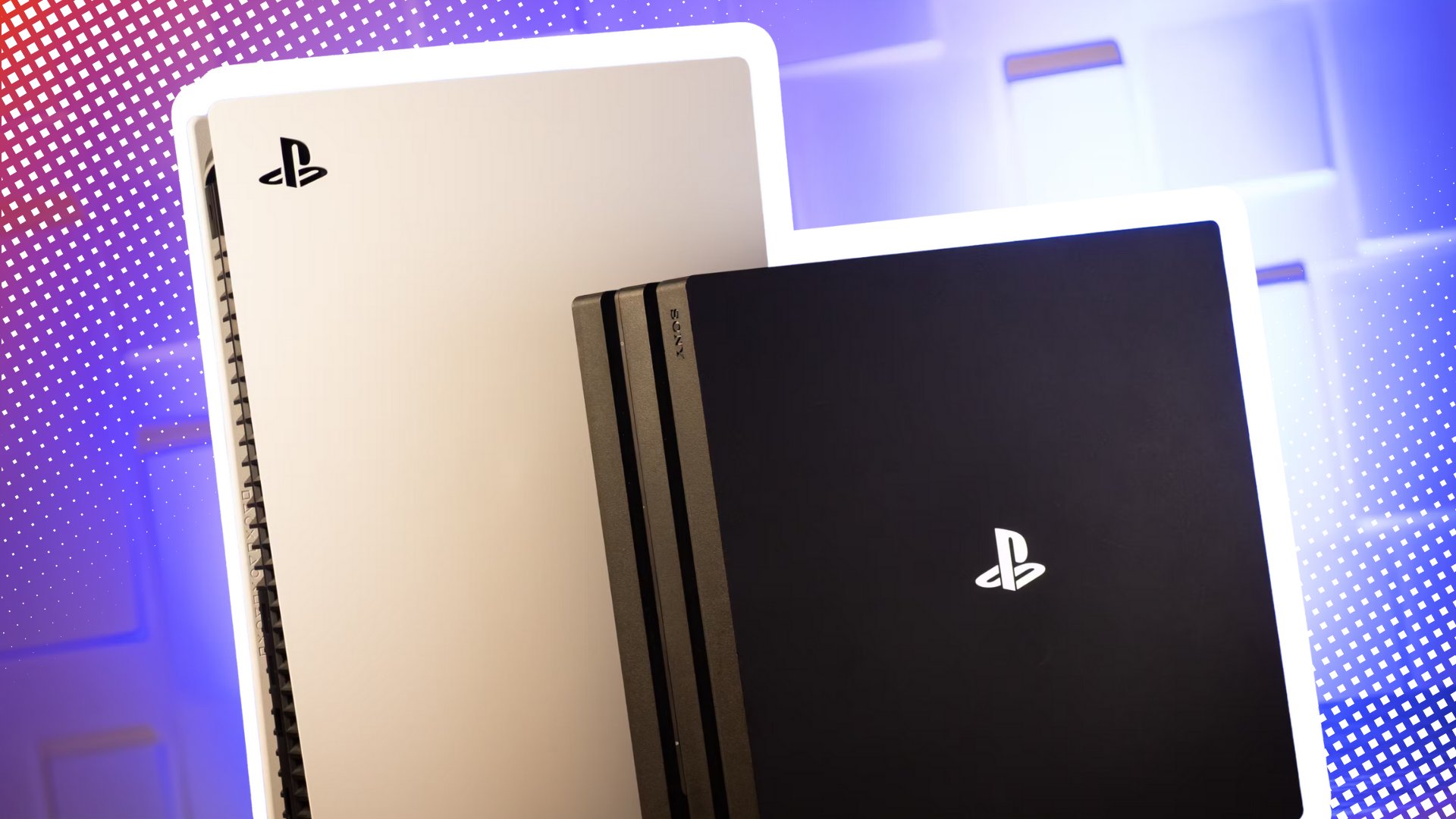
Some games are available for both PS4 and PS5. It can happen that you accidentally download the PS4 version – or even both. Not only does this cost storage space, but you also miss out on the graphical and technical improvements of the PS5 version.
Here’s how to make sure you have the right version: Open the PlayStation Store, search for the game you want and select it Symbol “…” next to the download button. There you can specifically select the PS5 version.
Handle the controller battery with care

The DualSense controller has built-in overcharge protection – so it automatically stops charging when the battery is full. Nevertheless, it is recommended to use the controller Do not leave it permanently connected to the console or charging station.
The reason: Even after charging stops, the connection generates heat, and long-term exposure to heat can shorten the lifespan of the battery in the long term. It’s best to disconnect the controller as soon as it is fully charged – the optimal charging time is approximately two to three hours.
HDMI Device Link – practical or annoying?
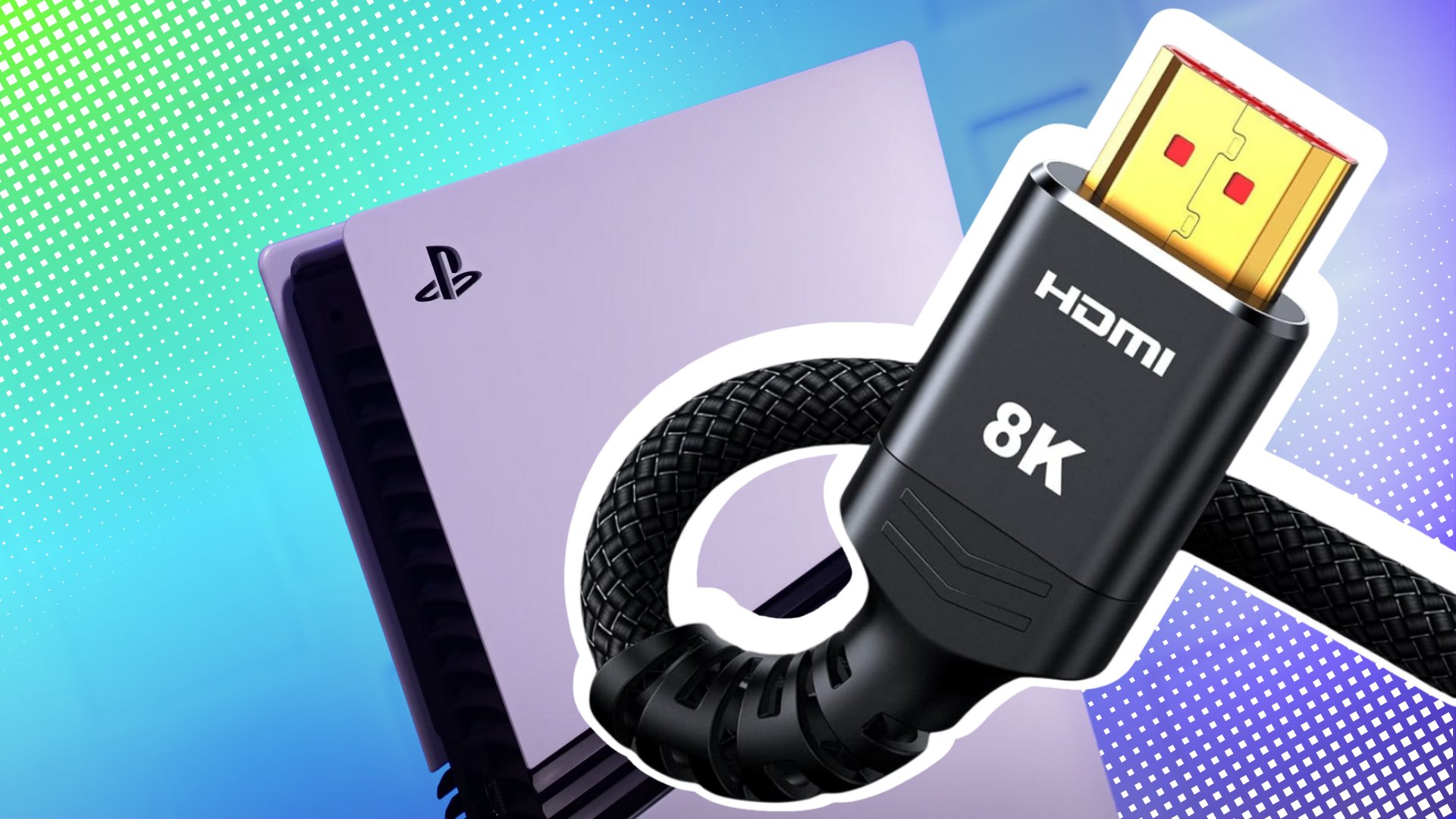
The PS5 supports HDMI CEC (Consumer Electronics Control), which means: If you switch on your television, the console can switch on automatically – and vice versa. If you only use your TV for gaming, this is practical.
But if you also use the TV for other things, it can be annoying if the PS5 unintentionally starts every time. The function can be easily deactivated:
- Settings > System > HDMI > Disable HDMI Device Link.
Use the stand – but which one?
The PS5 stands or lies more stable with a stand – that sounds banal, but it is important to avoid scratches, dents or tipping over.
Important to know: Depending on the PS5 model, the situation is different:
- Original PS5 (CFI-1000): The included stand works both horizontally and vertically.
- PS5 Slim: Only one is included in delivery Horizontal stand at. If you want to set up the console vertically, you have to Purchase vertical stand separately.
- PS5 Pro: Here too, only a horizontal stand is included. The vertical stand is available as a separate accessory.
No matter which model you have: use the stand. Your console will thank you.
Transfer data from PS4

Anyone who switches from the PS4 to the PS5 can take their data with them. Scores, screenshots and even entire games can be transferred. The easiest way to do this is through yours local network – both consoles must be connected to the same WLAN or LAN.
Alternatively, you can also view scores via the PlayStation Plus Cloud sync if you have an active subscription. The PS5 will guide you through the transfer process when you first start it.
» Watch video: Transfer PlayStation 5 data from PS4 to PS5
