The Photo Library in Android contains an option to secure photos and videos, by sending them to a locked folder. This allows them to be hidden in a partitioned space, closed to other applications. Here is the method to hide your files.
There are a thousand reasons why you might want to hide some of the photos and videos you've taken with your phone — or that you've received or saved. Your photos exchanged with your partner, for example. It is entirely legitimate here to want to secure them more strongly.
On Android, a first solution would be to activate guest mode, which will prevent you from worrying if you have to lend your smartphone (the best thing is probably not to pass it on at all). Another very useful protection: locking the screen with a method controlled by you alone (a PIN code, a pattern, biometrics, etc.).
These leads are the first lines of defense for your privacy and privacy. However, they may not be enough. In this case, it is wise to know another one, which acts directly on your photo library. This is called “locked folder” — or “secure folder”, the name may vary depending on the phone.
The explanation presented here is carried out with a Pixel 7 Pro smartphone and Android 14, a version of the operating system released in 2023. If you use another model or another branch of the OS, the procedure will not be identical, but should closely resemble the explanations you will read below.
How to hide photos on Android?
- Go to the Photos application on Android;
- Locate the photo you want to hide and long press on it;
- Scroll through the menu that has popped up to the right to the line “move to locked folder”;
- Confirm with the “Move” button;
- That's all !
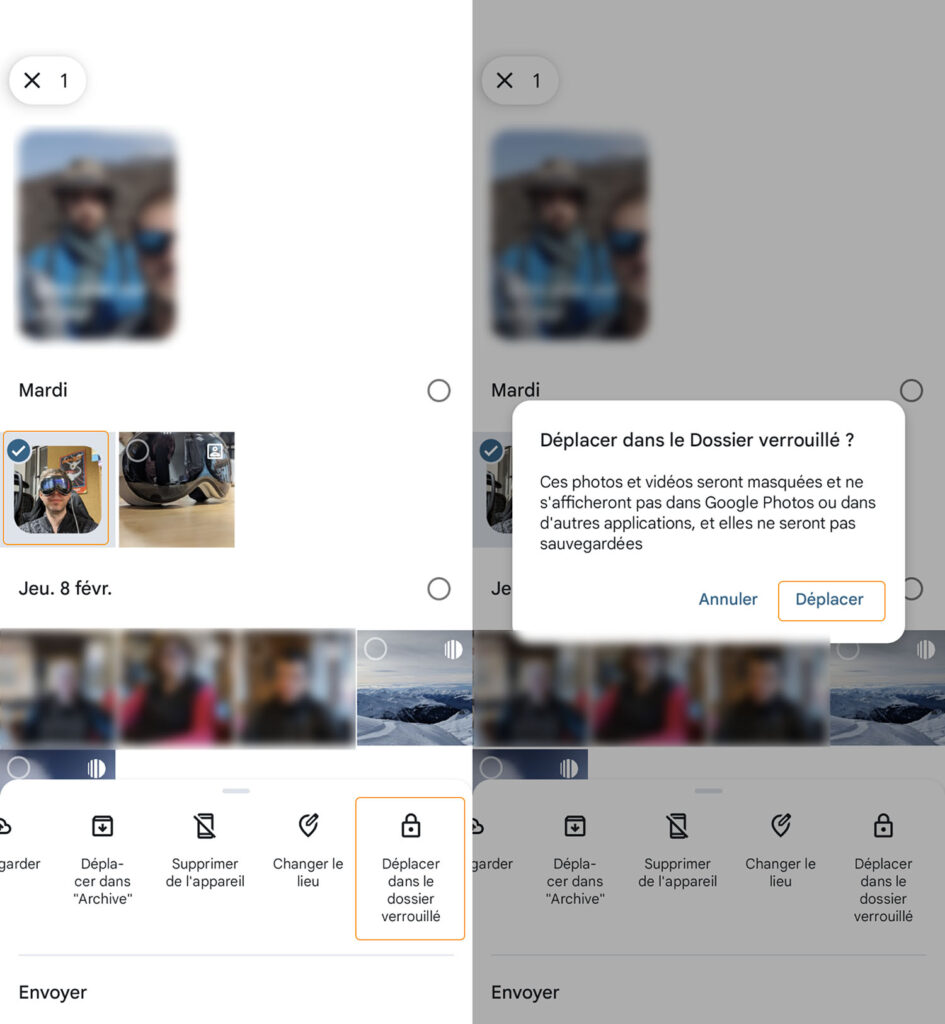
This method also works when selecting multiple files at once. After the first long press, you can select other photos or videos immediately. In fact, you will be in a mode of rapid selection of multiple contents. You can even check off all those for a specific day by tapping the corresponding date.
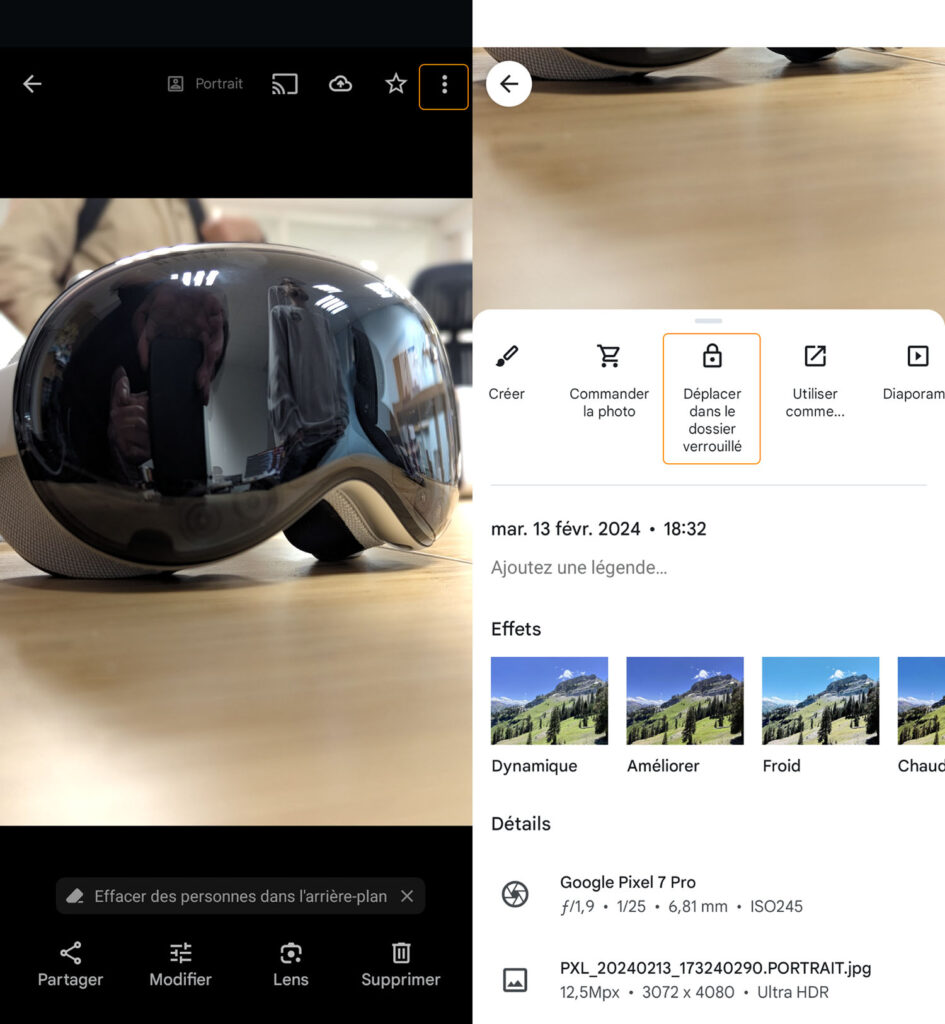
A variation is to go to a photo or video and press the three vertical ellipsis at the top right of the screen. You will bring up a menu, at the bottom of the screen this time, in which you will see the same options. Validate in the same way to send the snapshot to the locked folder.
What happens to images sent to the locked folder?
When you send content to Android's locked folder, the system warns you that photos and videos ” will be hidden and will not appear in Google Photos or other apps “. They will also not be saved in the Mountain View firm's cloud service, if you are eligible.
This locked folder (or whatever it's called on your Android phone) can also hold photos or videos saved from the web, not just what you've photographed or filmed (or what you've received from your contacts). In short, it should be considered as a digital safe. Its access is also controlled.
Where is the locked folder located?

The locked folder on Android is not easily accessible: it is not listed in the phone's library where your content is classified according to its origin. To reach it, you must necessarily go through the “Search” section and type the first words for “locked folder” in the field provided for this purpose.
It will then appear in the results. By clicking on it, Android will ask you to unlock it with the option which is mainly used to lock the smartphone screen – this can be a PIN code, a pattern, a fingerprint… an alternative can be offered (in our case , the PIN code instead of the fingerprint).
All the contents sent to the safe will be there, classified in antechronological order. You can then open them to your guide, but the options will be limited here: you will not have access to the editing tools, for example, but only to two proposals. Move the photo or delete it.
Some other features are disabled. This is the case for screenshots when you view the locked folder. Moreover, it locks again as soon as the phone goes back to standby, after a few seconds without action on your part, or you reduce the screen to see something else on Android.
All this is done to reduce exposure to ill-intentioned actions.
How to put a photo from locked folder back into normal gallery?
Content sent to this particular space can be moved back to the main gallery at any time. The method for this is similar to the procedure described previously: it is possible to select several files at once, or to use this setting when you display a particular photo or video.
