Unfortunately, Nintendo isn’t making a big deal about these practical Switch 2 features.
The Nintendo Switch 2 is full of useful features, but some of them still fly slightly under the radar. Here we show you 7 features that Improve your everyday life with the console – from hidden settings to real quality-of-life upgrades.
Better graphics with the Handheld Mode Boost
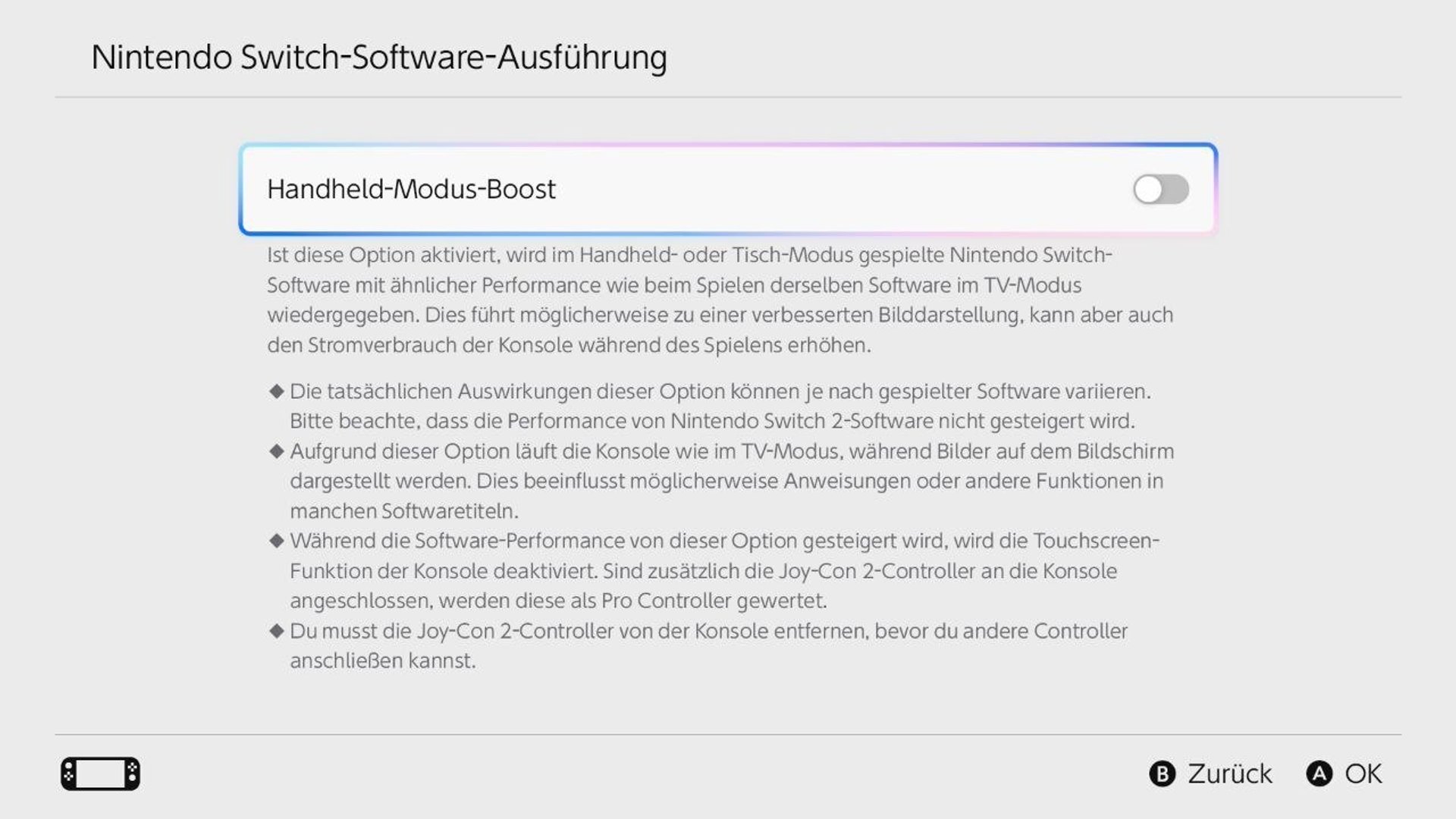
With the handheld mode boost, original Switch games run on the Switch 2 in handheld mode at up to 1080pmatching the resolution of the display. This works because the console tricks the games into thinking they were running in the old Switch’s TV mode, which back then could output up to 1080p.
Boost is disabled by default, but can be turned on in the system settings. The prerequisite is system software version 22.0.0 or higher. There is one catch: Nintendo points out that battery consumption can increase – anyone who is already struggling with battery life should keep that in mind.
This is how it works:
- Go to the system settings via the home menu and select “System” on the left.
- Now click on “Nintendo Switch software version”.
- There you can activate the handheld mode boost.
Share games with GameShare
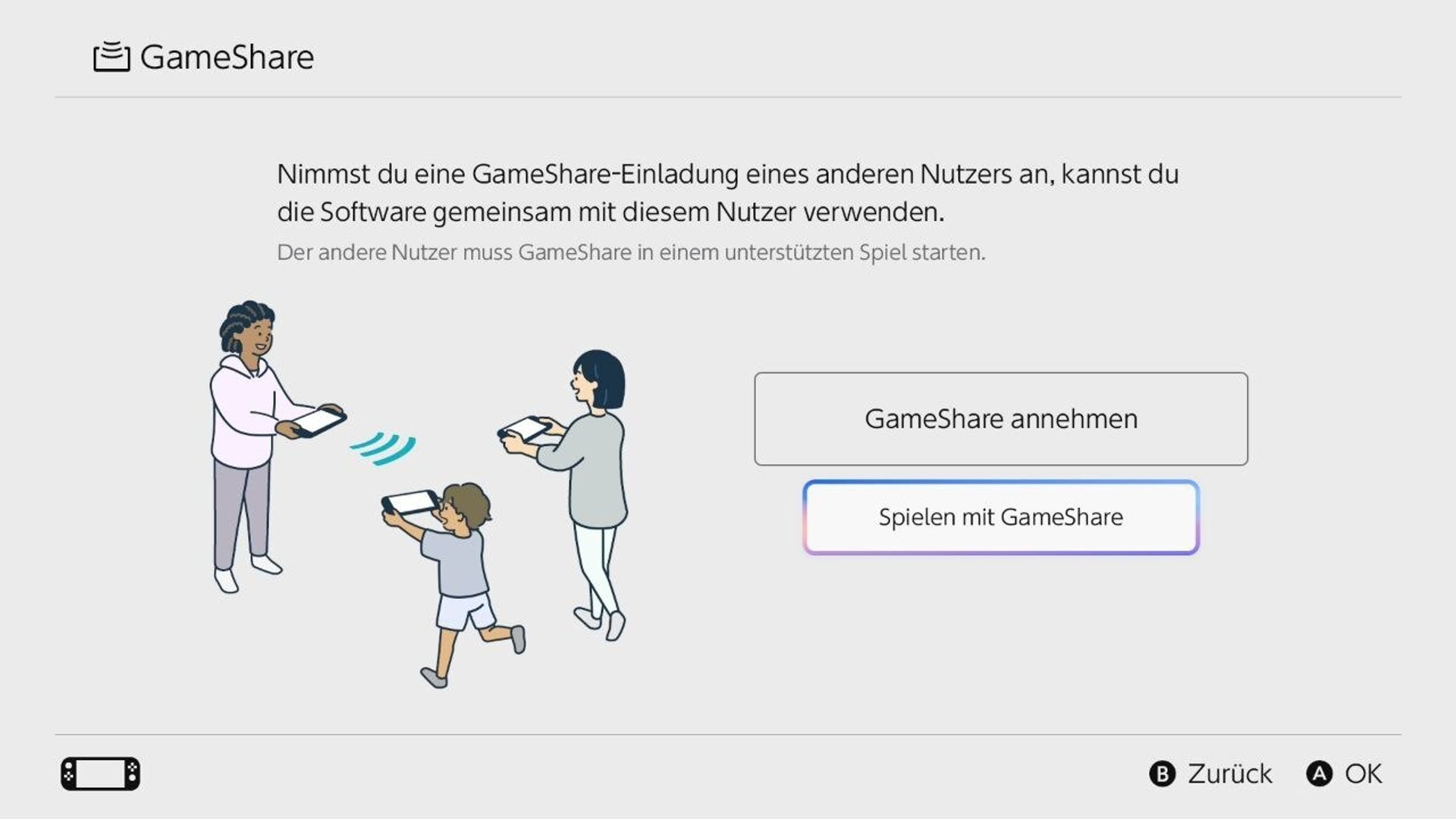
With GameShare you can share supported games with friends and family, even if they don’t own the game itself. A Switch 2 can share compatible games with any Switch 2 or Nintendo Switch, whereas an original Switch can only receive games locally. Sharing games for multiplayer sessions is possible both locally and online.
This is how GameShare works locally on the same network:
- The game owner must launch the appropriate GameShare compatible game and select the GameShare option from within the game menu.
- On the other Switch console you now have to go to the GameShare icon in the main menu (three curved lines above a rectangle) and select “Local User”.
- Now the console will search for available local requests and once completed you can confirm the selection and start the game.
This is how GameShare works online:
- To use GameShare online you need a Switch Online subscription because it only works via GameChat.
- Within your GameChat session you can then share compatible games via the game menu.
Find lost Joy-Cons
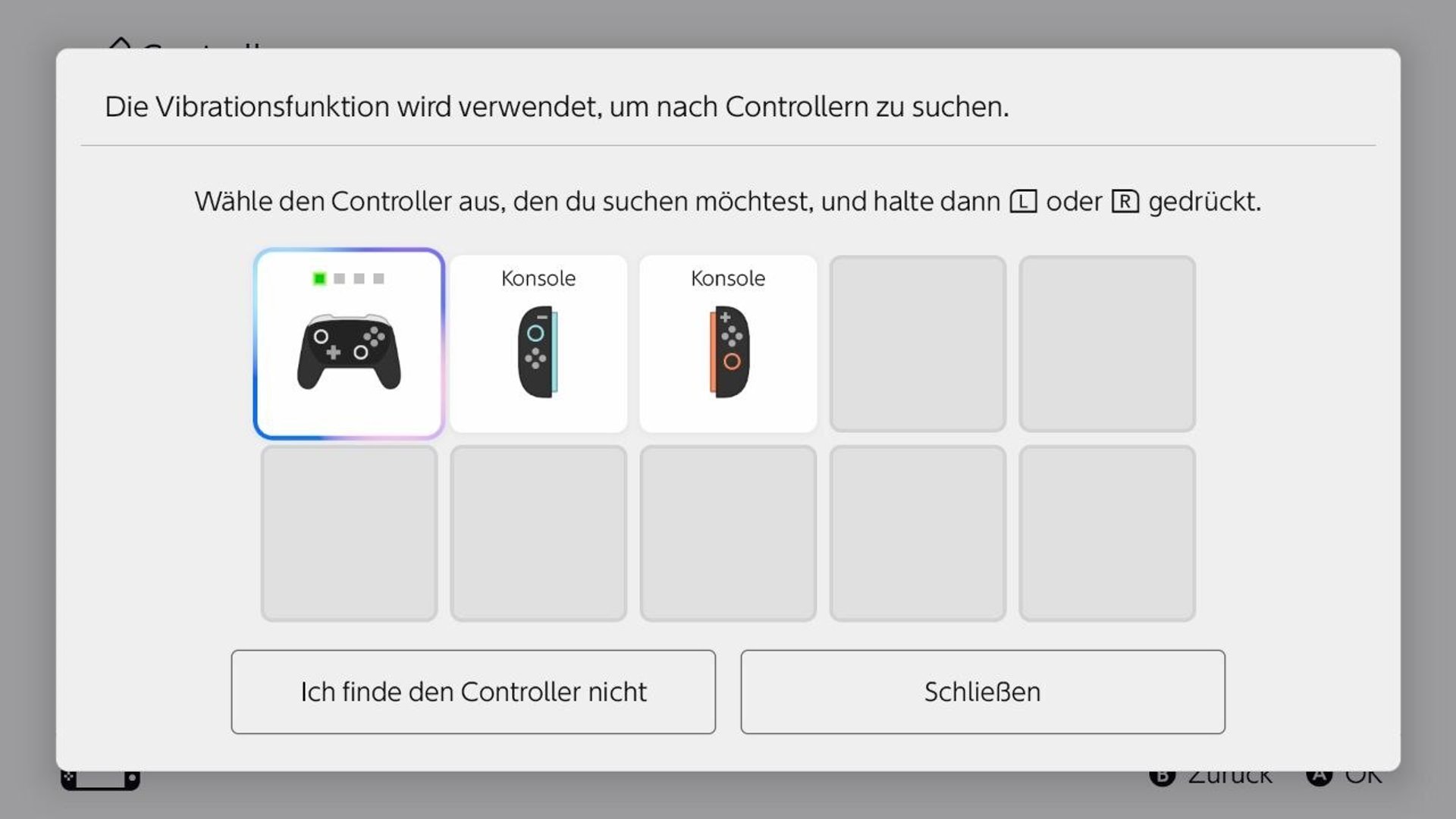
Everyone is familiar with controllers that have disappeared between sofa cushions. The Switch 2 has a practical solution built in for this: The Locate Joy-Cons using vibration and soundwhich works similarly to the Find My feature on the iPhone.
The function is particularly useful if there are several controllers in the household. Simply start the search, follow the vibration and the lost Joy-Con will report back.
This is how you find your Joy-Cons again:
- Go to “Controller” in the home menu and then click “Search Controller”.
- Now you can click on the picture of the missing controller and hopefully a vibration will alert you to it. A Pro Controller also makes a noise.
For more longevity: set a battery limit
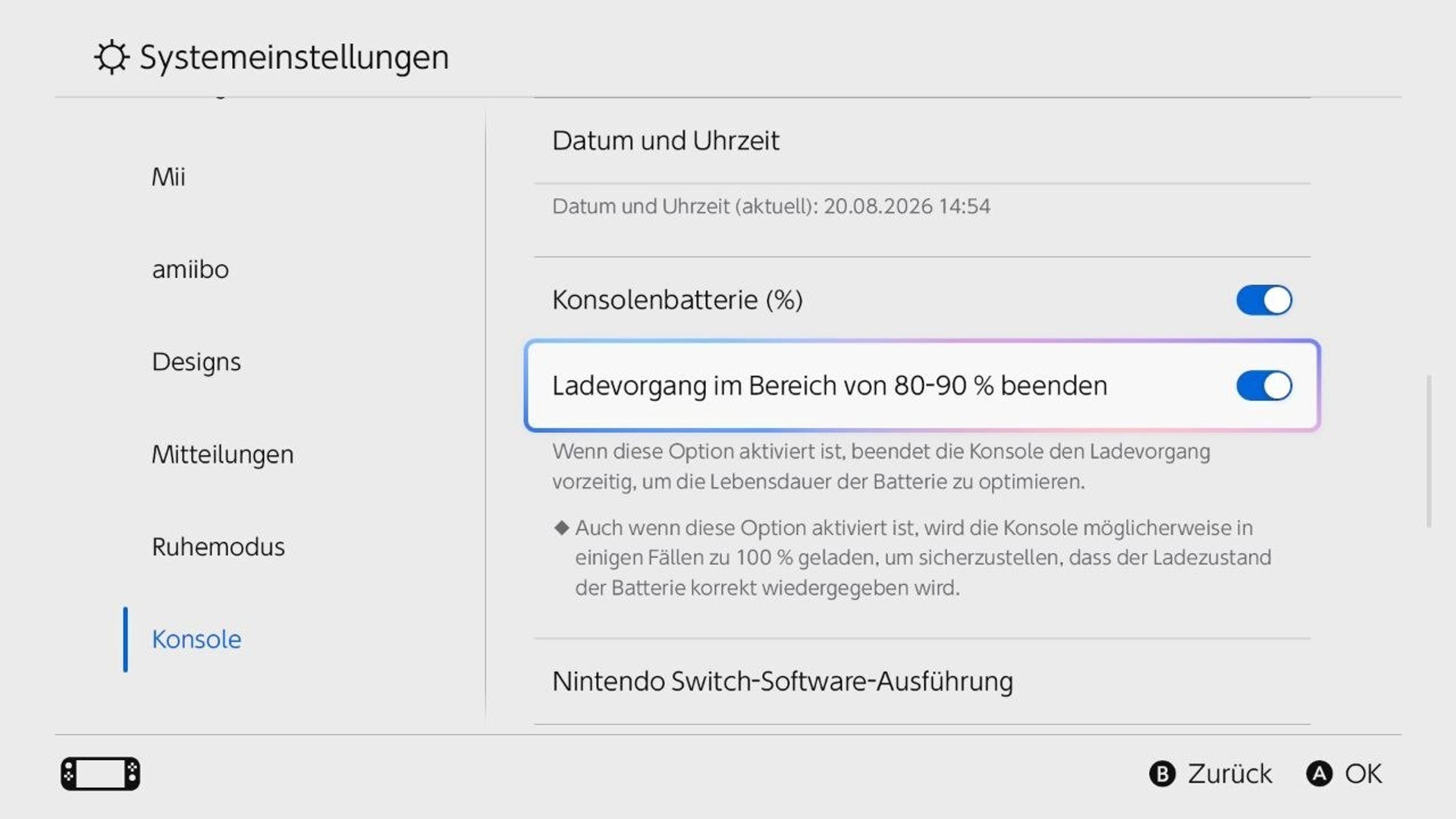
Lithium batteries suffer in the long run if they are always charged to 100 percent. The charging limit of the Switch 2 battery can be set under “System Settings” and then “Console”. limit to 80 to 90 percent. This may sound like a disadvantage at first, but it significantly extends the lifespan of the battery for years to come.
Anyone who often uses the Switch 2 on the dock at home or regularly charges it overnight will particularly benefit from this setting. The limit can be lifted at any time when you are on the go. The option is quickly found and deactivated just as quickly.
Connect other mice
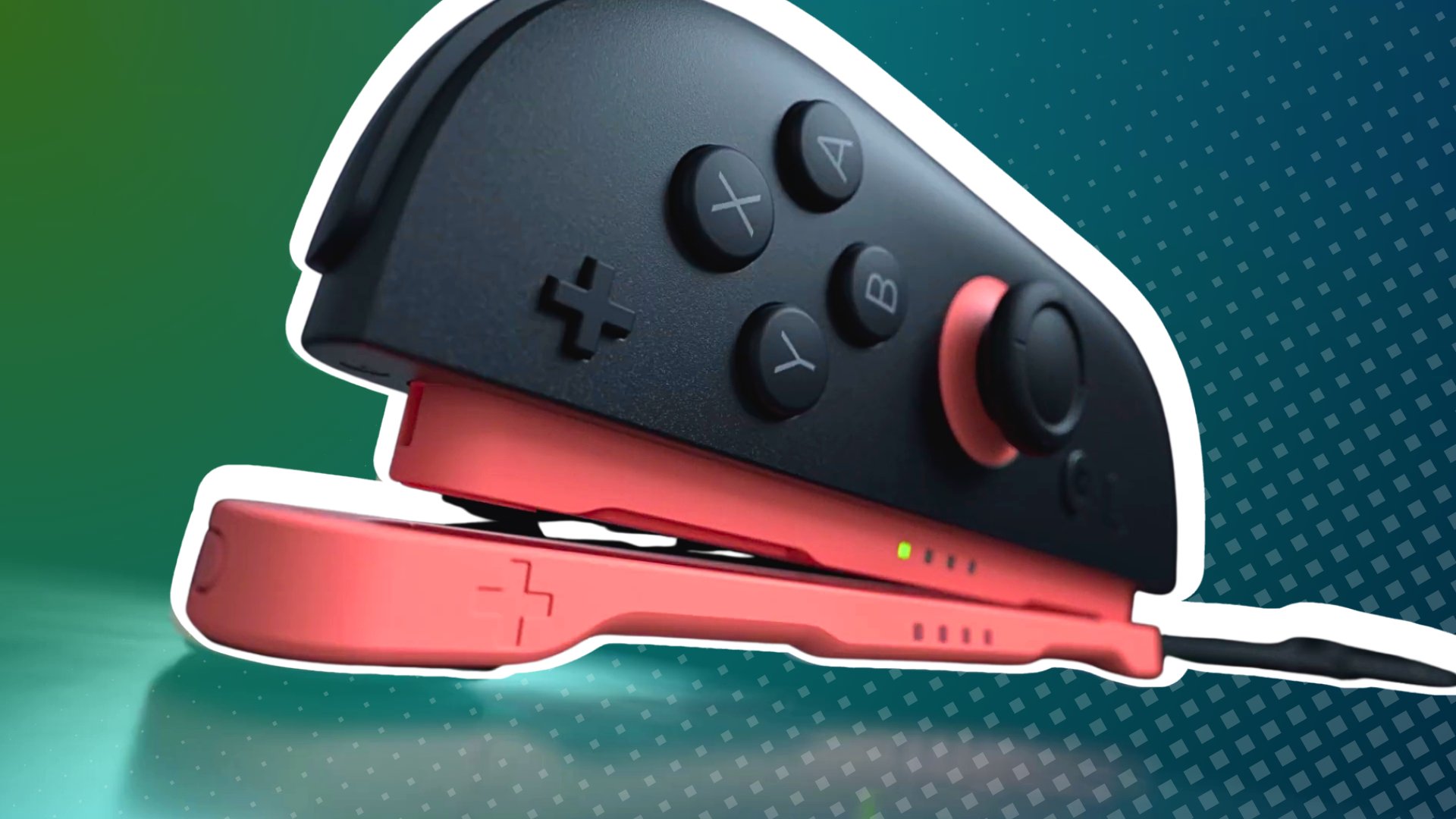
The Joy-Cons can be used as a mouse, but a real mouse fits better in the hand. What many people don’t know: A standard USB mouse can be connected to the Switch 2, either via the USB-C port on the device or the USB-A port on the dock.
Between Joy-Cons and connected mouse you can switch seamlessly and use both at the same time, which makes completely new operating concepts possible. However, support depends on the game.
For Xbox players: Swap A and B buttons
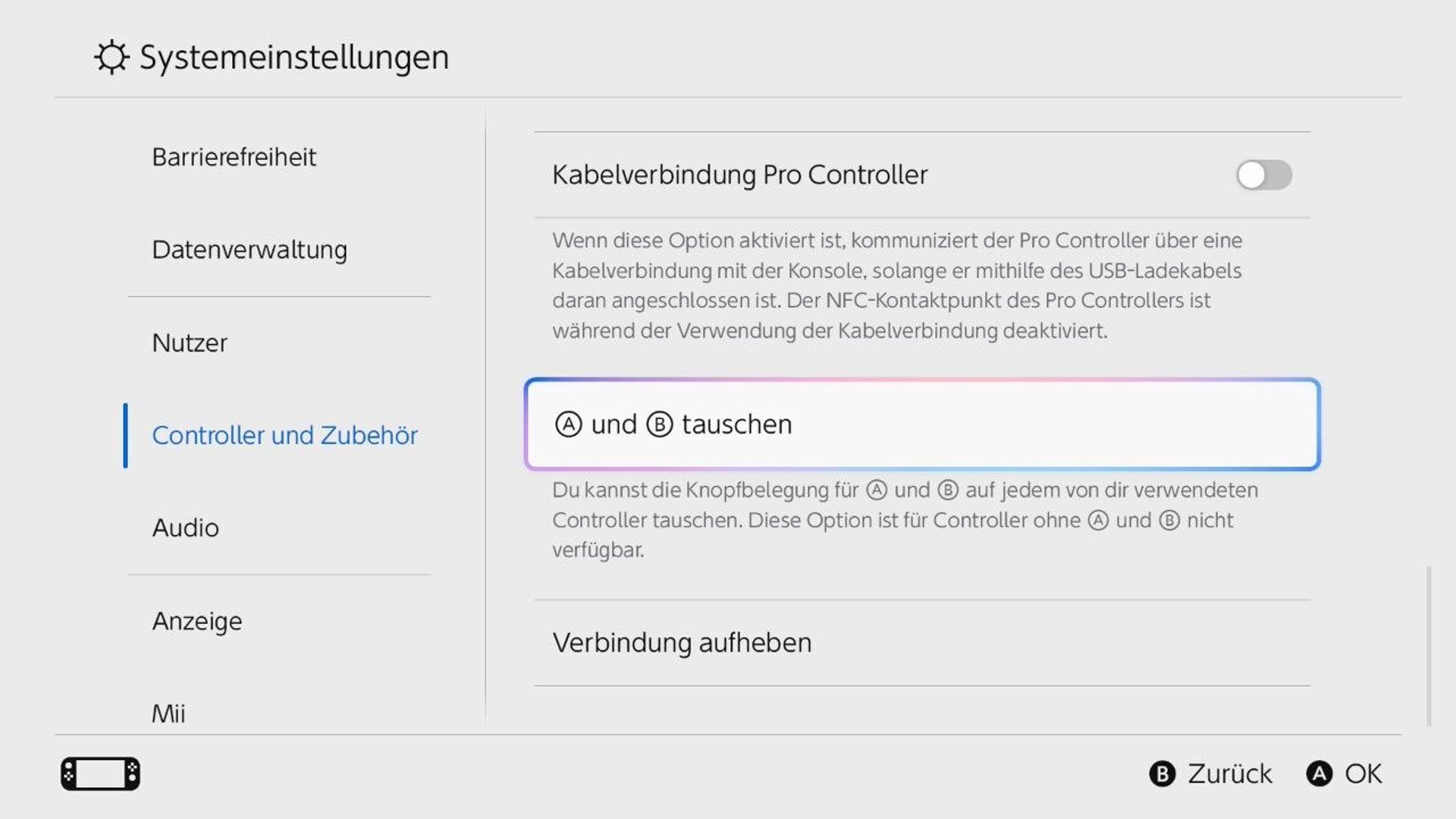
Who regularly switches between an Xbox controller and the Switch 2knows the problem: The A and B keys are assigned exactly the opposite way on Nintendo than on Microsoft – which leads to frequent misclicks and accidental terminations.
Nintendo offers the option to swap A and B in the system settings. To do this, go to the settings under “Controller & Accessories”, scroll to “Swap A and B” and activate the option. The labeling on the controller and the in-game displays don’t change – but your fingers will find the right and wrong buttons.
Lend virtual software cards
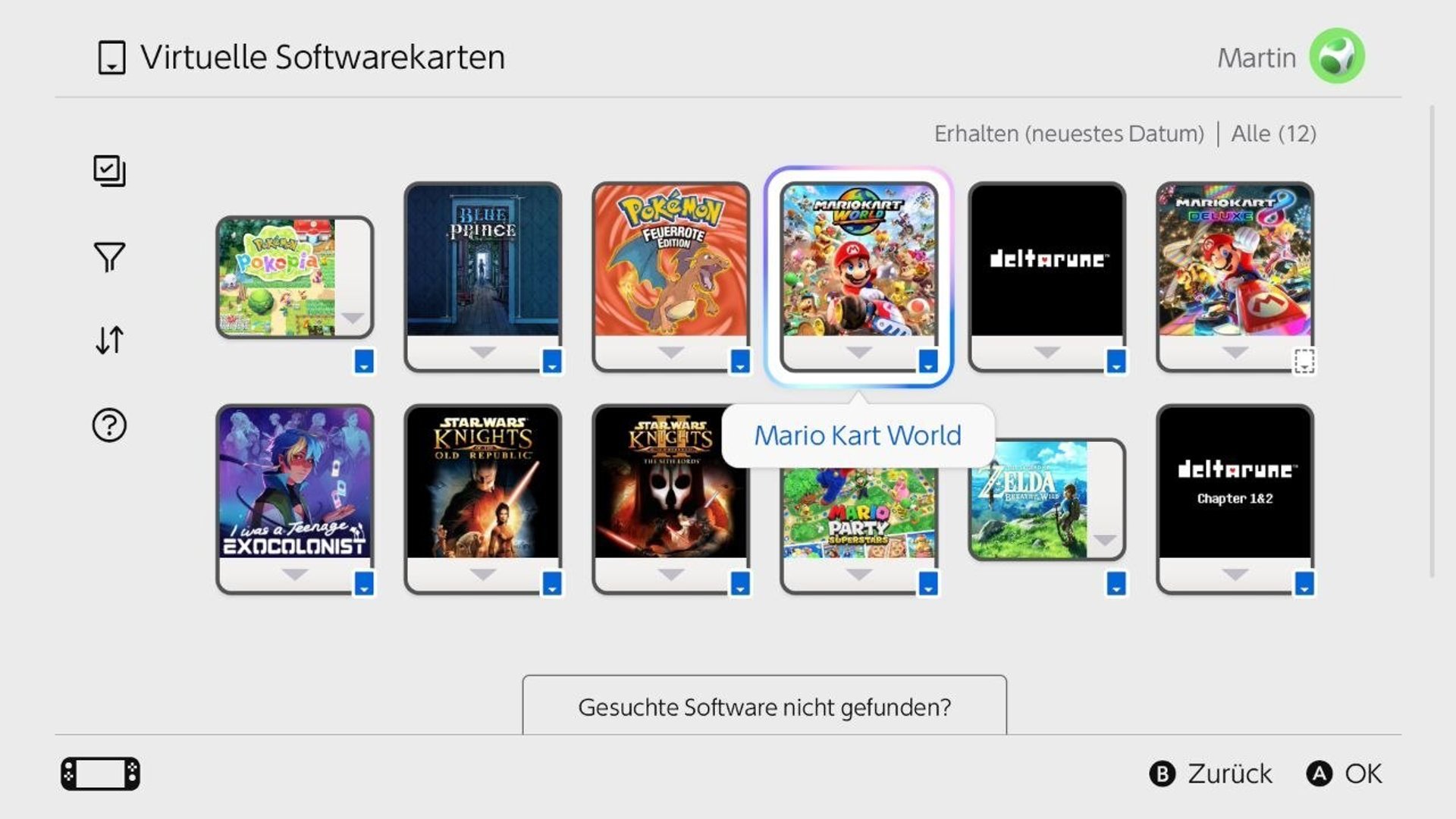
With an update in April 2025, Nintendo introduced virtual software cards that can be used to play digital games Move and lend between multiple Switch 2 consoles let.
- First, the consoles must be connected via the same Nintendo Account or via a family group.
- Then you can access your compatible games via the home menu on the desired console via the “Virtual Software Cards” item and download one of the games.
- In this way, all users of the respective Switch can access the game.
- However, the virtual software cards can only be active on one Switch 2 at a time.