In this guide, I’ll show you how to bypass Apple and developers’ ban on installing and running iOS games and apps on a Mac with Silicon M1 and M2 chips.
What is the problem
After the release of the MacBook Air M1 and macOS Big Sur, users were delighted with one useful feature – the ability to install games and applications on the computer from the iPhone and iPad.At first, even no chemistry was required: just go to the App Store and download everything that is available for mobile devices.
However, software developers quickly caught on and one by one began to close access to their applications to Silicon Mac users.Theoretically, the considerations of vendors are clear: applications have not been tested on a Mac, which means they can fail and anger users.However, three years later they never made it back to the Mac App Store, so it looks like there was a lot of marketing involved in the decision.
Enthusiasts quickly found a way to install such “harmful” utilities – they simply installed IPA packages downloaded from the net.But then Apple itself intervened and removed this feature from macOS within a couple of months.
At the time of publication of the article, the situation with iOS applications on Mac is as follows: you can download and use only those that remain in the App Store, and when you try to install the IPA from the network, the user sees this error:
But not all is lost.In this guide, we will learn how to install any iOS apps and games on Silicon Mac and discuss possible problems with this process.If it is easier for someone to follow the video guide, then he is right here.And with lovers of text instructions, we go further.
Preparation

We will install iOS applications hidden from the Mac App Store from the same IPA packages.It is these files that are used on the iPhone and iPad, and they are still supported by macOS on computers with Appe Silicon M1, M2 chips and their derivatives.
However, as mentioned above, simply downloading and installing the IPA will not work due to a limitation built into macOS.We will need a “laying” application.It’s called PlayCover.
A small free utility called PlayCover can be downloaded from the GitHub repository.It weighs about 6 MB and does not require any manipulation of the system;just download, install and use like a normal application.
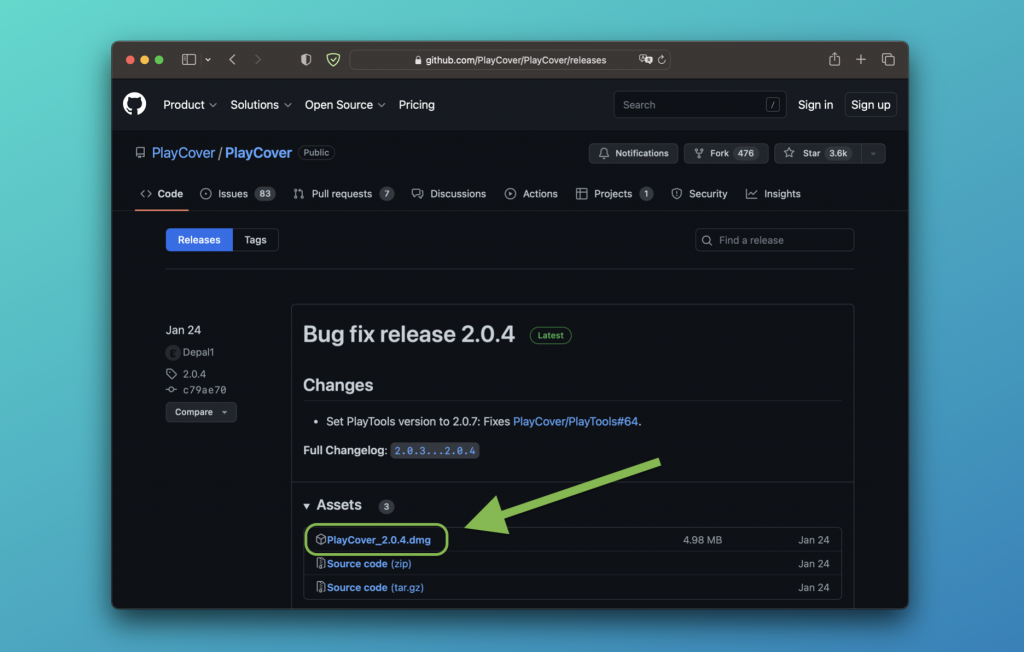
After loading PlayCover, the algorithm is as follows:
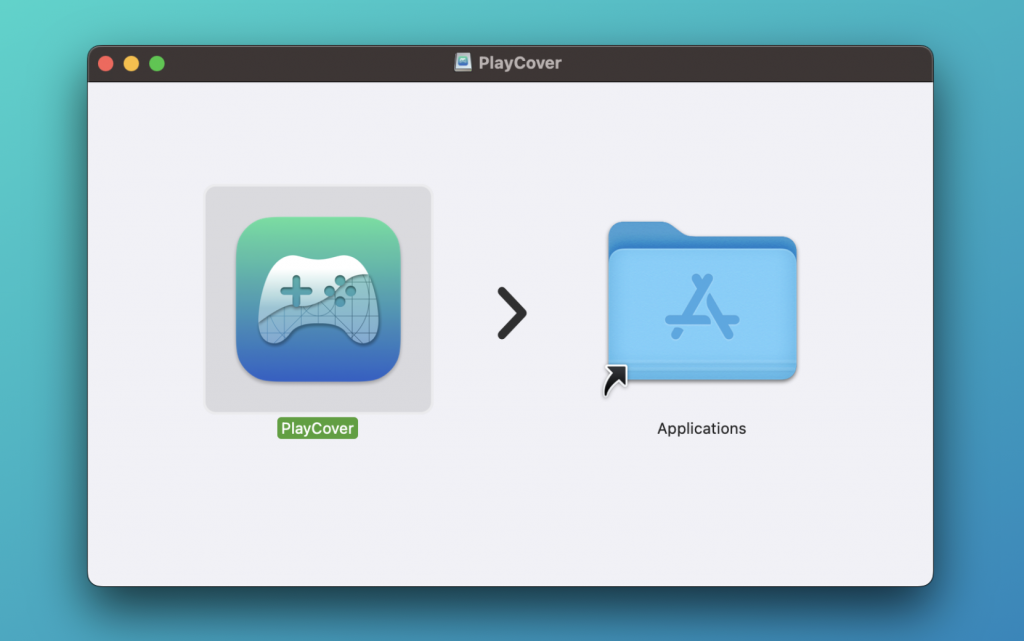
- Mount the downloaded DMG by double-clicking on the file
- Drag the PlayCover icon to your Applications folder
- Launch PlayCover from the application menu to make sure it works.
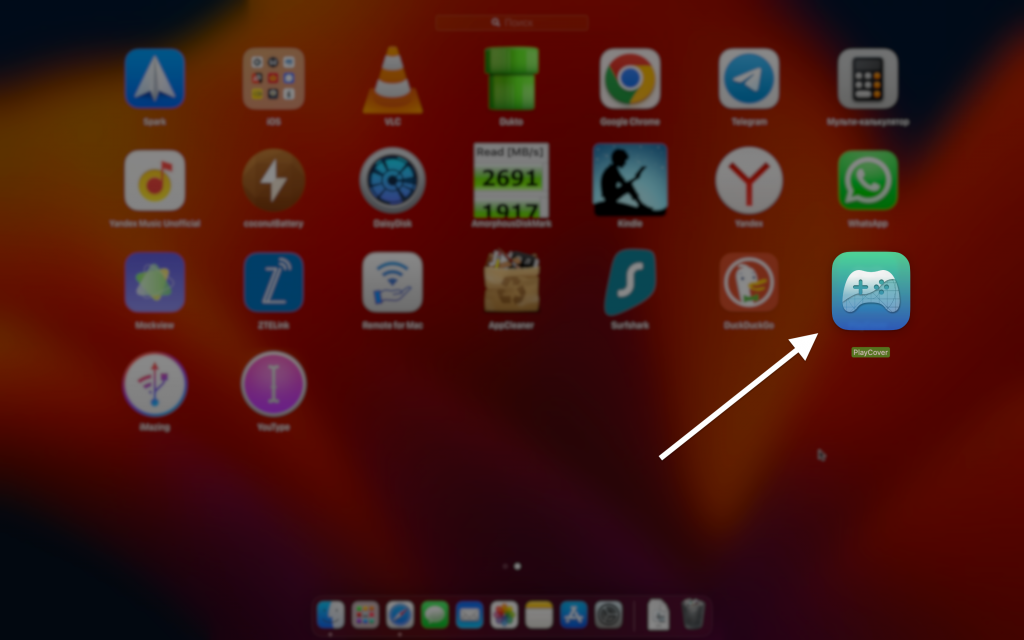
Looking for IPA files
To install via PlayCover, you will need the IPA files of “iPhone” games and applications.But not simple, but “clean”, that is, not tied to any Apple ID.Such packets are not encrypted and can be read by our utility.
Unfortunately, apps mined with iMazing or Apple Configurator will not install via PlayCover.Every package you need will have to be searched online.
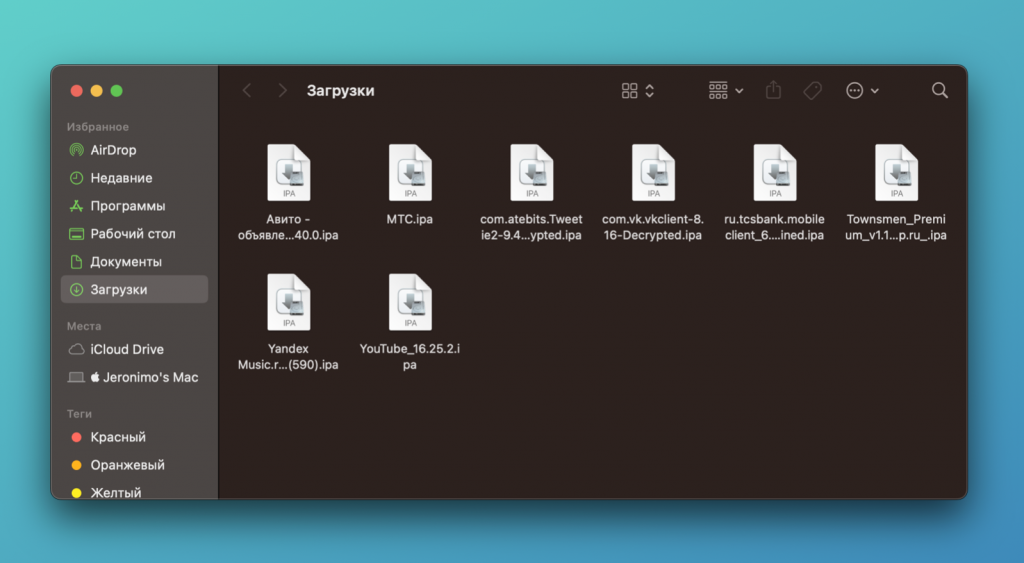
At first, I simply searched through a search engine: I entered the name of the application and added “ipa download”.Not all files from the results were suitable for PlayCover, but it’s easy to download and try, so you may have to spend some time.
Subsequently, I came across several resources that pull unencrypted IPAs directly from the App Store in real time.I took most of the iOS applications from there, although some (for example, VKontakte) did not succumb to persuasion.Here oneand here second.Use them at your own risk.
Installing iOS apps
So, you have found and downloaded the IPA files you need.Installation is very simple:
- Open PlayCover
- Drag the IPA file into the utility window
- Wait for the unpacking and installation to finish.
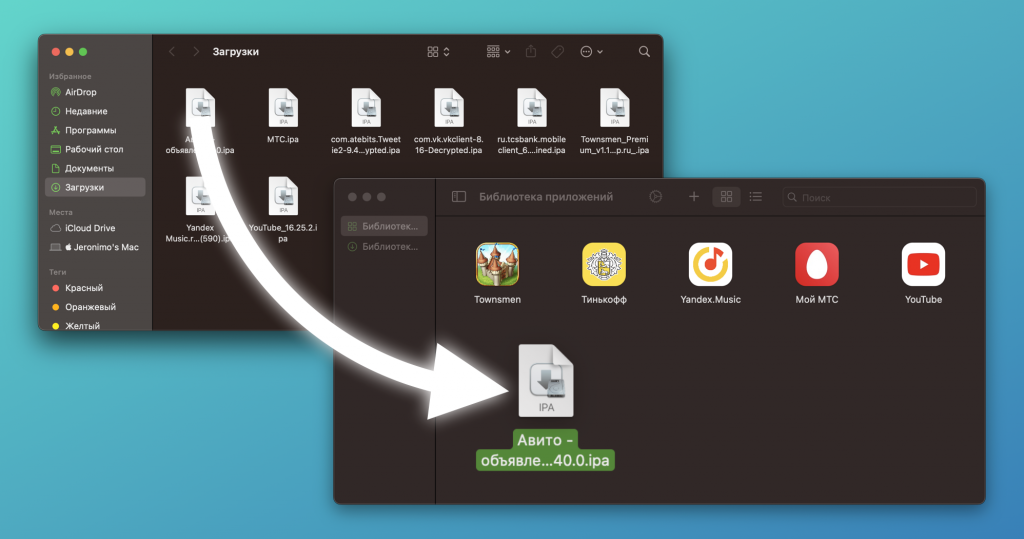
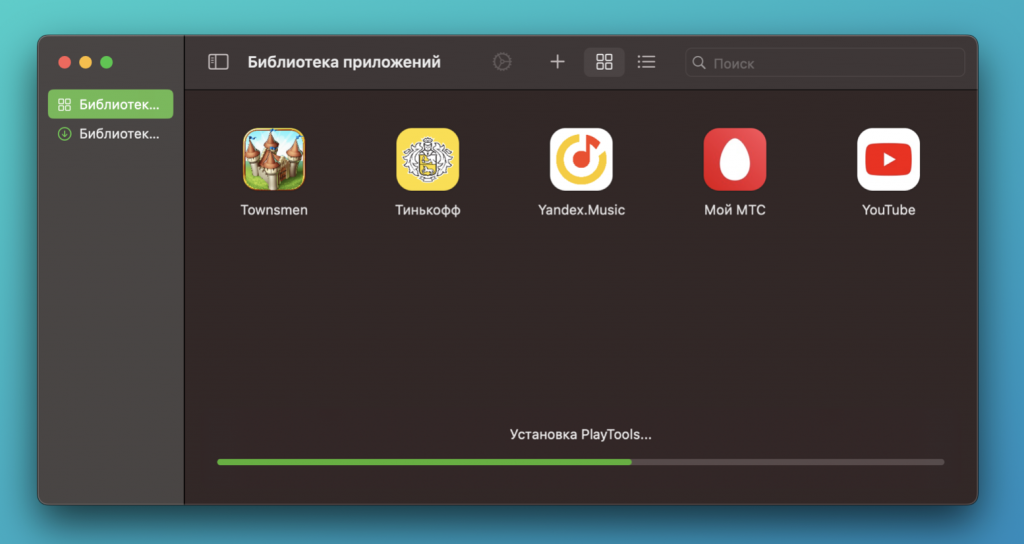
When the application icon appears in the PlayCover window, you can try to run it.If the application did not install the first time, there is no point in trying again;better find another IPA.
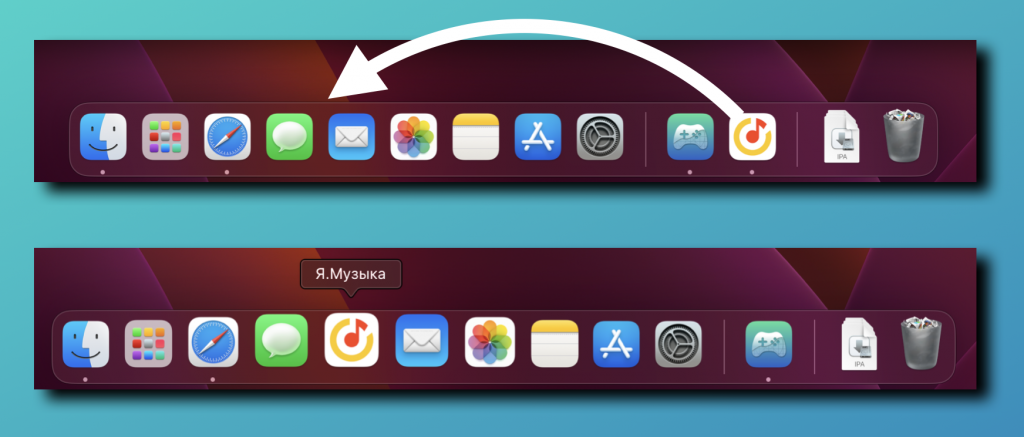
After installing the iOS application, it will need to be launched from the PlayCover window – there will be no icons in the general Launchpad application menu or in the folder of the same name.But there is one trick: when launching an iOS app from PlayCover, just drag its icon from the right side of the Dock to the left side.It will be fixed there and you can launch the application directly from the Dock.
I was able to successfully run quite a lot of iOS software.For example, I use the Avito, Tinkoff, My MTS, VKontakte, Yandex Music applications, and sometimes I launch the Townsmen game, which does not exist in the macOS version.By the way, the game doesn’t cause any anomalies or overheat my MacBook Air M1 – I haven’t seen temperatures over 45 degrees when it’s running along with other background processes and apps.
Deleting iOS Apps
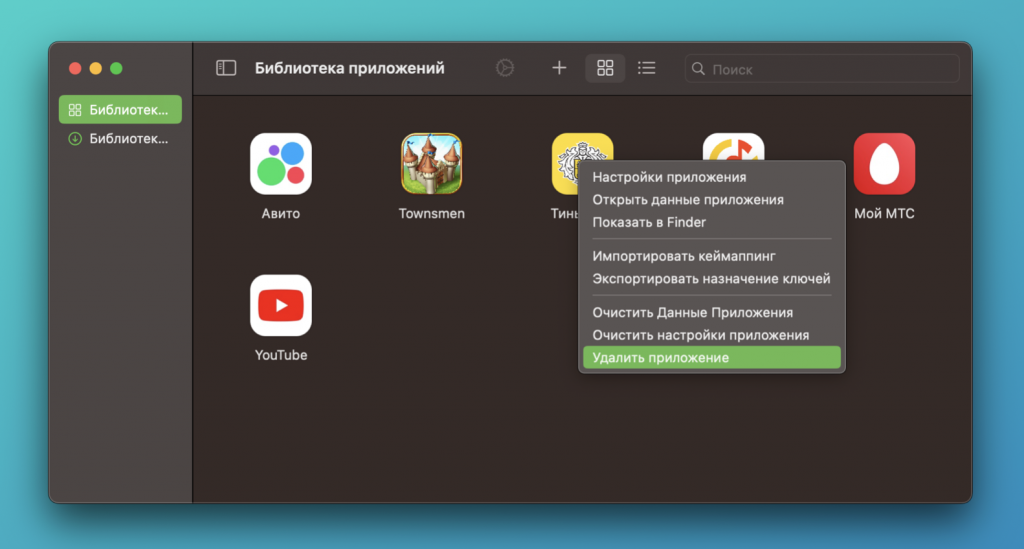
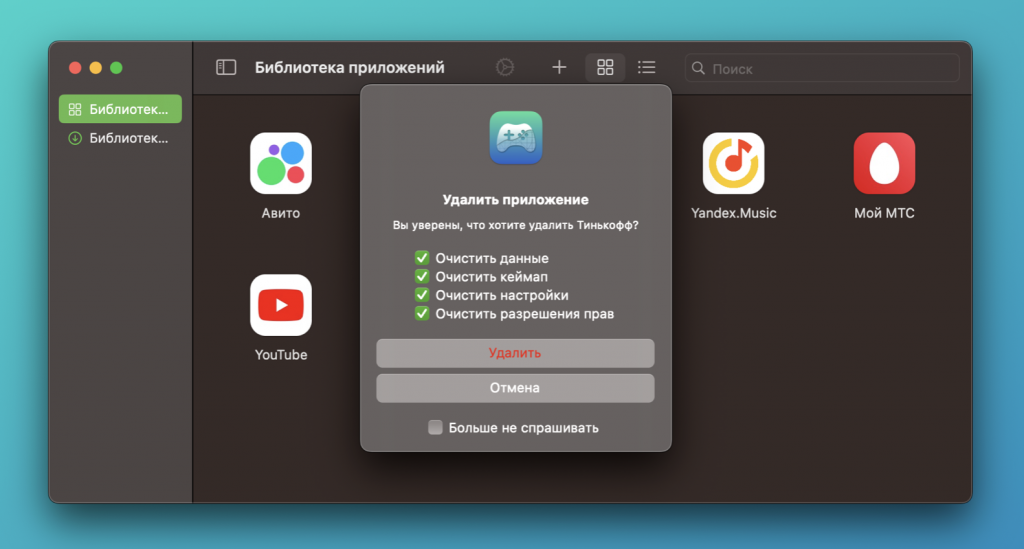
You can only delete installed IPAs inside PlayCover.Open the utility, right click or two fingers on the trackpad on the icon of the unwanted application and select “Uninstall”.Be sure to check all the boxes in the dialog box so that the application is completely deleted with all data and cache.
Installation problems
Theoretically, using PlayCover, you can install absolutely any application, no restrictions (except Notbinding to Apple ID) does not exist.At the same time, applications do not need to be reinstalled or re-signed, as it has to be done in the iPhone + Cydia Impactor bundle.The software installed in PlayCover remains operational indefinitely.
In practice, however, it is not uncommon for applications to malfunction.This is understandable: they are not designed to run on macOS.There are almost no errors during installation, but there are problems with launching.For example:
- Crash on launch. Such software can still run correctly 3-5 times.
- Run in an empty window. For example, the official Twitter client.
- Launching with incorrect window proportions. For example, “Sberbank” and “My MTS”;Depending on the situation, the application will either be able to be used, or not at all.
- Non-working elements and buttons inside the application. For example, the official YouTube client is installed and launched, but only a couple of buttons are pressed in the player.And he also has problems with the proportions of the window.
- No network connection. A rare glitch, but sometimes it happens: the Internet on the Mac is in perfect order, and the application gives a connection error.You need to look for another version.
Most of these problems cannot be fixed “on the fly”.If you really need the application, then, as an option, you can search and test a couple of previous versions – it happens that they are installed and work more correctly.
Write in the comments if you managed to install the iOS software you need through PlayCover, and if not, what problems did you encounter.I will try to answer questions to the best of my ability.