The iPad OS and Android have several ways to activate the feature to divide the screen between two apps. In addition, many Android manufacturers have put in fast shortcuts to more easily divide the screen into two. The advantage is that you can find a way that is right for you to easily divide the screen. The disadvantage is partly that it becomes more difficult to remember when there is no standard method, and partly that you risk dividing the screen by mistake when making an unintentional gesture. Therefore, it is good to know how to divide the screen on your particular device. Here we go through the different ways to divide the screen by system and manufacturer.
IPad
So do you
When you run an app there is in the middle of the top of the screen three small dots. It is the menu for running several apps. You can choose between Split View and Slide over. Split View means that the screen is split between two apps, next to each other, while if you choose Slide over, one app ends up in a floating window with the other app behind.
Whatever you choose, the app you are open is open and you see the home screen behind and can choose which app to open as a second app.
When you have two apps open, you get a divider with a symbol in the middle. You can pull it to the right or left to choose how much space the two apps will get on the screen. If you want to close one or the other app, you can do it in the menu with the three points, or by wrapping one window completely when you pull the divider.
An alternative way
You can use though, that is, the line with apps at the bottom of the screen, to divide the screen between two apps. When you have an app open, you can gently swipe up to the bottom of the screen to produce however. Then select one of the apps by pressing it and pull it up on the screen. It settles left or right or as liquid window depending on where you pull it.
If the app you want to open is not visible in the list among apps, you can get more up by opening the app library, the icon at the far right of Dock.
Pull and release
Depending on which apps you have open next to each other, you can drag and release content on the iPad. Apple gives, for example, that you can draw text from Safari to a note, an image from images to an e-mail or a calendar invitation to a text message. You press and hold on to what you want to pull and release until it looks to lift a little out of the app, then pull it over to the other app. You can select multiple images by pressing and pulling it, then continue to hold it while pressing multiple images with another finger.
Android
So do you
Go into the Multitask menu, either by pressing the square button in the bottom of the screen, or if you run with sweeping gestures, swipe up and hold from the bottom of the screen.
In the list of apps that run, press the app icon and select the split screen. On Xiaomi devices you need to press and hold on the icon, and the split screen option is displayed as a symbol without text. At OnePlus you get to press the symbol with three dots next to the icon.
Then choose the second app to open. Depending on the system version, you can either get up the appbibliotet or you can only choose between the apps contained in the multitask menu. In the latter case, you must then make sure to have started both apps you want to run in advance so that they are in the multitask menu.
The two apps you have chosen open on each half of the screen. Above each other if you keep your cellphone standing, or next to each other in landscape position. If you need to enter something, the screen keyboard opens and covers the lower app almost completely in standing mode. If you divide the screen into landscape, you get the keyboard in a liquid window. It is still in the way but you can move around where it is in the way. On a Samsung mobile, you have to go into the keyboard settings and choose a floating keyboard so that it does not settle completely over both windows.
You can pull the distinction between the two windows steplessly so that one window gets more space and the other less.
Liquid windows
You can also choose to open an app in a floating window, also called pop-up windows. This feature is not available on Google's pixel mobiles, but on most other Android mobiles we have tried. You start an app in pop-up windows in the same way you share the screen between two apps. The alternative called liquid windows, pop-up or similar is next to the split screen option.
With liquid windows you get the app in a smaller window that does not cover the entire screen. You can pull it to adjust the size and move around it much like a window on a computer. Most apps do not do very well in liquid windows because the content becomes quite small, but if you are going to use the calculator app, for example, it does well in a floating window above what you otherwise work with.
Alternative ways
Android's standard methods to divide the screen between two apps is not entirely smooth, and several manufacturers have therefore added alternative ways such as shortcuts to divide the screen between two apps. These work beyond Google's standard methods.
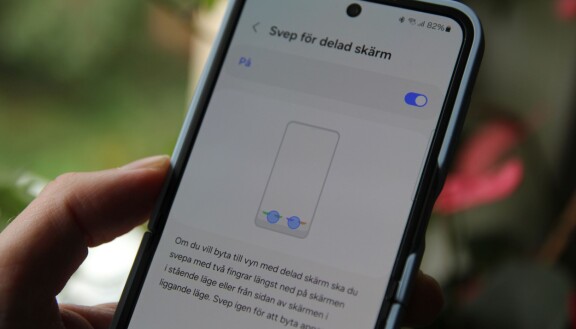
Samsung: Samsung has sweeping gestures to divide the screen between apps or open them in pop-up view. These used to be turned on by default, but since it was easy to access them by mistake if they did not know them, they are with the latest version of One UI by default. To turn on (or turn off if you are disturbed), go into the settings and select advanced settings/multiple windows and turn off or on the sweeping gestures.
If the gestures are turned on, swipe up with two fingers from the bottom of the screen, the app you have open on the upper half of the screen and you can open one to app under. If you sweep from one of the upper corners of the screen to the center of the screen, the app ends up in a pop-up window.
In addition, if you use the edge panel on your Samsung phone, you can also by dragging the app you want to start to the upper or lower half of the screen to share it with another app.
Sony: Sony also has buttons to divide the screen between apps at the bottom of the multitask menu where they are more visible than under the icon for each app. If you use the Side Sense menu which allows you to wrap a menu from the screen, you can insert combinations of apps that open on split screen here.
OnePlus: On OnePlus tablets, and on the folding mobile OnePlus Open, you can easily divide the screen between two apps by swiping from the top of the screen with two fingers. The function is not found in OnePlus other mobiles. If you are disturbed on this shortcut because you often access it by mistake, you can turn it off by entering the settings and selecting special features/double windows.
Motorola: If you run with three -button navigation instead of sweep navigation, you can turn on a shortcut to divide the screen between two apps. Go into the settings, choose gestures and drag to share. Once enabled, you can split the screen between two apps by wrap your finger back and forth sideways over the screen.
Xiaomi: If you have a tablet from Xiaomi, you can easily divide the screen between two apps by swiping with three fingers from the side of the screen. The function is not available on Xiaomis mobiles.
This is an excerpt from an article about dividing the screen between several apps that have previously been published exclusively for Plus members at Mobil.se. Here you can become a plus member and thus have direct access to all articles on Mobil.se. As a plus member you get collected tips and many other in -depth, guiding articles. You can find the entire article here.