This year’s Pixel 11 generation is here, and with them a lot of interesting news in Google’s system. Making a list of what the features are can be discouraging. Partly because many of the functions are not available in Sweden, but they may be later. A novelty that came with Pixel 11 may therefore not be relevant, while one that was introduced with Pixel 9 is now new in Sweden. Also, it is very difficult to tell which features are meant for Pixel only and which are only released to Pixel first and will come to more phones later.
So here is simply a list of interesting Pixel features. The focus is on news, but some features are not unique to the Pixel 11..
Hilight – The return of the notification light
Hilight gives the Pixel phones a notification light, but so far only the Pixel 11 Pro models.
Hilight is definitely a feature that remains exclusive to the Pixel phones that support it, it requires special hardware.
On the Pixel 11 Pro models (but not the regular Pixel 11), Google has added a series of colored LEDs to the photo light that sits next to the camera. It can then glow in different colors and function as a notification light if you place the mobile with the screen facing down.
You control the function under Settings/System/Hilight. At the time of this writing, there is not much to see here, Google has so far only two functions, but they promise more over time. The one feature is that the lamp lights up with a pulsating light to show that the phone is listening when you address it with Hello Google to activate Gemini.
The other feature is that the lamp can glow in different colors if one of your favorite contacts calls. To choose the notification color, go into the Contacts app and select the contact for which the light should light up. If you scroll down, you will find a field for Hilight, and you can choose which color the lamp should shine in. There are only five color options to choose from, so there is an extremely limited number of contacts you can color mark, but you can at least see if it is one of them who is calling without picking up the phone.
Pro Zoom
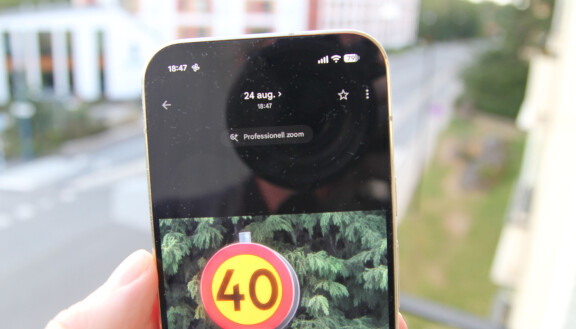
The Pixel phones allow you to take sharp pictures with up to 120 times zoom. With a large dose of cheating.
The telecameras on mobile phones usually have an optical zoom of 3-5 times, and you can get twice that if the sensor is high enough and you crop the image. After that, you don’t really get a sharper image with more details if you zoom in more, but mobile manufacturers often resort to tricks like sharpening in the image processing and subject recognition to make the image look sharper. Google’s Pro Zoom, which has been on the Pixel Pro phones (but not the regular Pixel or Pro Fold) since the Pixel 10 Pro last year, goes a step further and uses generative AI. In this year’s Pixel 11 Pro and 11 Pro XL, they’ve increased how far you can zoom in this way from 100 to 120 times.
The results are impressive, but basically faked. When you take a picture with at least 30x zoom, you get both the original image (which, of course, is also processed with various methods to look as sharp as possible), and a completely sharp AI-generated image based on the original image.
You get really sharp images taken even with over 100 times zoom, but AI cannot conjure and the information added to the image is invented by Generative AI, which rather makes a creative interpretation of the image.

For example, if you shoot a pine tree at an extreme distance, the AI realizes that it is a coniferous tree, but not necessarily a pine tree, and recreates a tree that does not look very much like a pine tree. A house with a tiled roof can get some kind of odd slate roof as roofing and a beech spine can get fancy decorations that are not there at all in reality.
One can debate whether an AI-generated zoom image that does not reflect reality is something you want or not, but in any case you get two images and can choose for yourself whether you want the AI-enhanced one or not. The pictures are best the closer you are to 30x zoom, then there is more information to go on and the picture stays closer to reality.
Tip: With extreme zoom, it can be difficult to get the subject in because small movements become very large. But in one corner, a zoomed-out view of what you’re shooting appears with a yellow square showing the part of the image you’ve selected. You can tap and drag the yellow square on the screen to better aim the camera at the subject you want to capture.
Rambler: Dictate text and get it the way you want it
With Rambler, you can stutter and change your mind and still get nice text when dictating.
Rambler is a new feature to Google’s Gboard keyboard, and likely an example of a feature coming to the Pixel 11 series first and other Android phones later rather than exclusive to the Pixel.
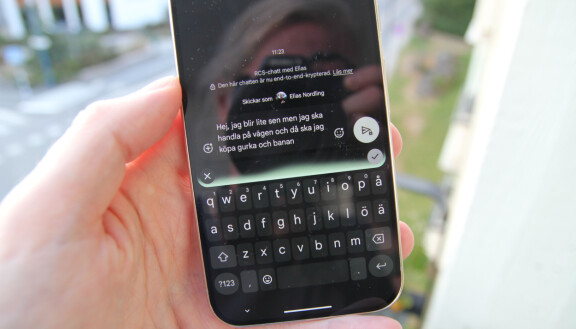
When you have the on-screen keyboard open for typing, regardless of the app, you can select the microphone button, which now has a little AI star next to it, to dictate text. If you do, Gboard will automatically clean up what you say, removing hyphens and filler words and giving you clean writing. You can also make changes while dictating and tell Gboard to add the appropriate emoji.
For example, I try to say “Hey, uh, I’m going to be a little late, but I’m going to do some shopping on the way and then I’m going to buy cucumber and melon. No, not melon, banana”. The text I get is “Hey, I’m going to be a little late but I’m going shopping on the way and then I’m going to buy cucumber and banana.”
Rambler thus understands that not only uh but also sort of is a filler word that should not be used in written language, and is able to correct the text afterwards when I change my mind about what to buy.
Magic moment
Let the mobile camera choose the right moment to take the picture.
Live pictures, we have seen before, even in Pixelmobiles. Then you get a short video clip from just before we took the picture, so you can choose a different moment than the one when you clicked afterwards.
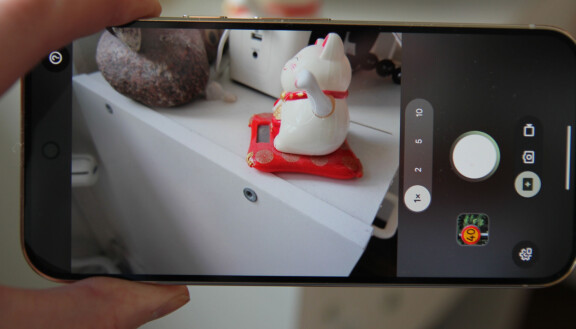
Magic moment, or Magic Capture as the function is called in English, reverses the idea. Instead of pressing the button, you record a video clip, and then the AI selects the best moment afterwards. In addition, if necessary, blur is corrected and the image is edited.
You activate the function by pressing the box with a star on it in the list where you also select video mode. In the settings, you can also set magic moment to be the default mode when you launch the camera app if you prefer. Then just press the shutter button when you want to start and stop filming. You can choose to take a still image at any given moment by pressing the round button next to the shutter button while recording. You can also select a moment to make a still image of afterwards by rewinding the saved movie, pausing at the right moment and choosing save as photo.
According to Google, Magic Capture runs faster if you are connected to the Internet when using the feature. This suggests that it uses generative AI on servers if it can but otherwise locally. It is therefore unclear how much computing power Magic Moment requires of the phone and whether it will therefore also come to older Pixel mobiles, but we can count on the function not coming to Android mobiles other than Pixel.
Creator mode – For those who post content on social media
Google has added a number of really handy tools for anyone creating video content to be viewed by others.
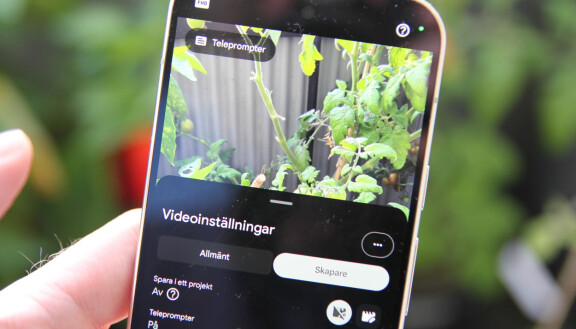
For creator mode to work, you must first of all have image backup in Google Photos turned on. You’ll find the features in the camera app’s video mode. Press the video settings button and you will see the creator tab at the top of the settings.
Here you can, among other things, choose to save a movie in a project, which is then saved in a special project folder where you get the movies you want to cut together. You can also get a grid on the screen so you can see the proportions if the video is to be uploaded to social media.
One of the more interesting features is the teleprompter. With that feature, you can get scrolling text on the screen so you can read from a script while looking into the phone’s camera.
With the teleprompter turned on, you can add text by pressing the Teleprompter button in the video viewer. The text is just a simple field into which you cannot import documents, but you can, for example, write the script in Google’s note-taking app Keep on mobile or computer, cut and paste the text into the teleprompter.
If you write text in English or another language recognized by the phone, the speed of the text will be adapted to the language rhythm of what you wrote. Swedish is not yet one of the recognized languages, so the text scrolls at a fixed speed on the screen instead.
This feature will remain exclusive to Pixelmobiles but will probably come to older phones.
Choose how your photos will look before you take them
You can create your own color profile for photos in the Camera app on the Pixel 11.
mobile cameras must automatically determine color calibration, exposure, whether to use HDR to brighten shadows and if so how much, and more. If you compare different manufacturers’ mobile cameras, you can often see different styles in the images without one necessarily being more correct than the other.
In the Pixel 11 series, Google has lifted the hood a bit and gives users who want influence over how the images will turn out.
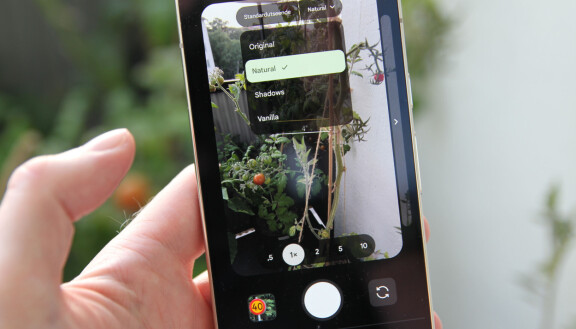
In the mobile camera app, press the button with the slider in the lower right corner (if you are holding the mobile in portrait mode). Choose styles to adjust the default look of the photos you take.
here are four default modes to choose from. Original, Natural, Shadows and Vanilla. You see directly on the screen how the images will differ.
You can also configure the various modes yourself in detail. At the bottom of the screen you have a menu bar with eight different categories, such as contrast, highlights and shadows, which you can adjust yourself. if things get crazy you can always reset the settings.
In this way, you can choose not only how individual images should look, but which image settings you automatically get when you start the camera app.