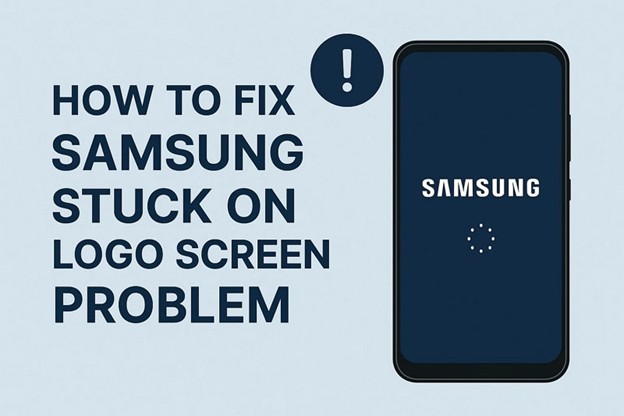
As many individuals heavily rely on their smartphones for daily tasks, sudden issues can be quite disturbing. One common problem is when a Samsung phone gets stuck on the logo screen during startup. This usually happens without any warning, which ultimately leaves users confused and helpless.
Although it appears to be a significant problem, you can still efficiently resolve it with the help of some quick methods. In this article, you will explore the actual reasons and various solutions to repair your phone. Besides, this guide contains a helpful and trusted Android repair tool that lets you fix your Android issues automatically.
Part 1. 5 Potential Reasons Behind the Samsung Stuck on Logo Screen Problem
When you wonder why your Samsung is stuck at the logo screen, discover the following common reasons behind it:
- In case a system update is delayed or fails, it can corrupt essential files and stop your device from loading properly.
- Installing incompatible apps can harm the system and ultimately require a proper system repair for Android devices.
- Many times, a faulty or weak battery also prevents the system from powering up fully, which leads to an incomplete startup process.
- Modifying the system using root or third-party ROMs usually creates instability and boot problems, such as a stuck screen.
- Damaged system files can also confuse the phone during startup, which leads to the stuck logo screen issues.
Part 2. How to Fix Samsung Stuck on a Logo Screen – Dr.Fone – System Repair (Android)
The best and secure way to fix the Samsung stuck on logo screen issue is by using Dr.Fone – System Repair (Android). It supports over 1000 Samsung models, including Galaxy S24 and S25, across all major carriers. This dedicated Android repair software helps users fix many common system issues related to their phones automatically. In addition, it can handle many other problems, like boot loops and app crashes.
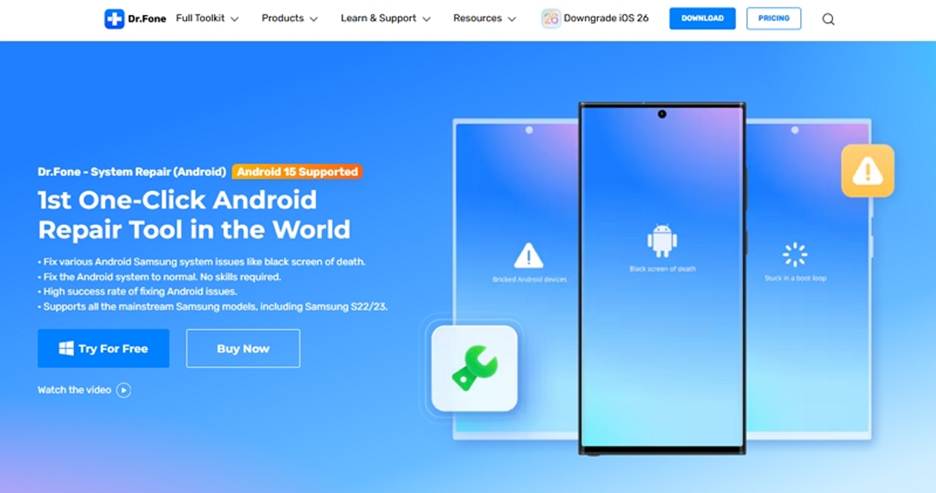
Along with that, the tool works with Android versions as early as 2.1 and supports up to Android 15. Even users without experience can complete the entire process without any confusion or complicated settings. With a high success rate, Dr.Fone is the most effortless method, as you can even install it on any Windows or macOS device to repair your Android phone at home.
Key Features
- Repairs Black Screen of Death: It fixes devices stuck on a black screen without needing to flash firmware manually or visit service centers.
- Handles Bricked Devices: You can resolve unresponsive or “bricked” devices that won’t turn on or function after failed updates or rooting.
- Automatic Firmware Download: The software finds and downloads the correct firmware based on your device model and brand information.
Detailed Guide to Fix Samsung Stuck on a Logo Screen Using Dr.Fone
As you explore its features, adhere to the given steps to fix the Samsung stuck on a logo screen problem effortlessly:
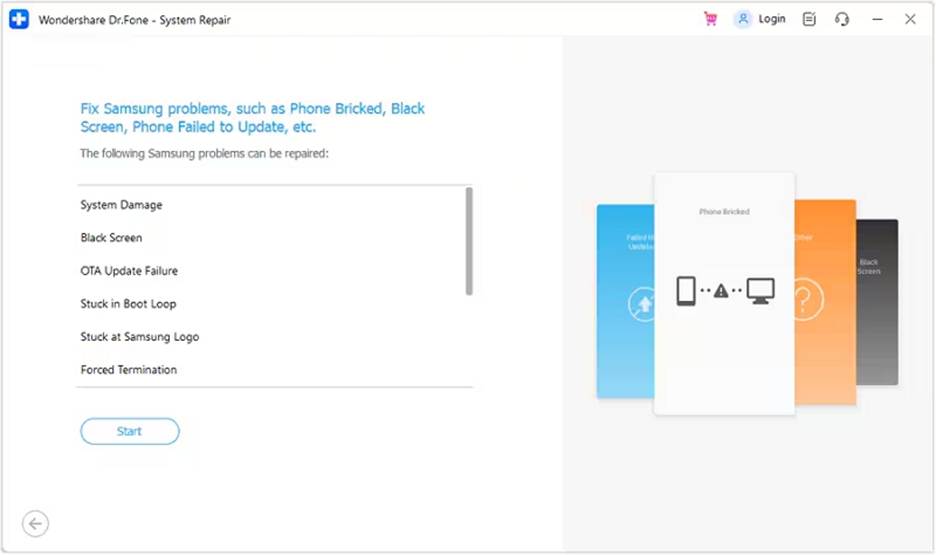
Step 1. Start Fixing the Samsung Stuck on a Logo Screen
Once you head to the “Toolbox” section, opt for the “System Repair” tool and select “Android” device. On the following screen, hit the “Start” button and link your phone to the computer.
Step 2. Enter Your Android’s Information to Download the Firmware
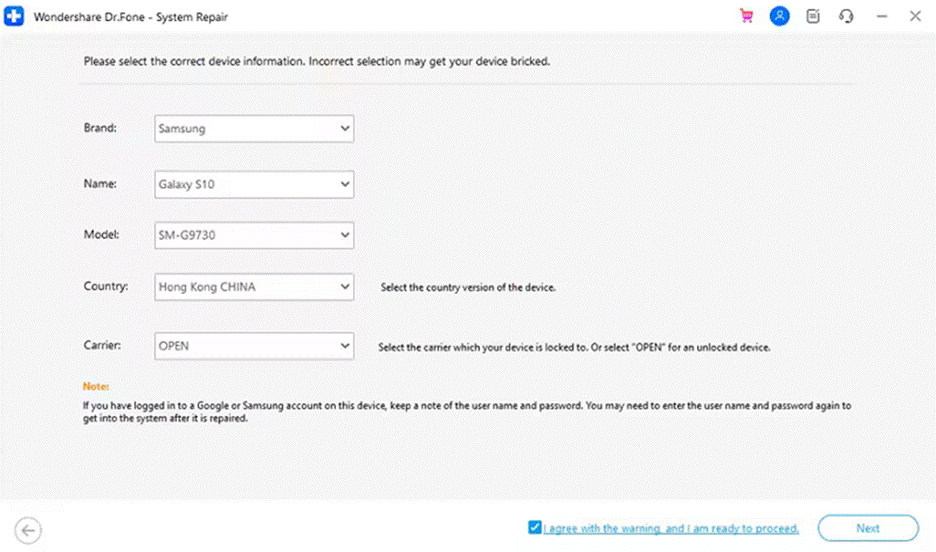
Going ahead, enter your phone’s information and click the “Next” button. After that, you need to put your mobile into “Download Mode” and then the latest firmware starts downloading onto your device.
Step 3. Successfully Fix the Samsung Stuck on a Logo Screen
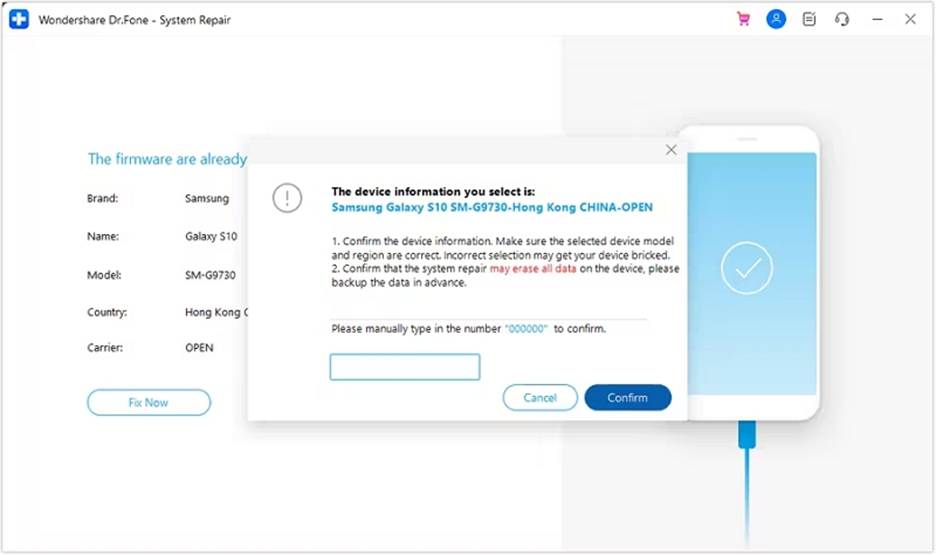
Upon completing it, press the “Fix Now” button, enter the “000000” number, and hit “Continue” in the displayed dialogue box to repair your phone.
Part 3. Fix the Samsung Stuck on a Logo Screen Issue by Reinstalling the Battery
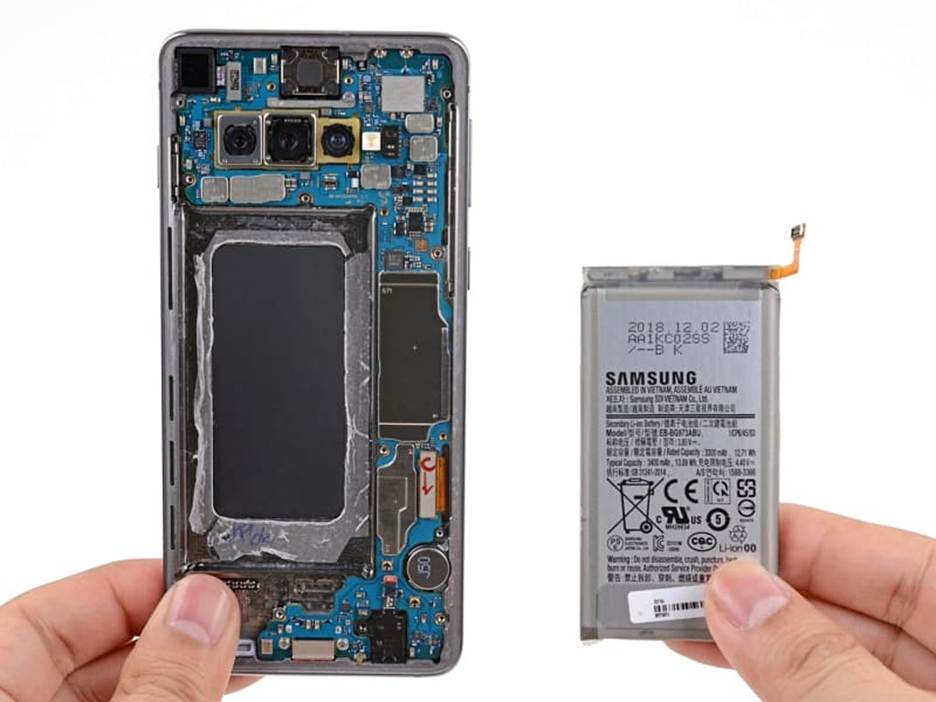
When you are using an older phone, you can also try to reinsert the battery before you go ahead with the advanced repair for Android method. This method resets the power flow and can clear minor glitches that stop the phone from starting. Thus, you need to remove the back cover, remove the battery, and reinsert it after a minimum of 1 minute.
Part 4. Verify the SIM is Correctly Installed to Fix Samsung Stuck on a Logo Screen
It is also advisable to check the SIM card to ensure it is inserted properly. As you take out the tray, carefully align the card in the designated area and insert it back. This basic Android repair step can fix boot errors caused by hardware misplacement or detection problems during startup.
Part 5. Perform a Wipe Cache Partition to Resolve Samsung Stuck on a Logo Screen
In case the above basic solutions can’t help, perform the wipe cache partition to fix this issue. It works by putting your device into the Recovery Mode and then doesn’t delete your phone’s data. Anyhow, follow the detailed steps to find out how you can perform this system repair for the Android method:
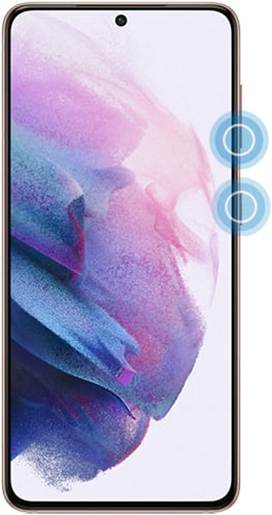
Step 1. After powering off your device, press the “Power” and “Volume Up” keys at once for a minute to put your phone into Recovery Mode.
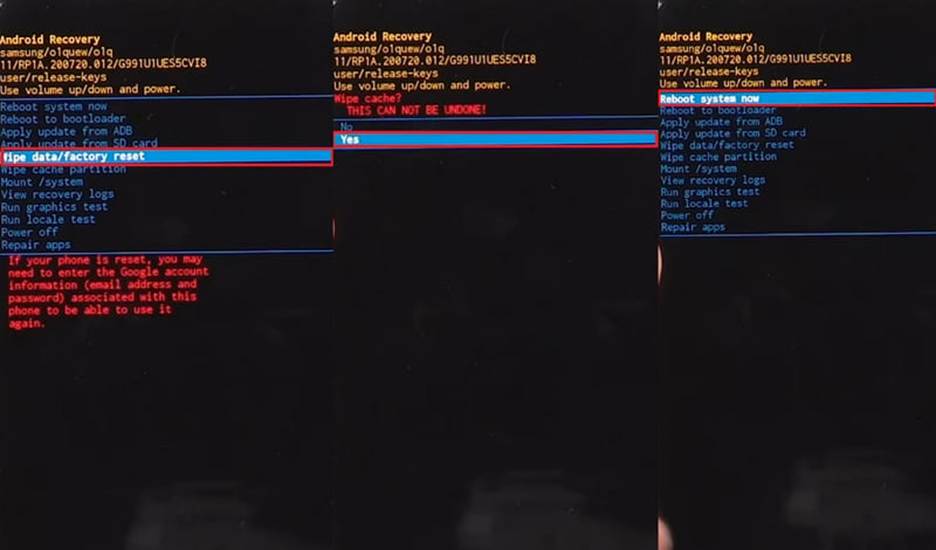
Step 2. As it appears, use the “Volume Down” key to opt for the “Wipe Cache Partition” option and confirm it by hitting the “Power” button. Following that, select the “Yes” option to perform it and then opt for “Reboot System Now” on the next display to finish this task.
Conclusion
To sum up, facing the Samsung stuck on the logo screen problem can be disturbing when you don’t know the solution. Luckily, you have explored several basic and advanced Android repair fixes to address this dilemma. If you want to try the secure and effortless fix, we recommend using the Dr.Fone – System Repair (Android) tool that automatically repairs your phone.