Both the console and the included PS5 controller are full of exciting hardware and software, that provide their users with numerous functions. However, some of them are harder to find than you think. We’ll show you a few secret features of the console that you might not have noticed yet.
Game presets save you a lot of time
Don’t you feel like having to go through the settings for every new game? You no longer have to do that with the PS5. In the system settings you can specify in advance how your games should run by default.
Go to that Settings > Saved Data and Game/App Settings > Game Preferences. There you set, among other things, the level of difficulty, subtitles, audio, inverted camera control and the performance or resolution mode. The PS5 then adopts these settings automatically – provided the respective game supports the feature. You can assume this with most exclusive titles.
Activate spoiler protection – no more unwanted story revelations
Your friends can’t hold back and post screenshots with big spoilers? The PS5 has built-in protection against this.
Under Settings > Saved Data and Game/App Settings > Spoiler Warnings You can decide whether you only want to be warned about content that the developers have marked as spoilers – or whether you generally want everything hidden that you haven’t seen in the game yourself.
Mute the controller and save battery at the touch of a button

The DualSense controller is packed with features – but also eats up a lot of battery. With a few simple steps it will last significantly longer.
- Quick mute: Briefly press and hold the small button directly below the PlayStation logo – all output devices will be muted, from the TV speakers to the headset. Practical when the doorbell rings or someone asks you something.
- Save battery: Under Settings > Accessories > Controller you can set the volume of the controller speaker to zero. The intensity of the vibration and the adaptive triggers can also be reduced in the same menu. Both save energy.
Important to know: If the controller’s built-in microphone is active and no headset is connected, the PS5 automatically reduces the intensity of haptic feedback and adaptive triggers. If you want the full controller experience, you should mute the internal microphone. This can be done either by briefly pressing the mute button – or permanently Settings > Sound > Microphonewhere you can set the “microphone status when logged in” to “mute”.
Bonus tip: Under Settings > System > Energy Saver You can set the controller to switch off automatically after a certain time. The default setting is “never” – you should definitely change that.
Recordings in 4K – this is how you get the best quality
If you use the PS5’s recording function and value the best possible image quality, you should look at the recording settings. The console only records in Full HD ex works.
Goes in Settings > Recordings and broadcasts > Recordings > Video clip format. Select “File type” first “Highest efficiency (WebM)” off – then you can click on “Resolution of the recording”. 4K change.
In the same menu under Shortcuts for Create button You can also adjust the pressing behavior of the Create button and change the maximum length of your video clips.
Good to know: Although the WebM format offers the best quality, it is not supported by many common editing programs such as iMovie or Adobe Premiere. If you want to edit your clips later, you should instead MP4 select as file type.
Capture trophies as a video instead of just a screenshot

PS4 players know it: the console automatically creates a screenshot for every trophy. The PS5 can do this better – there is a default here 15 second long video clip your triumph saved. If that’s not enough, you can change the length in the settings up to 30 seconds screw up.
You can find the options for this below Settings > Recordings & Broadcasts > Trophies. There you can choose between screenshot and video – or deactivate automatic trophy recording completely if you want to save storage space.
Customize Control Center – your personal quick access bar
If you briefly press the PlayStation button, the Control Center appears with its quick access bar at the bottom of the screen. What many people don’t know is that you can customize this bar to your liking.
In the Control Center, navigate down to the bar and press Options button (to the right of the touchpad). Now you can choose which shortcuts you want to show and which you want to hide. Unfortunately, the bar cannot be completely cleared – but you can prioritize your favorites.
Your profile reveals more than you think

Sony has really expanded the profile page on the PS5. You can now access significantly more data and statistics there than on the PS4 – for example yours Playtime for all PS4 and PS5 titles.
By the way, this also works for your friends: you can see how many hours they have put into which game. So if you want to know whether your buddy really only played Elden Ring “for a short time” – you can find the answer here.
The PS5’s secret browser

If you click through the PS5 menu, you won’t find a browser – at least not at first glance. Sony has hidden the feature well, but it exists.
To open the browser, go to Settings > Users and accounts > Connect to other services. Select one of the services there, click on “Link account” and then use the data protection link on the registration page – this will take you to Google search and you can surf the web from there. The catch: The browser is still pretty rudimentary and not intended for extensive surfing. A nice gimmick, but nothing more.
Voice input instead of typing – the microphone in the controller makes this possible
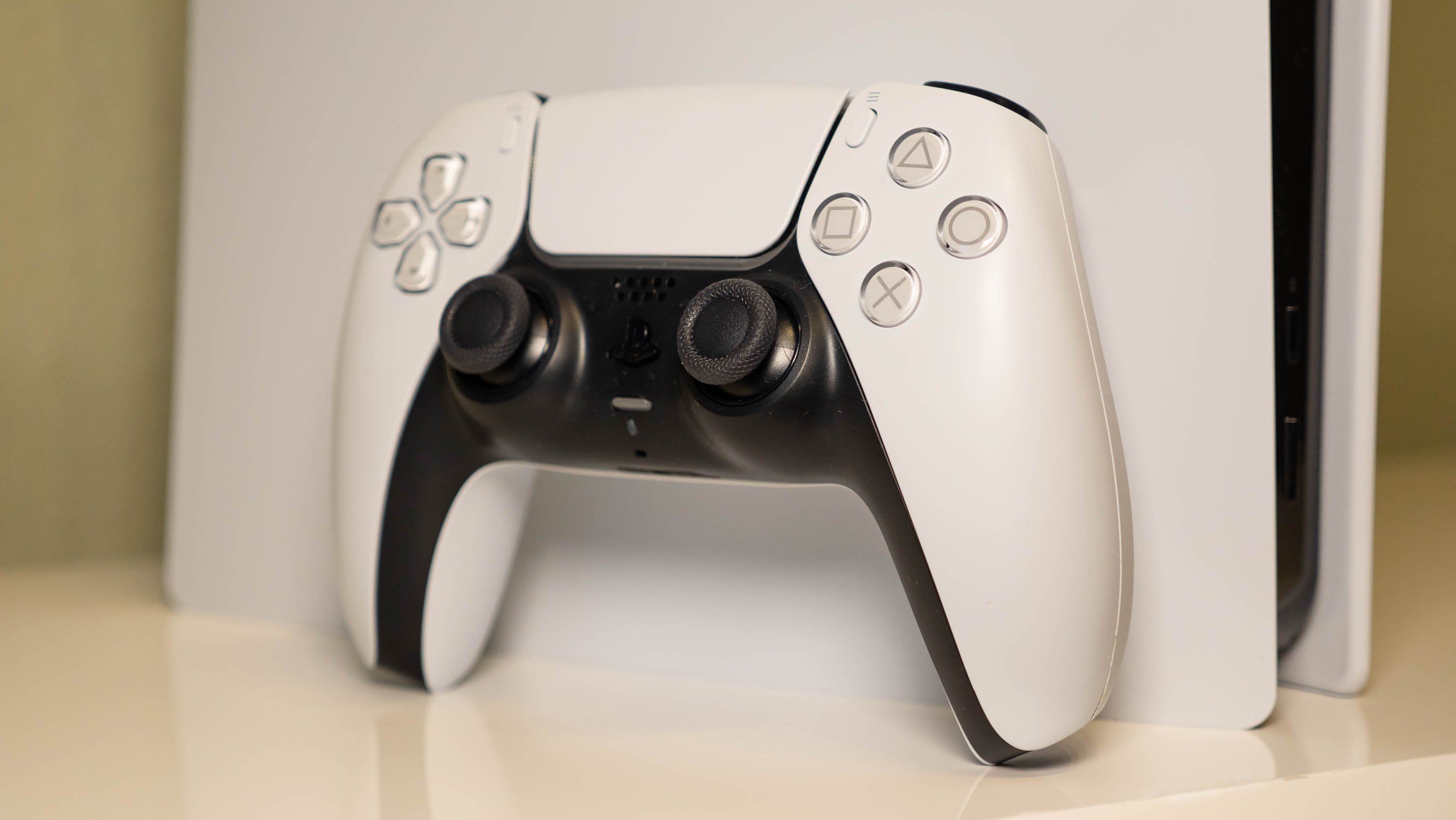
The DualSense controller has a built-in microphone – and it’s not just for party chat. You can do it for them too Text input use it and save yourself the hassle of typing on the virtual keyboard.
Simply select this in any text field on the digital keyboard Microphone icon to. A message then asks you to speak into the controller. Tip: Speak loudly and clearly so that the speech recognition delivers clean results.
Manage games remotely via your smartphone
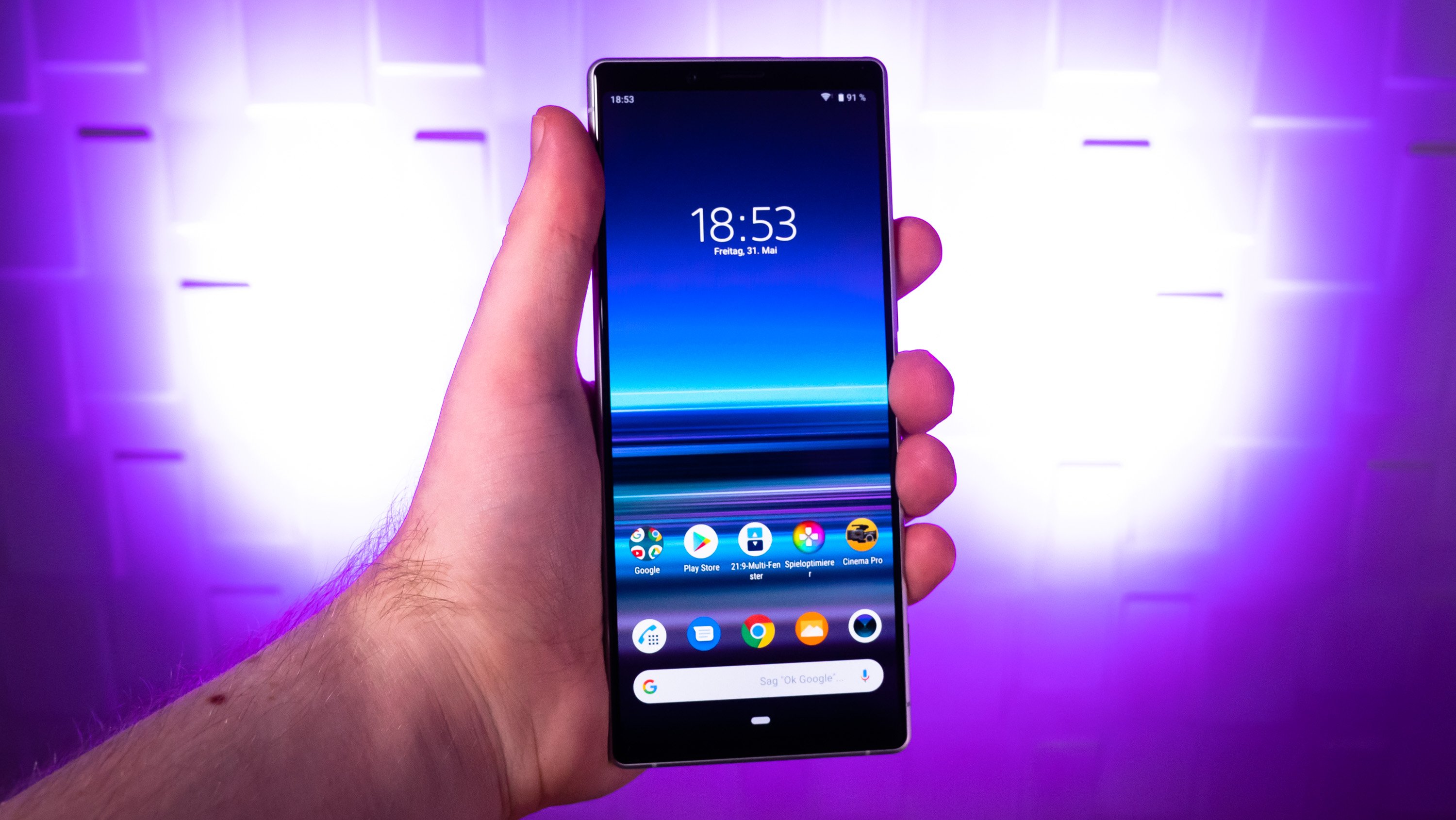
You can install games on your console on the go using the PlayStation App – that’s nothing new. But the PS5 goes one step further: If you don’t have enough storage space for an installation, you can Delete other titles directly from the console via your smartphoneto make space. This way you don’t have to go home to clean up.
Move PS4 games to an external hard drive
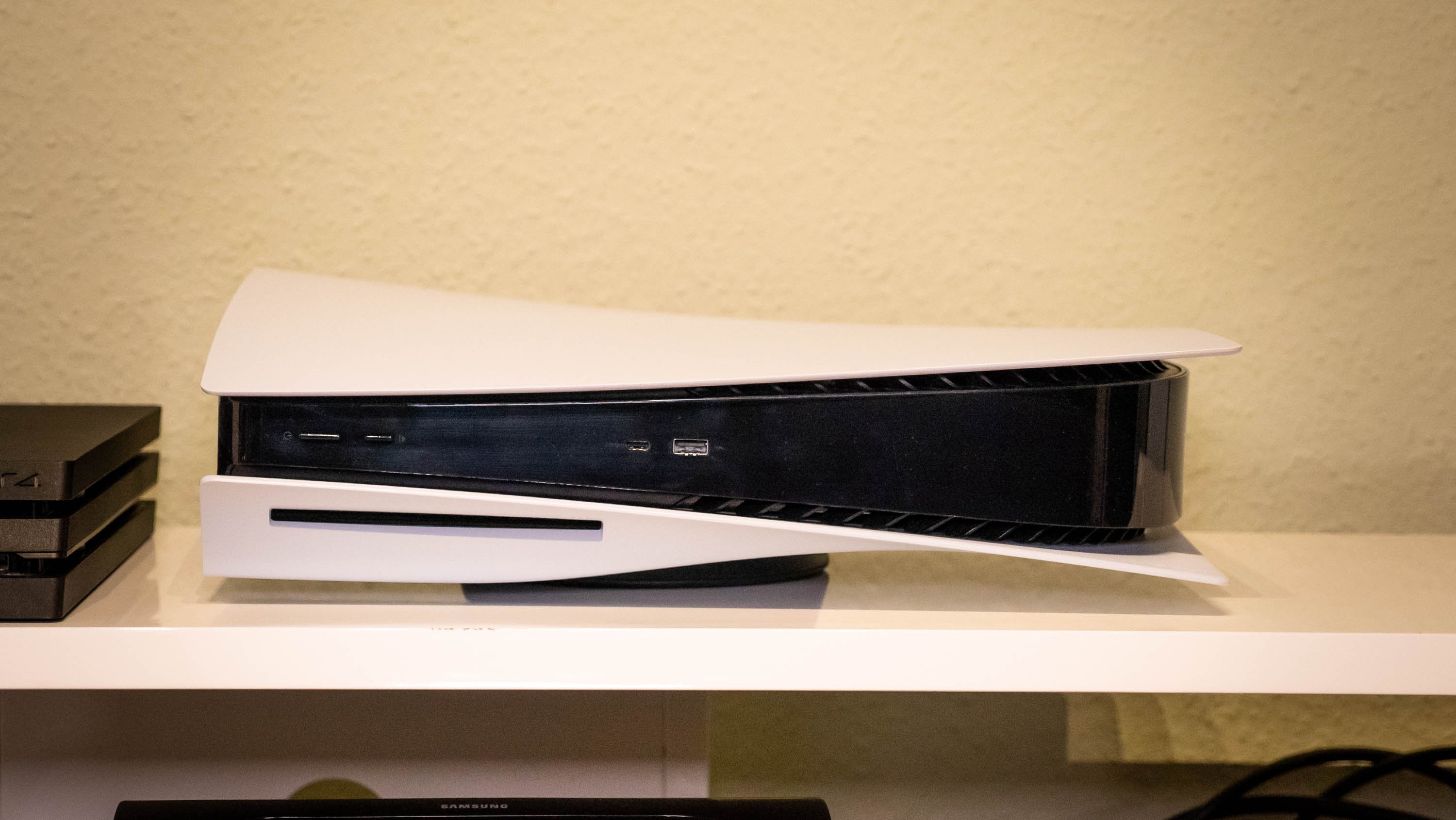
The PS5’s internal storage isn’t exactly generous. If you own PS4 games, you can move them to an external hard drive and play them directly from there – this creates valuable space on the internal SSD.
Also PS5 games can now be moved to an external data carrier – but only for archiving. To play, they must be copied back to the internal SSD. But this is still faster than downloading the entire game again. You specify the installation location for new games Settings > Storage > Install Location a. There you can specify whether PS4 titles should end up on the internal or external storage by default.
Download additional language packs for your games
Do you want to play a game in English and in German without changing the system language each time? The PS5 allows you to multiple voice data at the same time for installing a game.
To do this, go to the tile of the respective game on the home screen and press it Options button. Then choose “Manage game content” – there you can see the language data that has already been installed and can add additional packages.
More accessibility than you might think
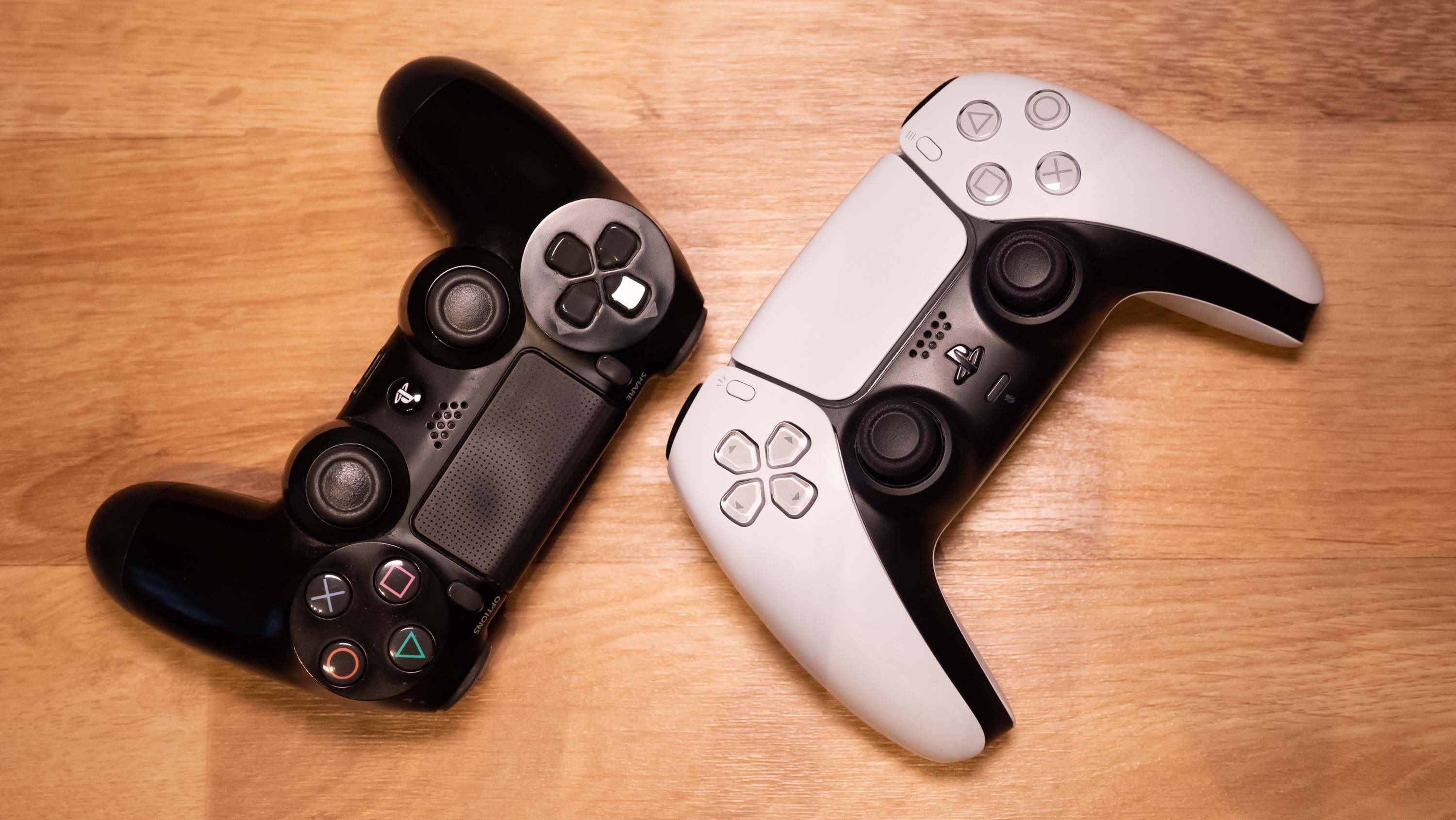
Sony has significantly expanded the accessibility options on the PS5. Under Settings > Accessibility You’ll find numerous customization options that make gaming more enjoyable and accessible – such as display, audio and control adjustments. It’s worth taking a look around there, even if you don’t have any restrictions.
Customize notifications – no more annoying pop-ups
Trophy notifications, friend requests, game invitations – the PS5 bombards you with notifications by default. That doesn’t have to be the case.
Under Settings > Notifications You can turn each type of notification on or off individually and determine when they should be displayed. This means that no more pop-ups will disrupt your game flow.
Library filter for more overview
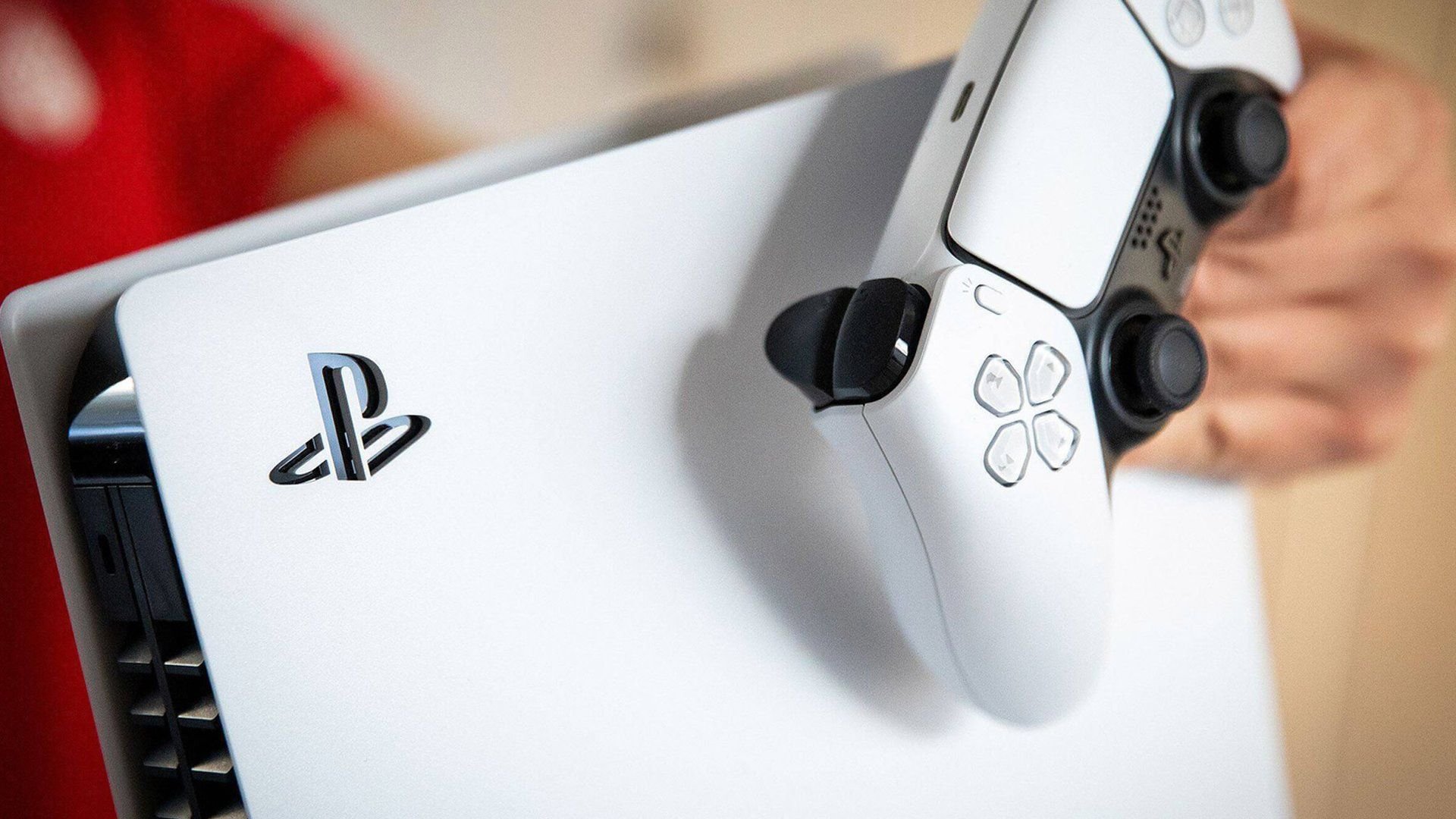
Your game library is overflowing and you can’t find anything anymore? The PS5 has a filter function that surprisingly few people know about.
Open yours Games library and click on it on the left Arrow with horizontal stripes. There you can activate various filters – for example sort by PS5 or PS4 games – and thus get a much better overview.
The Easter Egg that you are holding in your hand

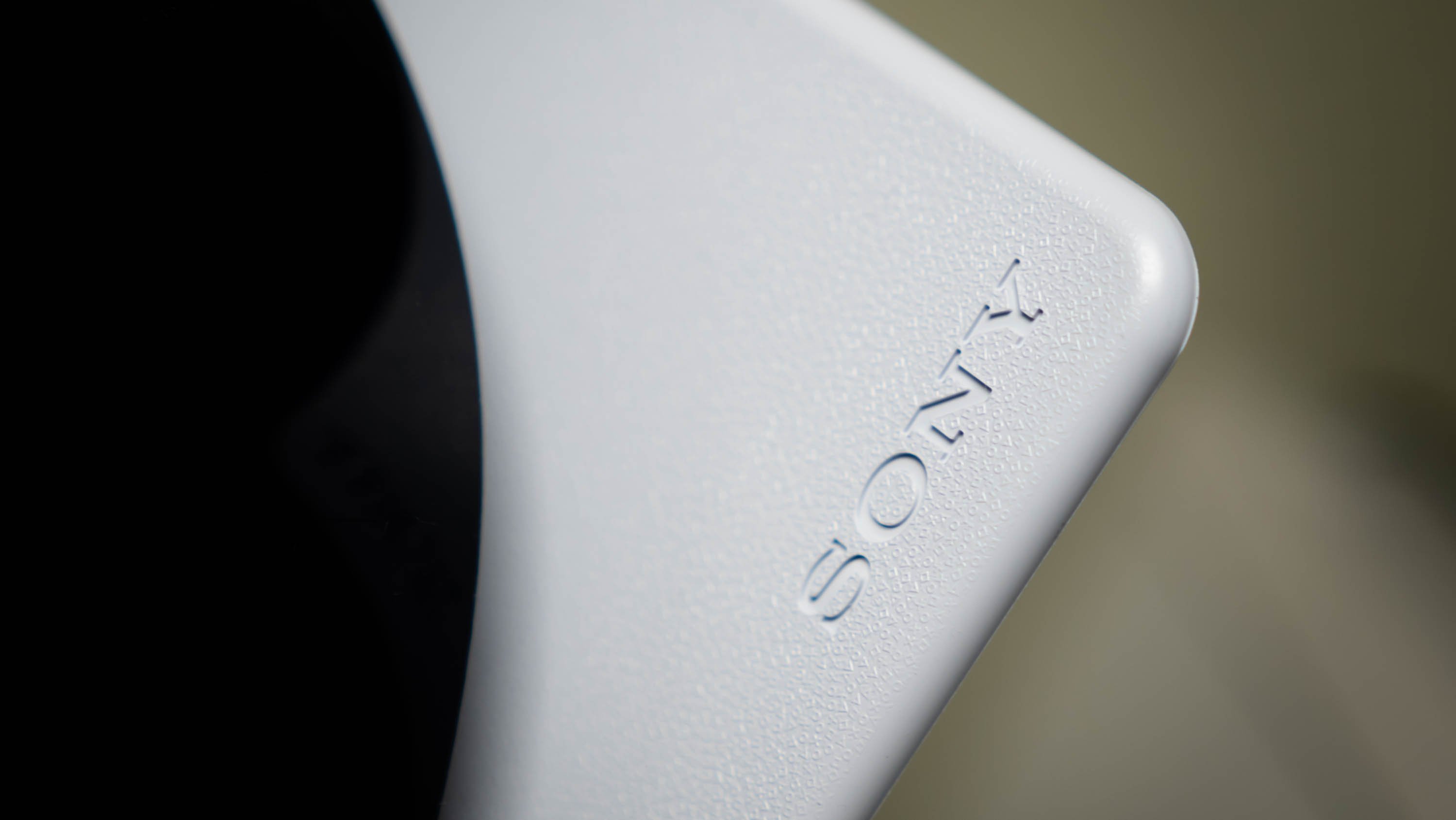
Finally, not a tip, but a loving detail: The DualSense controller feels so easy to grip for a reason. Look at those back take a close look at them – they are there tiny PlayStation symbols (triangle, circle, cross, square) embossed. If you have good eyesight, you can spot the same symbols on the Inside of the white side panels the console. A nice Easter egg from Sony that shows how much love goes into the design.