For PC gamers, there’s nothing better than building your own computer. You feel particularly powerful when you turn it on for the first time and see that it starts right up and boots up without any problems. But that is rarely the case. Instead, you will be confronted with one of the following 11 problems.
Assembling PCs is a minefield
Actually is screwing together your own PC is something wonderful. When the computer finally starts running after several hours of hard work, you can literally feel how incredibly many endorphins are released in your body.
But the path there often turns out to be a minefield. Although assembling your own computer has actually become easier over the years, that doesn’t mean that there are no longer any stumbling blocks that can cost you a lot of nerves. We’ll show you 11 problemswhich each of you has probably already made the acquaintance of if he or she is regularly responsible for assembling PCs among family and friends.
And so that the whole thing has added value for you, we will give you tips on how you can completely avoid some of these problems in the future.
Forgot the I/O panel
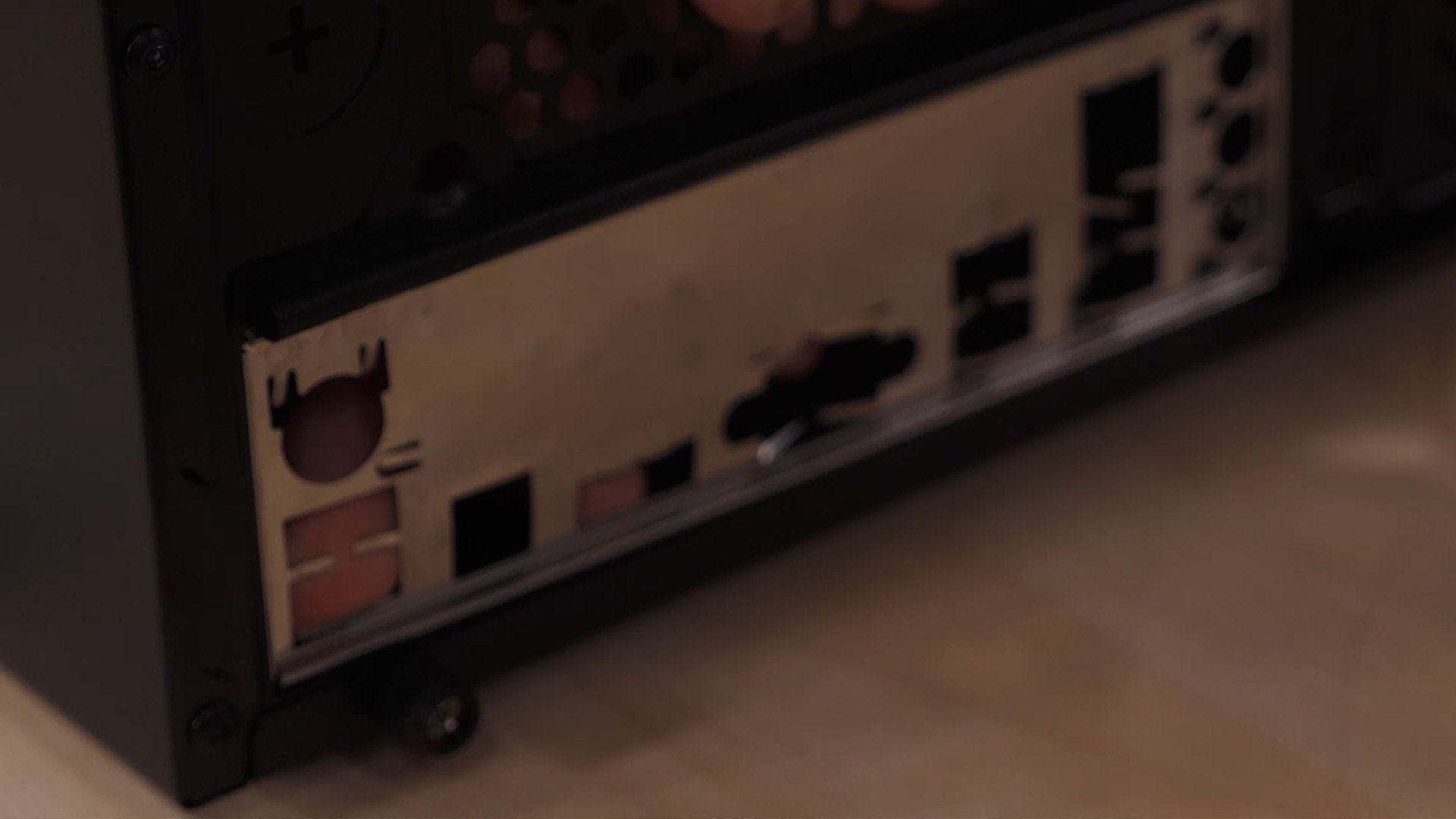
Really everyone has forgotten it: the I/O shield. The computer is fully assembled, you set it up and suddenly you see the huge gaping hole in the side of the case and spy that little silver panel at the other end of the desk. Cool! So now unplug all the cables again, take out the motherboard, just to squeeze this little crap with all your might into the opening provided. Pure hatred!
Our tip: It is best to install the I/O panel directly into the housing at the beginning. Alternatively, buy a motherboard with an integrated bezel.
Screws wasted
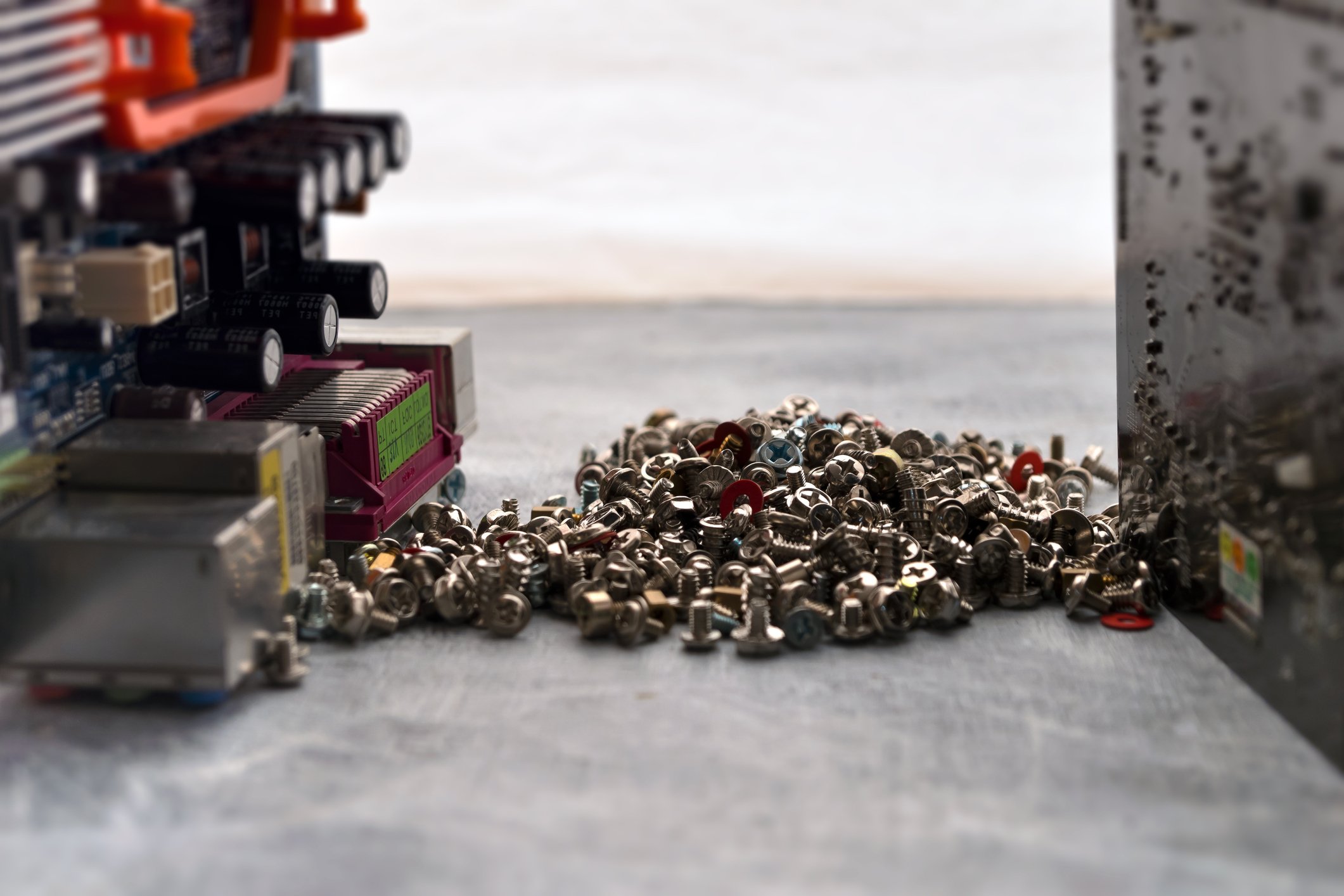
Other habitats for lost screws: Under your desk, in a deep-pile carpet or in other places that you can’t reach with your bare hand.
Our tip: Get a magnetized table mat and write down in the individual tiles which screws are for what. This may sound like a lot of effort at first, but in the end it will make your work a lot easier.
Cut on the case

What’s a PC assembly without a small cut. Something like this tends to happen when you’re unfocused or a little upset. So if you notice that you are properly loaded when you put together your PC, Give yourself a few minutes of rest and take a deep breath. You’ll get it!
This may sound banal, but it not only helps protect you from injuries, but also ensures that you handle your hardware a little less harshly.
Everything assembled in the case
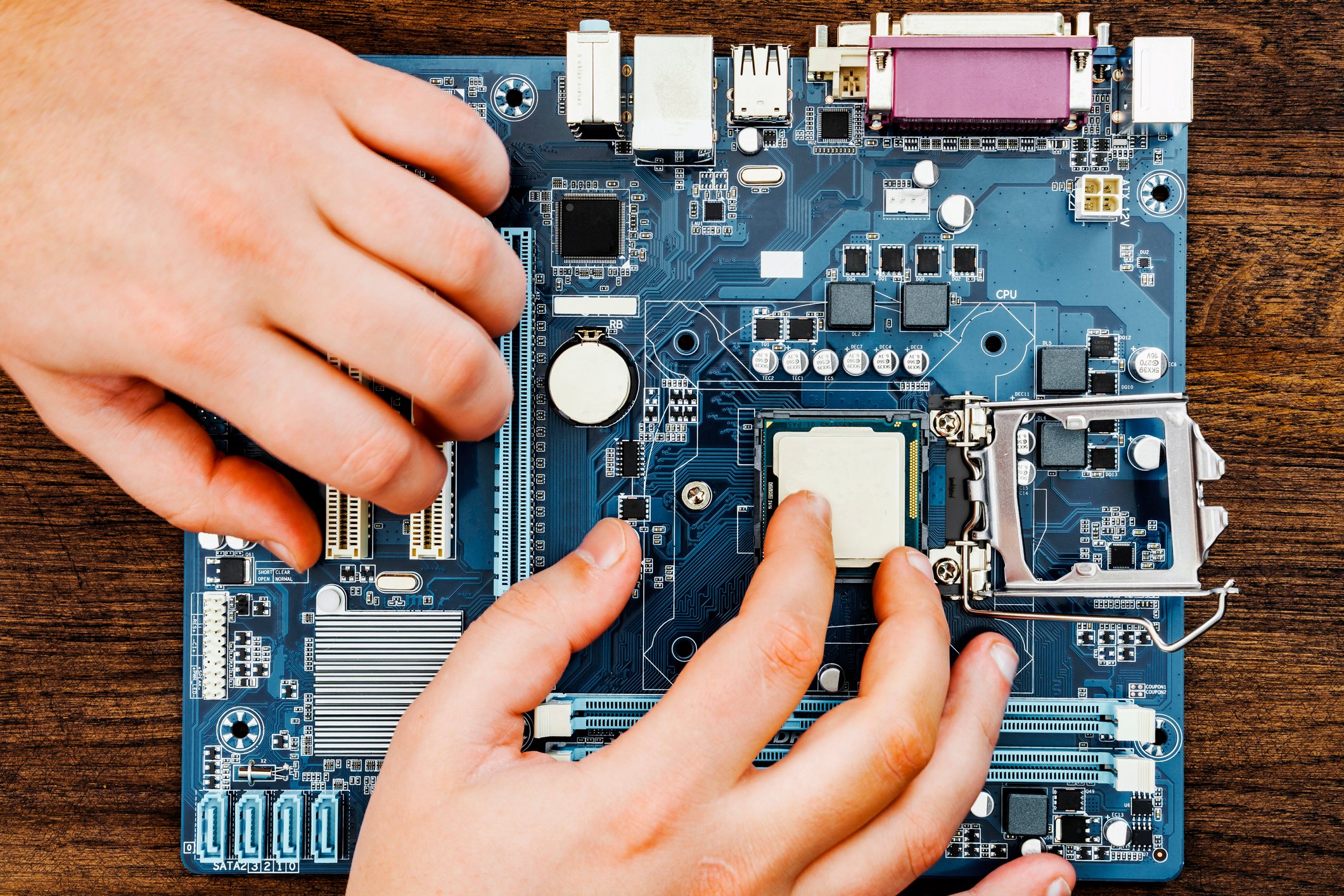
Don’t make assembling your computer unnecessarily difficult. Please do not install the mainboard into the case first. You can usually easily install the processor, RAM, M.2 SSDs and the CPU cooler in advance – The packaging of your motherboard can be used as a base. You can then pack the construct into the housing.
The only warning: If you have a large fan, make sure that it does not cover the connector for the power supply of your processor or that of the fan itself.
Bought hardware that was too big
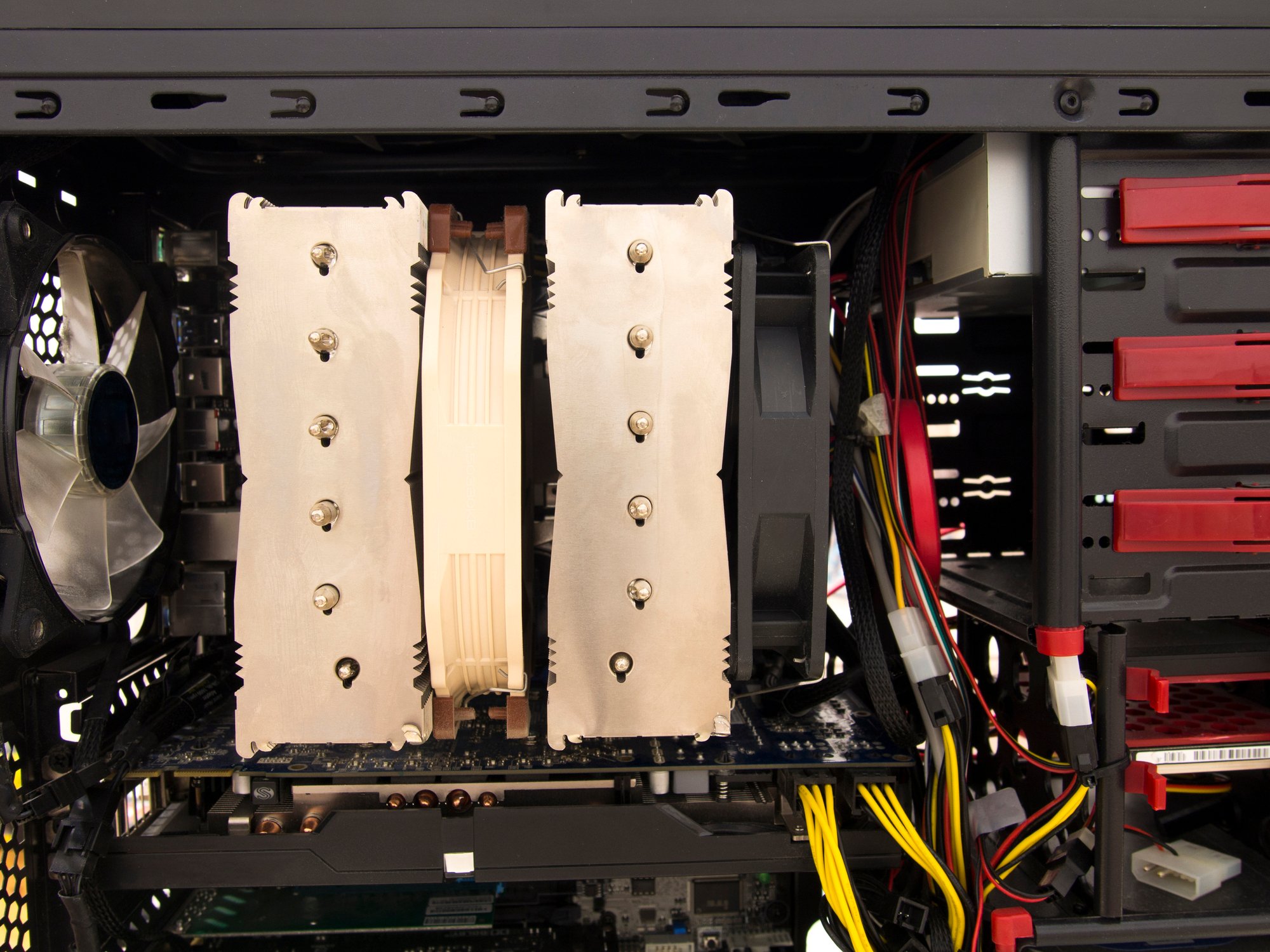
Bigger is always better, right? This may sometimes be true, but a thick CPU cooler is of no use to you if you can no longer fit the side cover onto your case. And the graphics card, which is almost 4 slots in size and 38 cm long, may offer a lot of performance, but if it doesn’t fit into the case, that’s anything but effective.
Our tip: Before buying such hardware, check whether it has enough space in your case. Such information can usually be found in the description of the PC case – it explicitly states how high the fan and how long the graphics card can be.
Matching socket, but it won’t boot
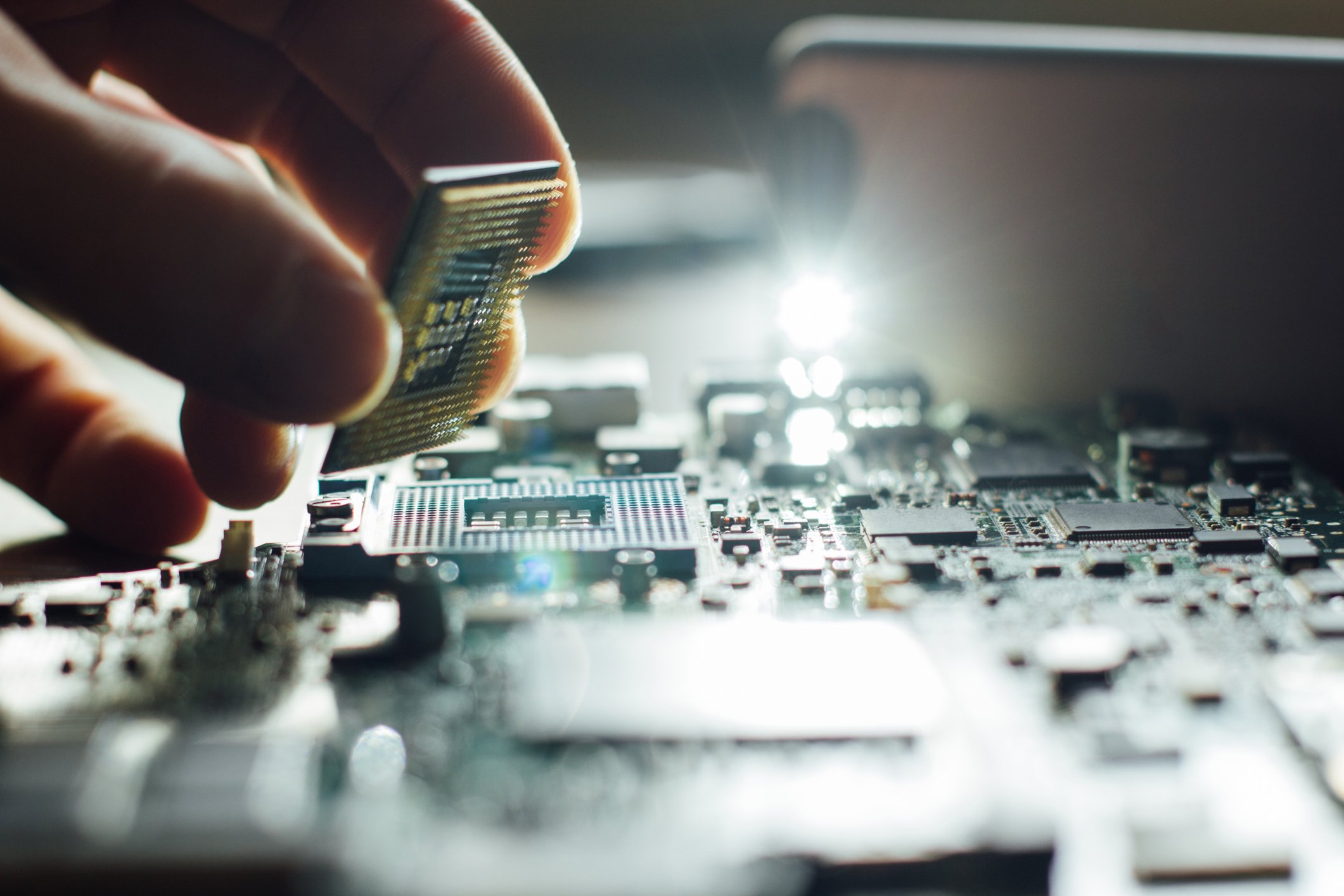
Ugh, that could end badly. Have you checked in advance whether the seller has the motherboard with the current BIOS update provided? It’s quite possible that your new processor will only run if the latest version has been installed – this happens especially if you want to install newer Ryzen processors in an old AM4 motherboard.
If you’re lucky, You can also flash the new BIOS version via USB without a CPUbut not all motherboards support this function. Otherwise you’ll probably have to bite the bullet and buy a cheap old processor, flash the BIOS with it and then sell it again.
Cable not plugged in properly
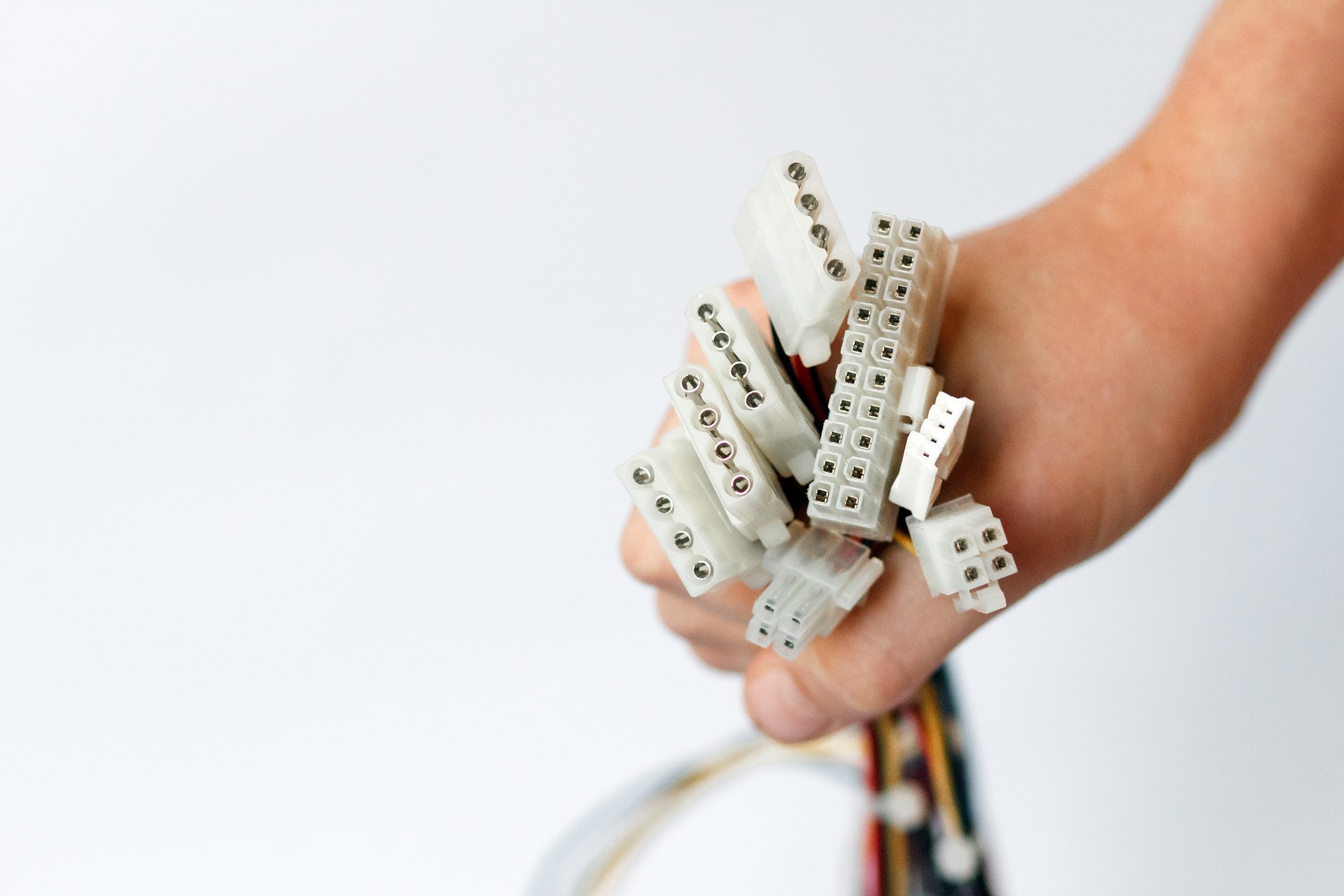
Everything is ready! Then it can finally start. So press the power button once and it happens… absolutely nothing. Just don’t panic now. The first thing you should do is check whether your… Power supply also switched on and connected to the socket.
Next check all cable connections againstarting with the large ATX connector that supplies your motherboard with power. A loose cable is usually to blame for the problem and not defective hardware.
RAM inserted incorrectly
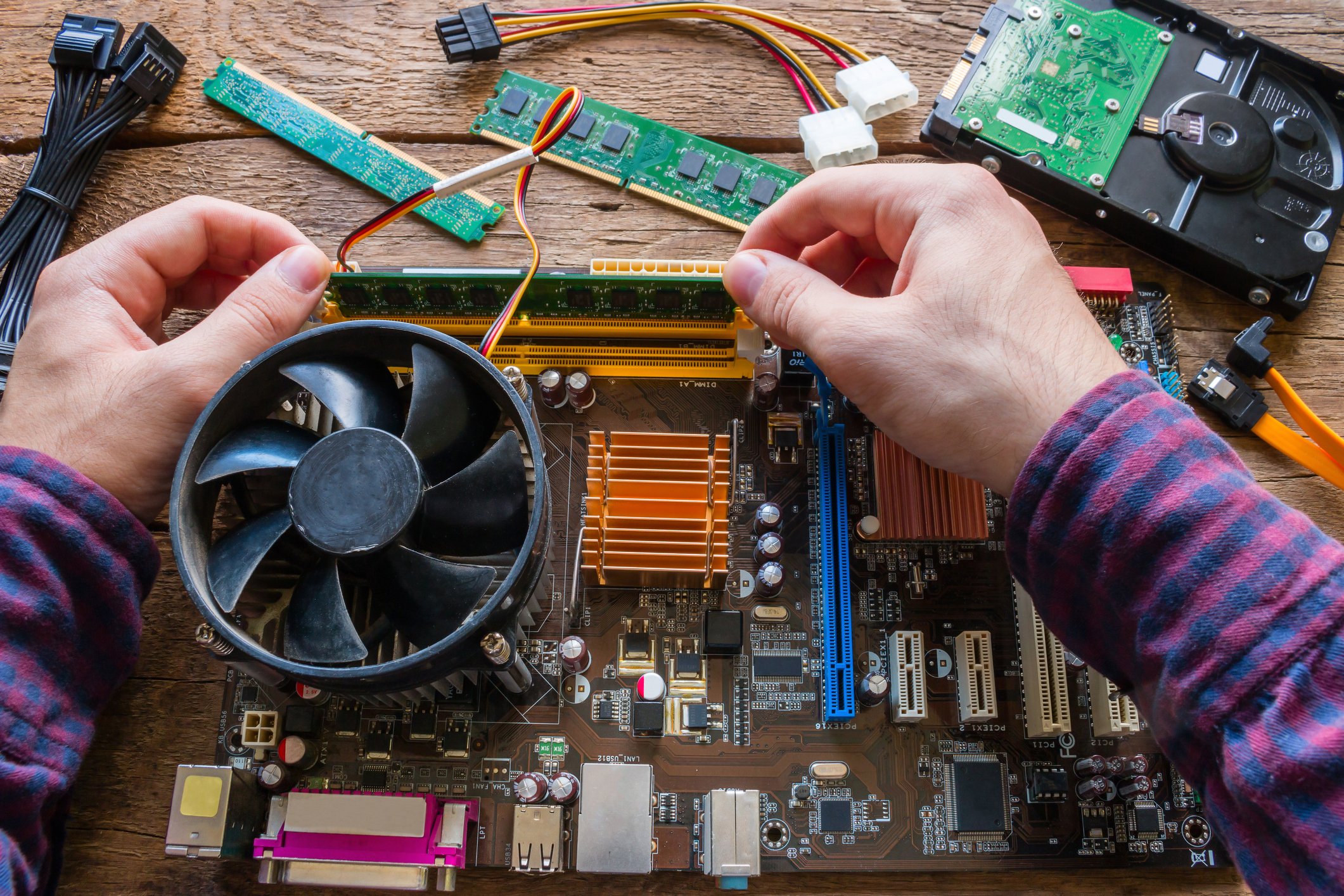
It’s the kind of thing you do wrong once and then never again. If you have two RAM bars but your motherboard offers 4 slots, Don’t just put the two RAMs directly into the first two slots – otherwise you won’t be able to use it in dual-channel and you’ll miss out on a lot of performance potential.
The principle is: Equip slots 2 and 4 with RAM firstthen slots 1 and 3 come when you upgrade. Counting starts from the socket for the CPU.
Cable for the housing connected incorrectly
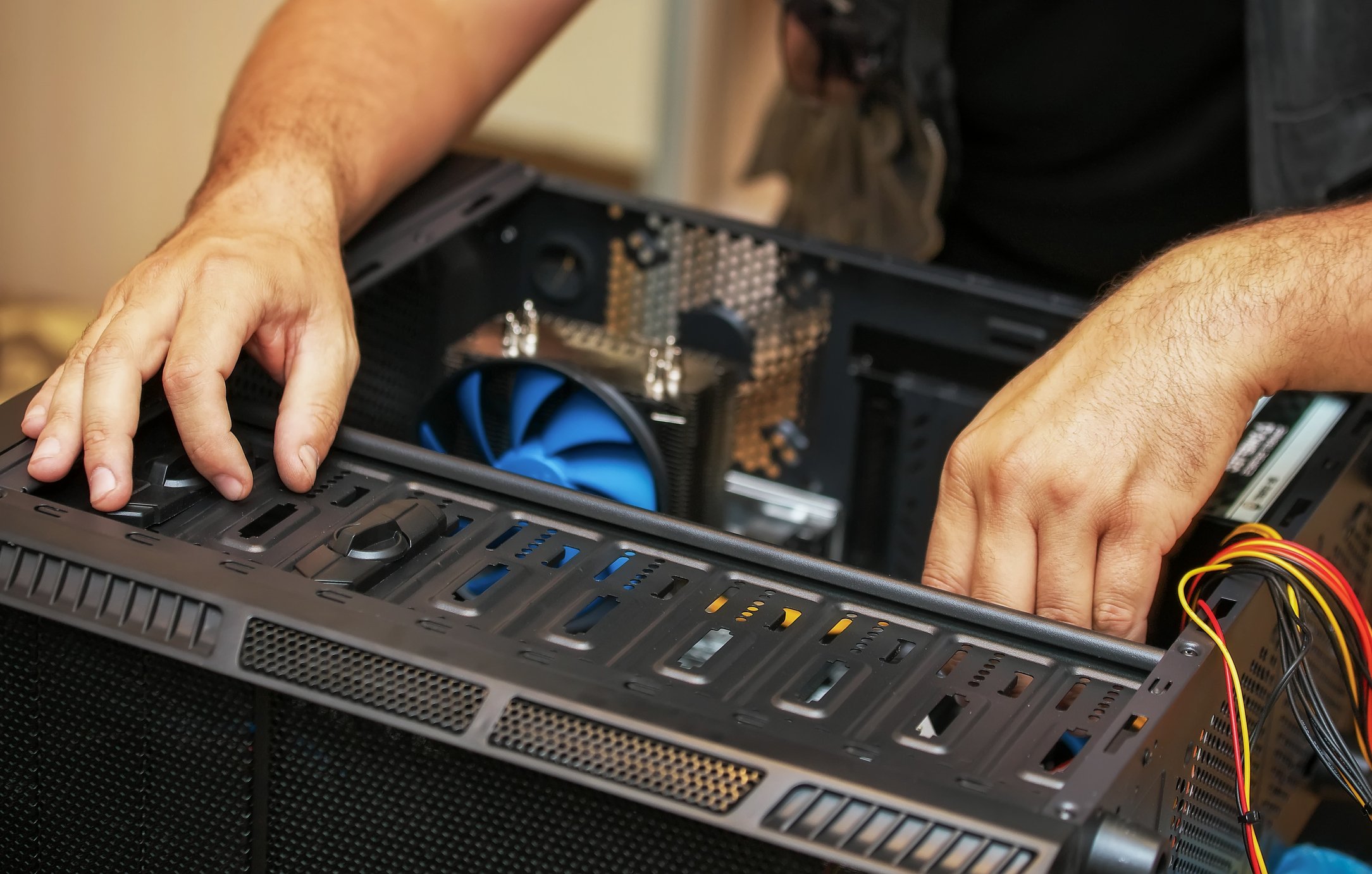
Front panel connectors are pure hatred for anyone who assembles their own computer. The small Friemel cableof which there are what feels like 100 pieces, have to be plugged precisely into the correct connector on the motherboard so that your power button actually turns on your PC, the reset button works and a tiny little LED shows you when your hard drive or SSD is currently in use.
After all, many motherboard manufacturers have now switched to include a connection aid. With this you can first connect the small cables and then you just have to plug the entire structure onto the motherboard. This is truly a blessing!
Fan installed the wrong way round
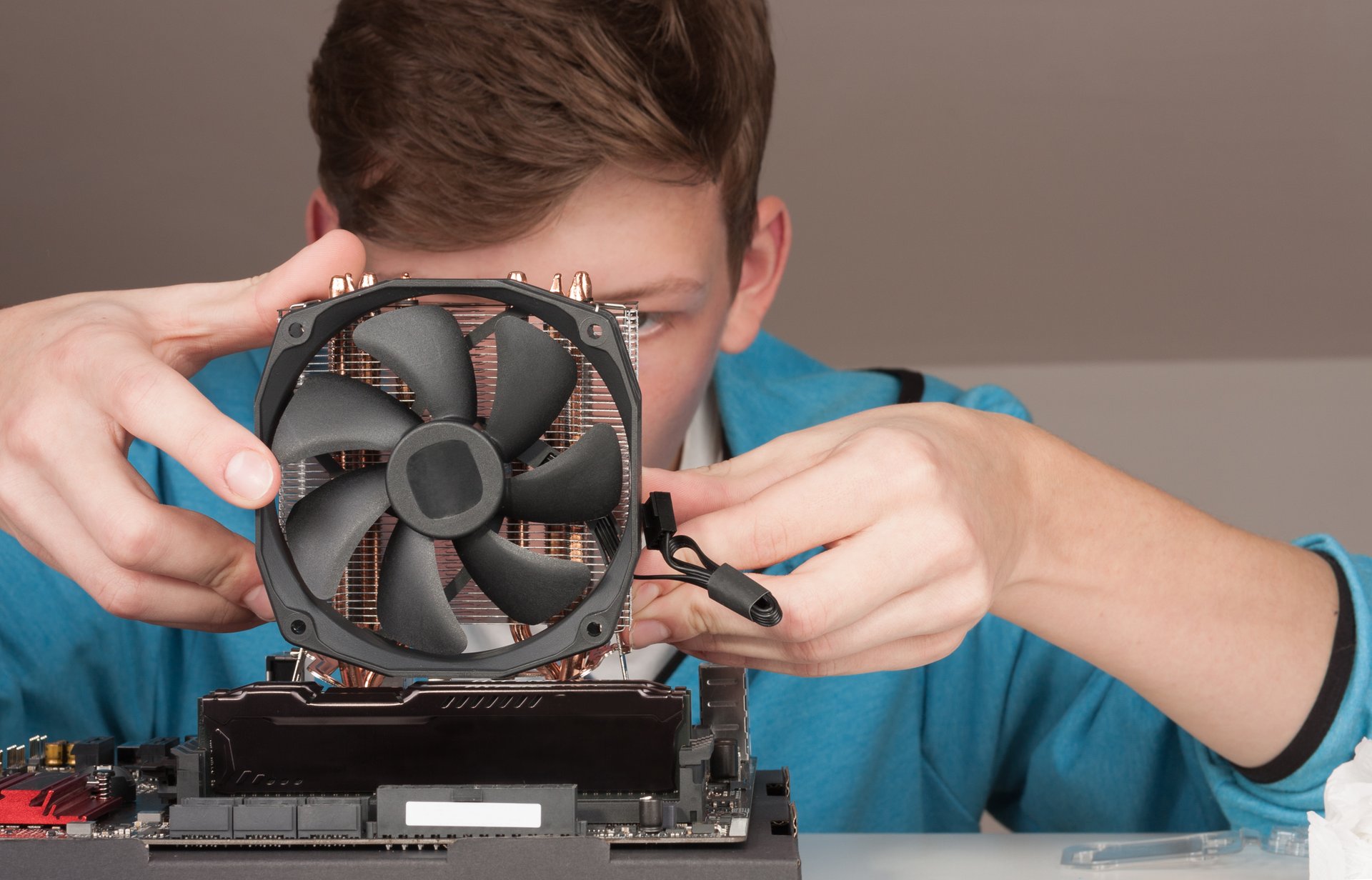
You thought carefully about what the airflow in the case should look like and in the end, when everything is set and you turn on the computer for the first time, you realize with horror that that the CPU cooler fan blows the air in the wrong direction. Sooo great! After all, this problem is usually gone within a few minutes.
Our tip: You can now see arrows on almost every CPU fan that show in which direction the air is pushed through the fan.
Monitor connected to wrong video port
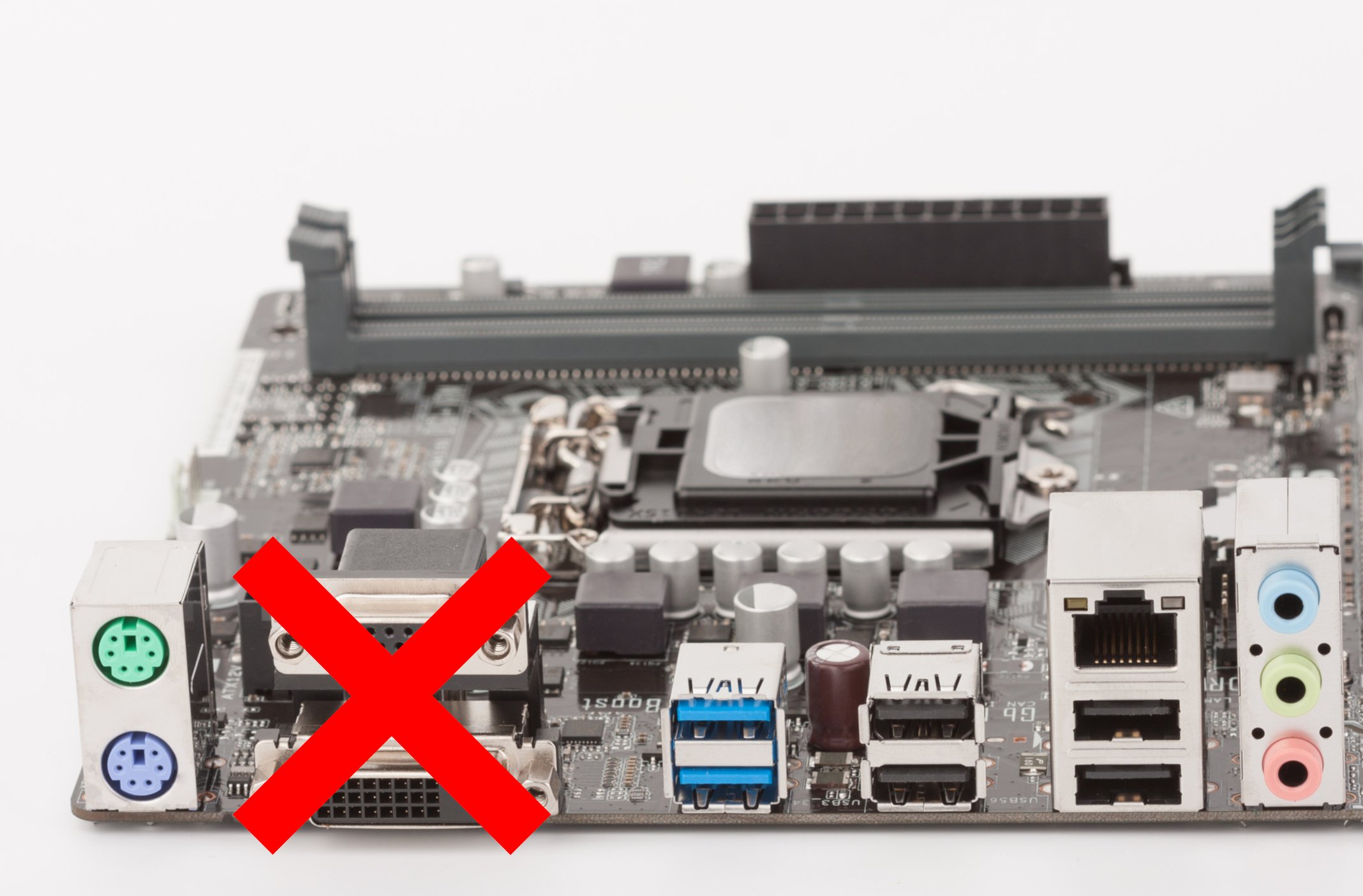
This may sound absurd, but you wouldn’t believe how many computers I’ve seen where the monitor is not connected to the HDMI or display port of the graphics card but was connected directly to the motherboard.
If you use a CPU without an integrated graphics card, in the worst case scenario you won’t see any image at all. So: If you have a graphics card in your system, please connect the video cables there too.