Is your DualSense controller causing you problems? Connection problems can often be resolved with a reset. Below we will explain to you how to reset and turn off your PS5 controller.
Reset PS5 controller and press hidden reset button
If your PS5 controller suddenly stops working, a reset can help. A reset can fix various software problems and save you a repair. Among other things, resetting can sometimes fix the stick drift problem.
This is how you reset your DualSense controller (hard reset):
- Turn off your PlayStation 5 completely (no sleep mode).
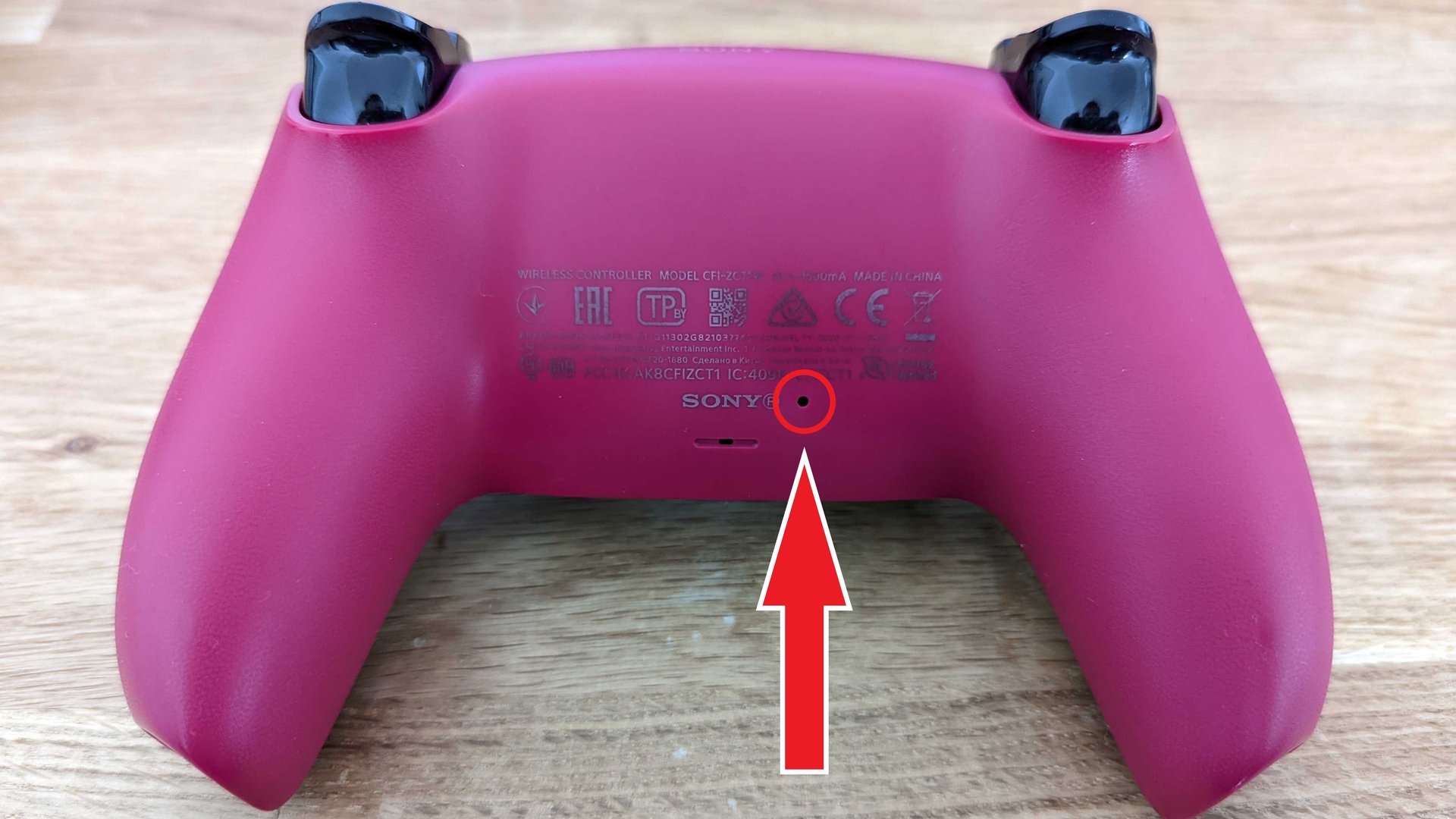
- On the On the back of the controller there is a small black hole to the right of the Sony logo, which is the reset button.
- Press the button for 3 to 5 seconds with a pin, staple, or other thin object.
- Turn your PlayStation 5 back on.
- Connects the DualSense to the console via USB cable. Then press the PS button and check whether a firmware update is available.
If the reset doesn’t work, connect the DualSense to the PS5 via USB cable and press the PS button. To do this, you have to connect the DualSense to the console using a USB cable and press the PS button on the controller. Sometimes this approach also solves the problem.
If the reset is not enough:
- Check whether you have the latest firmware installed.
- Test the controller on another device (for example, a PC or another PS5) to rule out a hardware error.
Turn off PS5 controller without shutting down the console
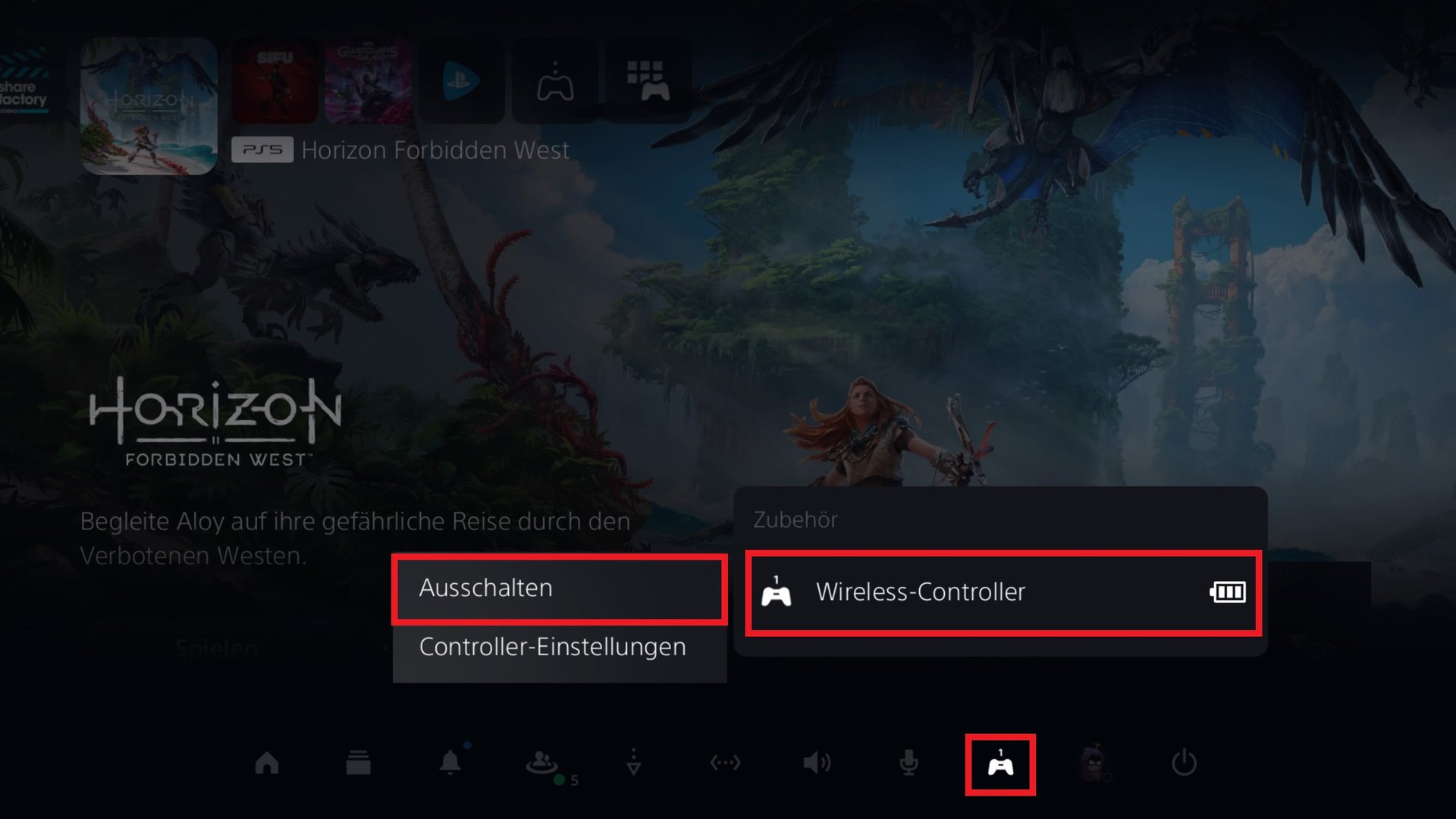
If you only have your controller turn off and you want to leave the PS5 console on, for example for a download, you have to via the user interface make.
- Press the button briefly PS button.
- Navigate to the bottom bar Accessories icon (small controller icon).
- Choose your DualSense.
- Click on “Turn off”.
Exchange and return the PS5 controller
A newly purchased DualSense comes with a one-year manufacturer’s warranty. If your controller breaks during this period, you will have to PlayStation Hardware Support Contact Sony. We have linked the corresponding homepage for you.
Click on the Website on the “DualSense” button and follow the steps listed. You will then receive a telephone number and reference number. Call customer service, describe your problem and ask for an exchange.
Important: If you have that If you send it to the controller, be sure to keep your receipt. If there are problems or loss during shipping, you can prove that you sent the DualSense to the right address and that you did not make a mistake.
If the warranty has expired, you will need to consider repairing it or purchasing a new controller.
Third party controller? Sony is not responsible for this
If you have issues with your third-party controller, such as the SCUF controller, you will need to contact their customer support. In this case you must contact the respective manufacturer.