
Many people rely on compact storage to manage their important digital assets today. Your memory cards often hold vital business documents and sensitive personal records. However, it is quite stressful when your portable storage suddenly fails to show data. Losing access to your professional work or private records creates a difficult situation.
Fortunately, you can utilize free SD memory card data recovery to restore your items. Furthermore, users should act quickly to prevent any permanent loss of their valuable work. Thus, this guide provides reliable methods to retrieve your information on Mac and Windows.
Part 1. 5 Signs Your SD Card Requires Free SD Memory Card Data Recovery
When your storage card starts acting strangely, you need free SD memory card recovery. Review the common signs that indicate your SD card has serious issues:
- Card Not Detected: Your computer does not show the card even when you plug it in correctly. This happens when the device can no longer find the small memory chip inside.
- Format Message: A scary pop-up window asks you to format the disk before using it. Therefore, it means the system cannot read the files because the card is faulty.
- Empty Space: The card shows 0 bytes of space even if it is actually full. However, this sign means the computer thinks the card is blank or has no memory.
- Random Crashes: Your camera or phone turns off when you try to save new files. As a result, the device is struggling to communicate with the card and suddenly stops working.
- Strange Names: File names change into weird symbols or long strings of random letters. You cannot open these files because the data is mixed up and very messy.
Part 2. Prepare Your SD Card Before Free SD Memory Card Data Recovery
You must handle your broken device carefully to begin a safe SD card recovery. Below are the essential things you should do to protect your lost files:
- Stop Usage Immediately: Do not take new photos or copy files; it may overwrite lost data. This also prevents new files from covering up the old ones you want back.
- Remove Card: Take the memory chip out of your camera or phone right away. Keeping the card inside a powered device might cause more data to disappear.
- Inspect Card: Check the gold stripes to find out whether they are dirty or broken. In such cases, wipe off the metal bits softly using a soft dry cloth in order to cleanse the dust.
- Keep Power: Plug your laptop into a wall outlet so it does not turn off. A sudden loss of power will stop the search and damage your card.
- Safe Destination: Find a safe spot on your main computer disk to store files. Therefore, never save the found items back onto the same broken memory card ever.
Part 3. Step-by-Step Process to Recover Files Using Free SD Memory Card Data Recovery
It can be very scary when your important files suddenly disappear from your device. This section explains how to use the free recovery data SD card methods properly to recover lost files:
Way 1. Ask Professional Data Recovery Software Vendors For A Trial Help
Powerful free SD recovery software, like Recoverit V14, can recover your lost files. This dedicated tool recovers deleted files without affecting their original quality. You can recover lost files, such as media and documents, from 1M+ storage devices, alongside SD cards. It also enables users to preview recoverable files before restoring them to devices.
Users can recover deleted files and essential documents emptied from the computer’s Recycle Bin. Recoverit Data Recovery tool tool handles 10,000+ data-loss scenarios, including system crashes and hardware failure. The tool has a deep scan mode that searches the entire storage for hidden or inaccessible files. If you need to recover a small amount of data, it gives you the option to recover data up to 500 MB for free.
Key Features
- File Types: Supports 1,000+ file formats, including multimedia and email files.
- AI Recovery: The tool uses advanced AI scanning algorithms to locate deleted or lost files efficiently.
- Safe Recovery: Performs SD card recovery carefully, protecting original files and preventing any additional data loss.
Detailed Guide to Recover Lost or Deleted Files from an SD Card
Let’s explore the guide below to get back all the lost files from memory cards using Recoverit:
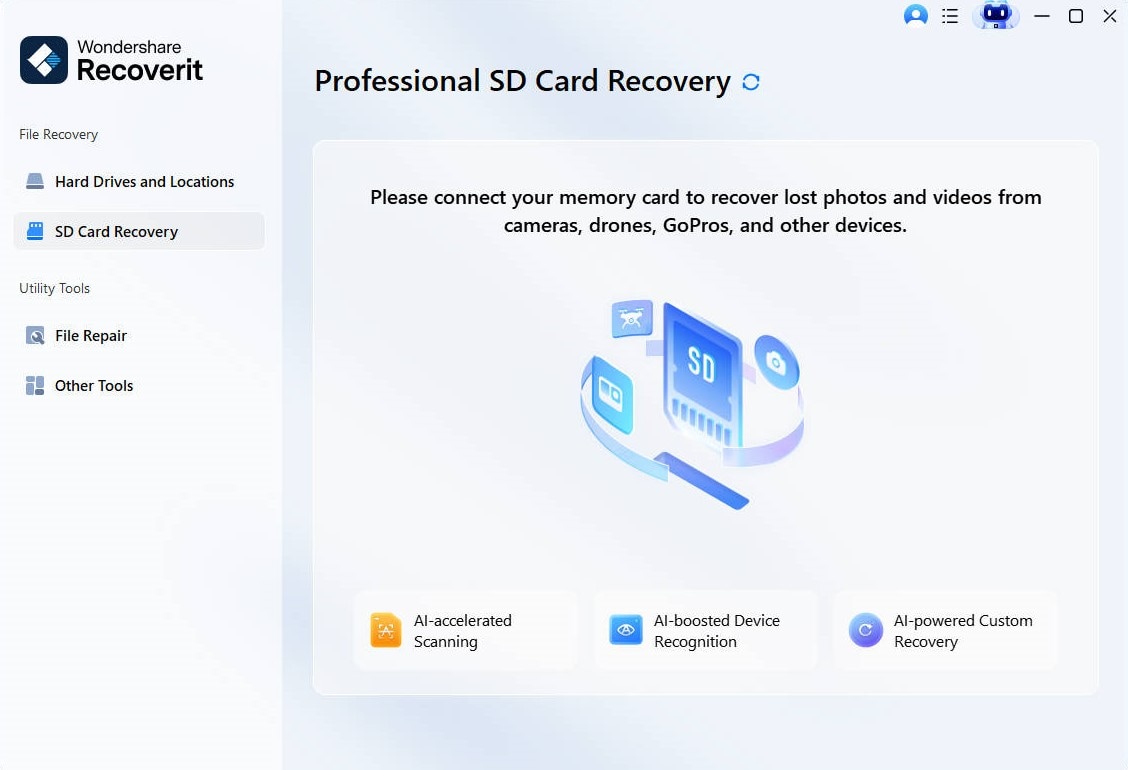
Step 1. Initialize the SD Card Recovery Feature
Insert your memory card into the system and select the “SD Card Recovery” function from the primary interface.
Step 2. Perform a Comprehensive Device Scan
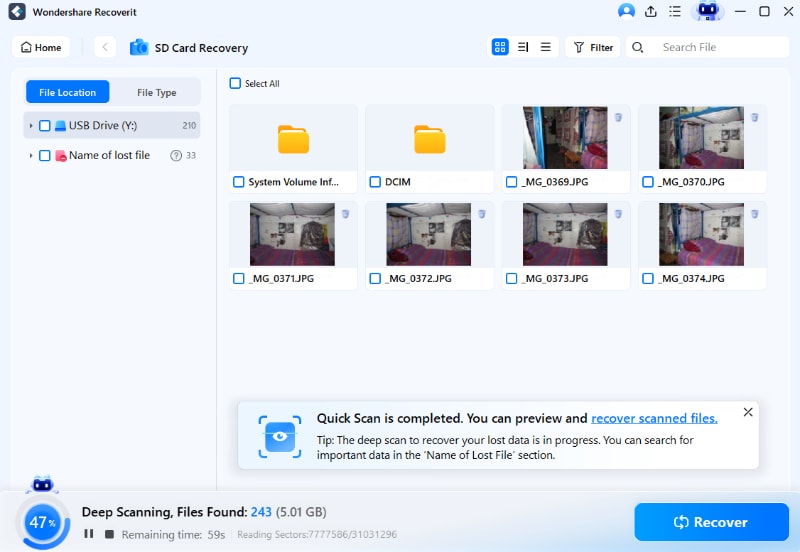
Identify your specific SD card from the list of connected storage drives. Now, the tool scans memory for hidden or missing files.
Step 3. Verify and Securely Restore Your Files
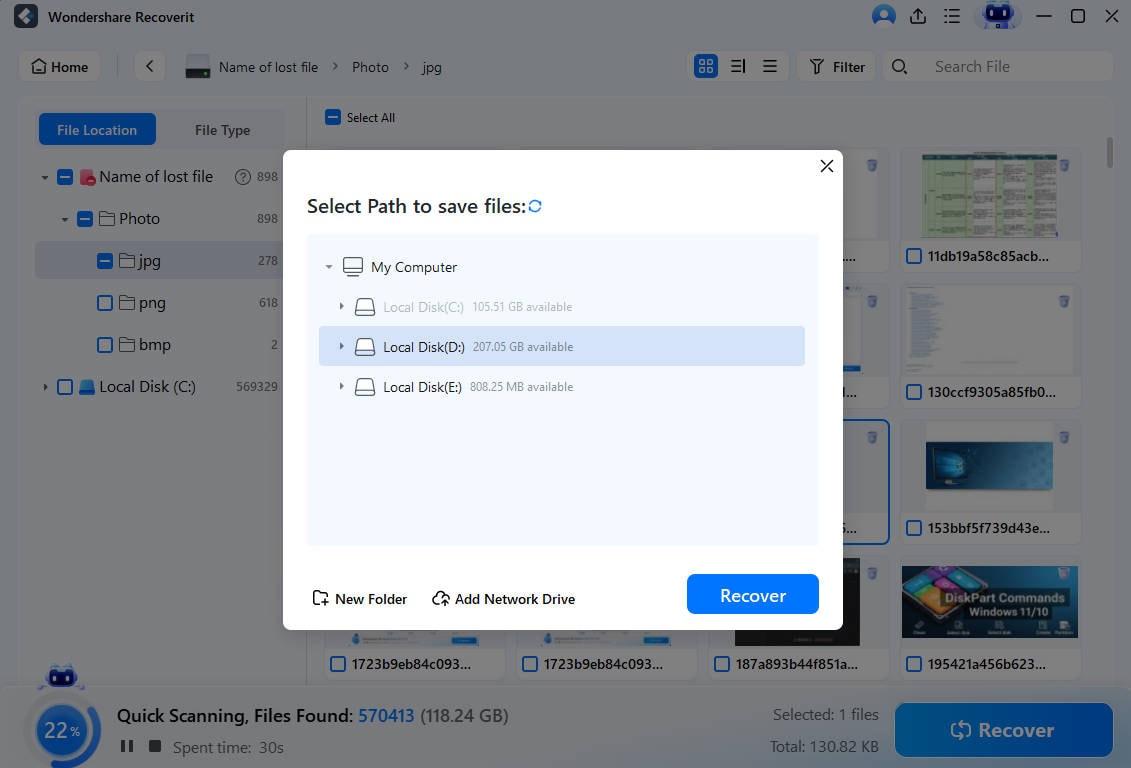
Browse through the scan results and use the preview function to check file integrity. Select the items you wish to keep and click “Recover” to save them to a new location.
Way 2. Restore Files from Windows Recycle Bin / Mac Trash
The Recycle Bin and Trash temporarily store deleted files until they are permanently removed or the storage limit is exceeded. They are not removed and remain safe in the system storage until new files replace them. This is the fastest way to perform a free SD card recovery Mac. Thus, review the guide below to recover files from these folders:
Restore Files from Windows Recycle Bin
Instructions. Open the “Recycle Bin” on your desktop and locate the deleted file. Next, right-click it and opt for “Restore” from the menu to get it back.
Restore Files from Mac Trash
Instructions. Access the “Trash” from the dock and find the deleted file in the list. Then, right-click that file and opt for “Put Back” to get it back to its original location.
Way 3. Restore From Local Backups
Another way to free recovery data SD card is by using local backups. If enabled, Windows’ File History automatically saves copies of your files at regular intervals. Mac users can use Time Machine to find their lost data. Yet, these backups only work if you previously synced or got a backup of data. Hence, go through the steps below to restore data using local backup:
Restore Lost Files from Time Machine on Mac
Step 1. Open the “Time Machine” icon in the menu bar and select “Enter Time Machine” to view your backups.
Step 2. Navigate to the files or folders you want, then click “Restore” to return them to your Mac.
Restore Lost Files Using File History on Windows
Step 1. Open “Control Panel” and go to “System and Security”, then opt for “File History.” After that, click “Restore Personal Files” on the left side to view backup versions.
Step 2. Now, browse the folders or files you want to recover and click the green “Restore” button.
Conclusion
In conclusion, losing your important files is a stressful experience for anyone. You have explored various ways to get back lost files on both Mac and Windows computers. Following these steps ensures you can perform a free SD memory card data recovery. You need a stronger tool when your files are still missing. Therefore, you should use Recoverit to find and restore your lost data.