It can be annoying when you are about to have a gaming session and the screen freezes or the video game won’t load. Black screens, lagging, or other video playback problems can fully ruin the fun. Luckily, you don’t always need a new system or advanced skills to solve them. In this guide, we will walk you through practical ways to fix game video issues and get back to smooth gameplay.
Part 1. Fix Game Video: Why Do Game Videos Fail to Play?
Before we dive into the fixing process, it is important to know the causes of game video issues. The following points are the potential reasons why your game videos failed to play:
- Corrupted Game Files: One of the most common reasons why game videos fail to place is corrupted game files. Incomplete downloads or sudden crashes could cause damage to your files.
- Outdated Graphics Driver: Your game will not play videos properly if your drivers are not up to date.
- Incompatible Settings or Formats: Occasionally, playback issues are caused by your system or game settings. Using unsupported resolutions or video formats can prevent the game from displaying videos.
- Hardware Limitation: Not all devices have the processing power to handle high-quality game videos. If your device has limited memory or insufficient GPU power, video playback may fail.
Part 2. Corrupted Game Files: What They Are and How to Repair Them
The following section covers various methods of file recovery and their significance:
What Does a Corrupted Game Video File Look Like
Before starting corrupted video file repair, he following points will explain how a damaged file manifests:
- The game often crashes, indicating that critical files may be damaged or incomplete.
- It may have distorted or missing video, where cutscenes may not load, appear black, or show broken visuals. It can also manifest as corrupted video-related files within the game.
- You may receive warnings about unreadable or missing files, which is an indicator of file corruption.
- Your game may hang or stop responding due to corrupted system and video files.
Solution 1. Repairit Video Repair
If you want a tool that caters to all the above corruption causes, use Repairit. With its versatile AI, this tool caters to all causes of file crashes. This platform offers a batch processing feature that allows users to fix multiple game files in a single task.
Users who prefer high-quality videos can fix their 4K and 8K files and regain access. Unlike many tools, Repairit does not deteriorate the original visual quality after fixing game videos. In addition to phone videos, this tool is compatible with films shot through Canon, Nikon, and other devices.
Key Features
- Advanced Repair Mode: If the tool fails to fix your files, use the Advanced Repair Mode to resolve extensive damage.
- No File Size Limit: Repairit allows you to import files with no size limit, enabling the repair of large files.
- Video Format Support: This platform supports all video formats and repairs them efficiently.
A Complete Guide to Using Repairit for Fixing Corrupted Game Files
The following instructions must be followed to use Repairit for fixing game video files:
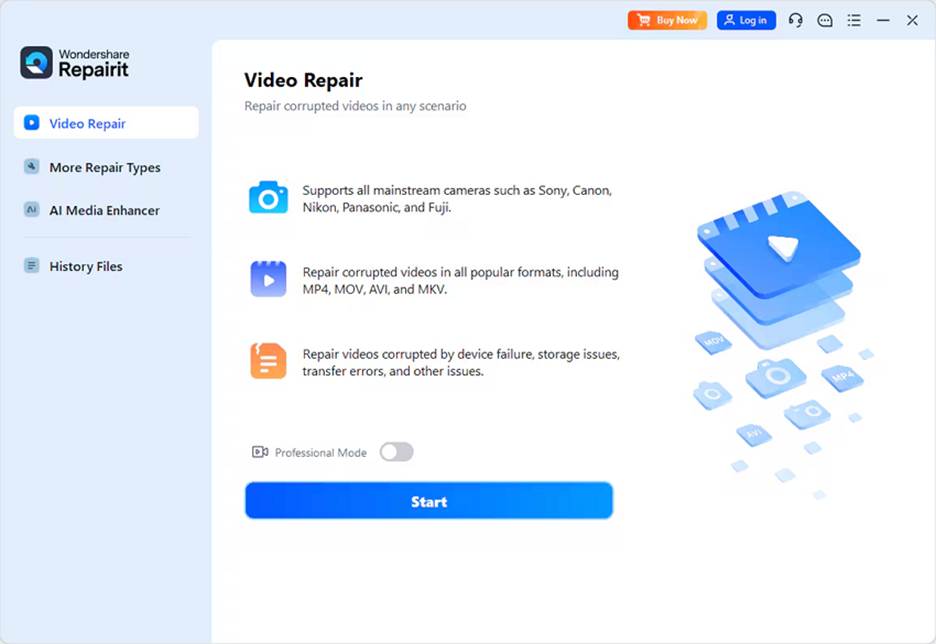
Step 1. Enter the Video Repair Mode
To begin with, enter the “Video Repair” mode from the left panel and select the “Start” button from the right.
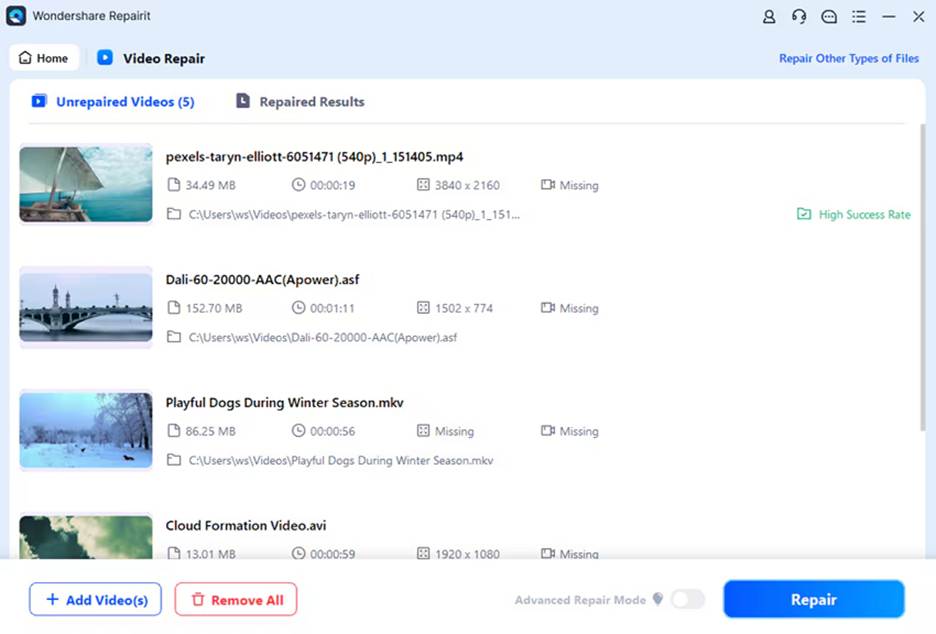
Step 2. Pick the Videos You Want to Repair
Using the next interface, enter the “Unrepaired Videos” section and select the videos you need to repair. Once done, select the “Repair” button to start the process.
Step 3. Preview the Files After Repairing Them
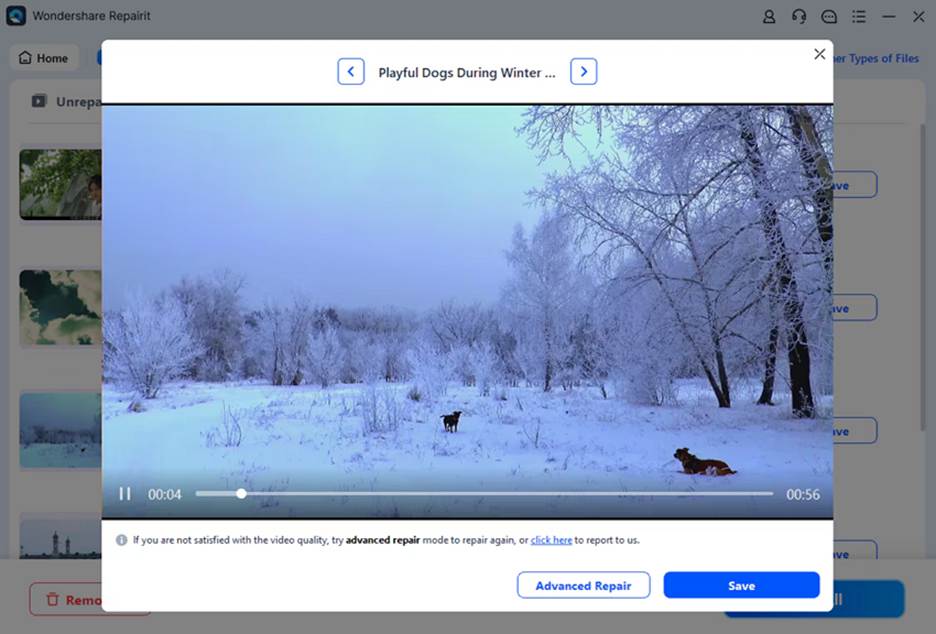
When your files are repaired, select the “Preview” button next to them to have a peek at the results.
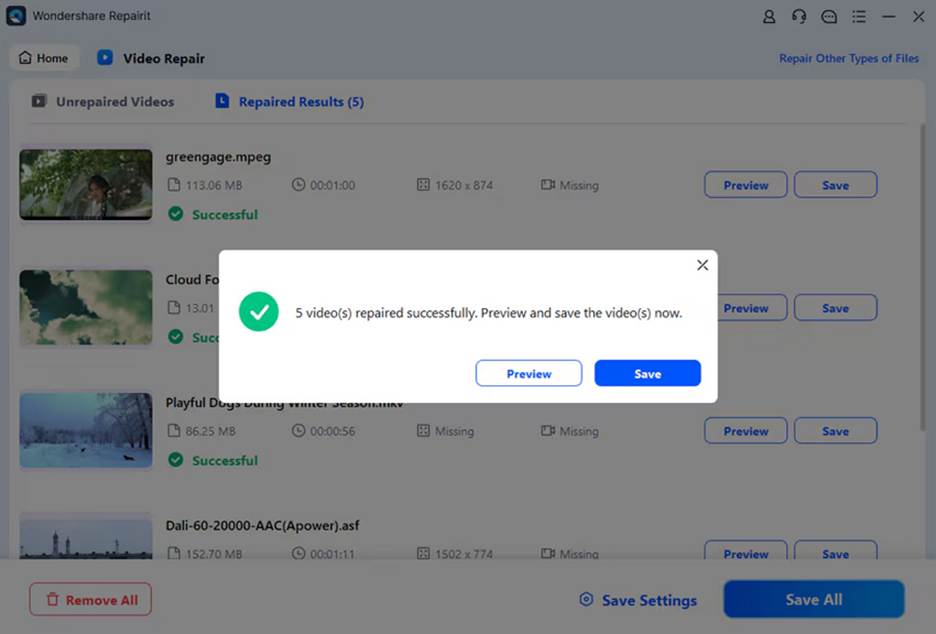
Step 4. Use the Advanced Repair Mode or Save the File
If your file was not repaired in the process, select the “Advanced Repair” mode for extensive file fixing. However, if the video is fixed, select the “Save” button to download it to your desired folder.
Solution 2. Play and Convert with VLC Media Player
If you have minor file corruption, using VLC is the fastest approach. It helps re-encode the corrupted game files and restore the playback. This method is useful because it is free and widely accessible to all gamers. VLC can also automatically repair AVI index errors, which are commonly encountered in game videos. Follow the guide below and see how to use this media player for file repair:
Step 1. Start the process by expanding the “Media” menu and selecting the “Convert/Save” option from the list.
Step 2. Using the following window, select the “Add” button and import the corrupted file. Once imported, click the “Convert/Save” button to access the next screen.
Step 3. Select “Convert” and pick a format from the “Profile” menu to “Start” converting and repairing it.
Solution 3. Try a Different Media Player
Sometimes, the problem isn’t with the video itself but with the software being used to play it. Certain media players may fail to handle specific formats or codecs, resulting in errors. Switching to another reliable player can quickly confirm whether the file is truly corrupted.
Solution 4. Hex Editor and Manual Repair (Advanced)
If you are tech-savvy, you may use a Hex Editor for advanced corrupted video file repair. This method is used by advanced users because it offers precision control and enables the replacement of missing headers or the fixing of structural errors. Follow this guide to use a hex editor to repair corrupted game files:
Step 1. To start, select the damaged video file from your PC and open your MP4 Analyzer tool. Now, drag the video and drop it in the “Open File” field to “Analyze” it.
Step 2. When the atoms appear on the left panel, select one and explore the analysis.
Step 3. Next, check the “Try Parse Moov Atom” box to rebuild the structure so the video can be playable again. Now select the atom again, and the patterns will appear in the bottom window.
Step 4. Now, note the pattern and drop a donor video in the top field to “Analyze” it.
Step 5. Using the analysis patterns, select the pattern of the previous video that you noted. Once done, pick the numeric figure from the pattern and paste it into the “Merge” cell to proceed. Using the next window, select the damaged file and rename it by adding “Merge” next to it.
Step 6. Now, take the merge file and edit the size of the mdat atom, because the current value is valid for the donor file only. For this, select “Analyze” and select the atom from the left panel. After you click “Fix,” select “Yes” on the next dialogue box to repair the file.
Solution 5. Use Data Recovery Software for Deleted/Lost Videos
If the issue goes beyond corruption and the file is deleted or lost, data recovery software is the best option. Tools like Recoverit can scan your hard drive, SD card, or console storage to restore missing game videos. It has a success rate of 95% and caters to over 500 types of file loss. The following steps should be followed while recovering a lost, corrupted game file video:
Step 1. First, select the “Hard Drives and Locations” option from the left panel and pick the folder where the lost file was saved.
Step 2. Once you have selected the files that need recovery, click “Recover” to proceed.
Step 3. When the file is recovered, refer to the dialogue box that shows the number of files recovered.
Step 4. Lastly, use the Preview feature to see the recovered video file and save it to your device.
Part 3. Pro Tips to Prevent Game Video & File Corruption
Using a tool to recover corrupted game files is workable, but prevention is even better to avoid this issue in the first place. The following tips are ways you can prevent the corruption of your video game files:
- Keep Your System Updated: The use of outdated programs often causes crashes that can corrupt files. You can regularly update your graphics drivers and game software to prevent compatibility issues.
- Use Reliable Storage Devices: Storing large game files on unreliable hard drives can cause damage to your video. You can store high-quality data and save the information to reduce the risk of damage.
- Avoid Forced Shutdowns: Shutting down the video while it is loading can corrupt the file. Closing the game properly can help you prevent file damage.
- Install Antivirus Protection: A Virus may corrupt game files and cause corrupted videos. A reliable antivirus software and frequent scans can help you make sure that your games are safe and playable.
Conclusion
All in all, this blog covered the reasons and the fixes for major game video file corruptions. We explored the top solutions to fix game video using various tools and techniques. Out of all the remedies discussed, Repairit offers the most reliable and effective file recovery. It caters to all causes of file crashes and executes the process efficiently.