
Have you been accidentally locked out of your phone? What if you don’t even remember the password? That can be one of the worst things to happen to you. Multiple errors can happen, and you may want to attempt multiple times to bypass FRP.
There are built-in features and third-party software that can help you unlock Android phone. Whether you have forgotten or lost the password, you need to choose an appropriate method through which you can bypass FRP while also determining the security of the data. This blog will help you understand appropriate methods for FRP bypass without data risk.
Part 1: What is FRP Security?
Factory Reset Protection or FRP stands for the security features built by Google on Android devices to prevent any unauthorized access. Usually, an unauthorized user will try to conduct a factory reset of the account without the Google credentials. If any such action is triggered for your account, FRP Security will immediately flag it, protecting the data. Therefore, the data on your phone won’t be at the risk of being lost or stolen.
As soon as you add your Google account to the Android device, FRP will become activated. Therefore, if anyone tries to factory reset your phone without the right Google account credentials, they won’t be able to break it. If you want to bypass the FRP lock, you must use the right Google account credentials on the device. The main aim of FRP Security is to protect your data and protect against theft.
Here are a few things to remember for Google FRP bypass:
- If you are performing a factory reset of your phone for an untrusted environment, you should use the appropriate password and username.
- If you have recently changed any information on the phone, wait for around 24 to 72 hours before initiating the factory reset of the phone. Through this, you will be able to sync the new information on your device.
- Always check your Google account settings or reset the password online before opting for any factory reset.
- You must reset the password before initiating the factory reset of your phone via the Google website. Usually, it takes two days for the new password to sync.
Part 2: How to Remove FRP Lock in Google?
You can opt for FRP bypass directly from Google itself. You must remove the FRP lock from your phone if you have not yet signed in to your device after purchasing a used device. To remove the FRP lock via Google from a purchased device, you will have to contact the original owner of the device to remove the FRP lock automatically.
Here is how the original owner of the device can bypass FRP lock from your system using the Google ID:
Step 1: Navigate to https://myaccount.google.com/ and then log in using the Google account synced to the device.
Step 2: Go to the Device Activity & notifications option, available under the Sign-in & Security section.
Step 3: Browse to the Recently Used Devices section and click on Review Devices.
Step 4: Go through all the devices and click on the one for which you want to remove the FRP lock. Tap on the Remove button, which is available in red. This should disable the FRP lock for your system. A pop-up will appear asking for confirmation. Approve the request.
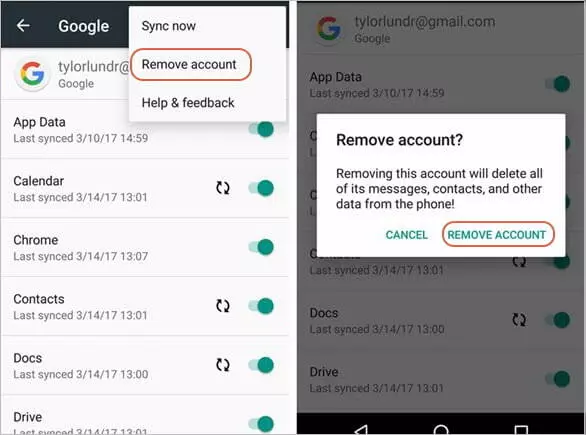
You must only use this method if you are sure of your password. If you do not have the password, you must not use this method, as it can lead to the device being locked.
Part 3: How to Remove FRP Lock in Settings?
Samsung device users must not have any problem when it comes to removing the FRP lock in Settings. However, to remove the FRP lock from Settings, you must check the device has Android 5.1 or lower. Ensure that there is nothing wrong with your Android device.
You need to follow the steps given below to bypass FRP lock from your Android device via Settings:
Step 1: Navigate to Apps under your Home Screen option.
Step 2: Visit Settings > Accounts > Google > name of Google account that is synced to your device.
Step 3: On the right corner of the screen, click on the More option.
Step 4: From all the available options, click on the Remove Account option.
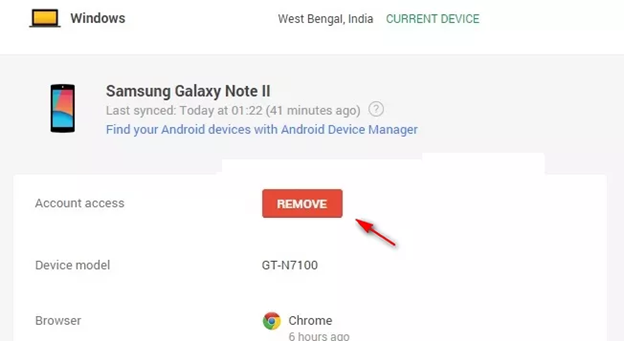
The FRP lock on your phone must be disabled now. Know that the process of accessing Settings will be different for different devices. Therefore, check how you can access Settings on your Android device and then follow the rest of the steps accordingly to turn off the FRP lock.
Part 4: How to Remove FRP Lock without Password? – Use Dr.Fone
To bypass FRP without a password, you must use Dr.Fone, a powerful tool that removes Google account verification. It is a very user-friendly software that is compatible with most Android devices like Motorola/Xiaomi/Vivo/Samsung/OPPO. You don’t need to have extensive technical knowledge to initiate the FRP bypass process without a password.
Prominent features of Wondershare Dr.Fone for FRP bypass are as follows:
- It is compatible with Android devices, irrespective of the OS version you’re using.
- You can remove the FRP screen lock for Xiaomi/Realme/Vivo/Samsung/OPPO devices without the Google account password or PIN.
- You can unlock the phone online.
You can follow the steps given below for FRP bypass Android via Dr.Fone:
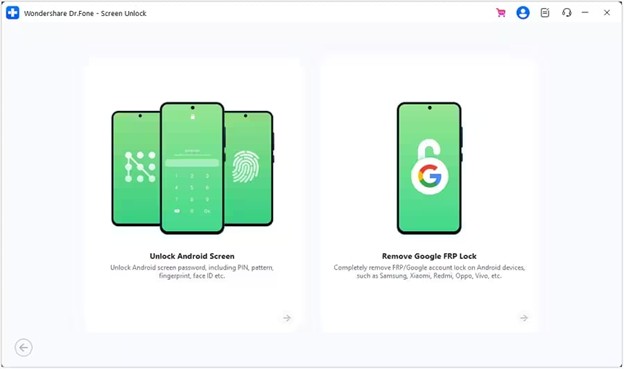
Step 1: Download Wondershare Dr.Fone on your device. Connect the compatible Android device to the PC. Launch Dr.Fone. Select Android as the device and select ‘Remove Google FRP Lock’. Ensure a WiFi connection for the phone.
Step 2: Select the Android phone brand from which the FRP lock is to be removed.
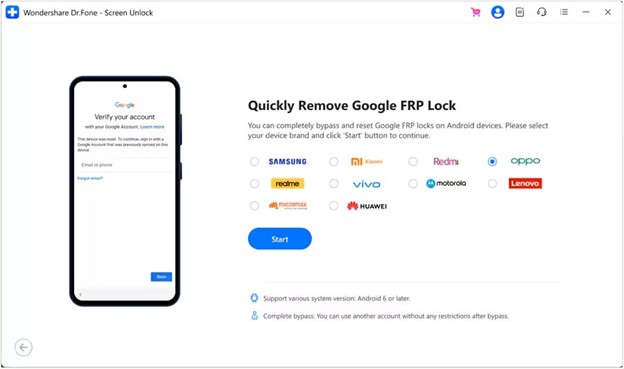
Step 3: Choose the Android version, and Dr.Fone will start the FRP bypass. This can take a few minutes.
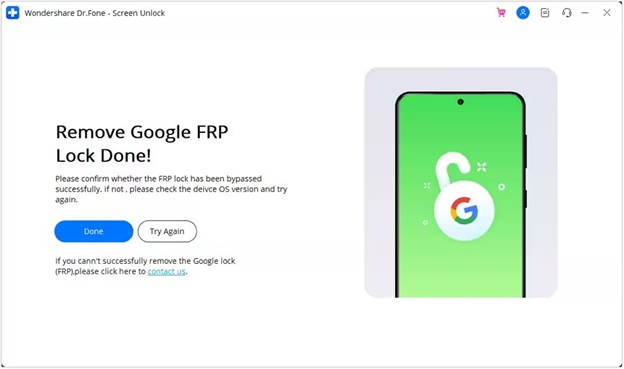
Step 4: Upon completion, you will receive a notification ensuring the FRP bypass is complete. Disconnect the device safely from the PC and set up the new device.
Conclusion
Google security is extremely important because most of the data is stored there. It is extremely important to adopt a proper procedure so that you can securely opt for FRP bypass Android. Thus, Wondershare Dr. Fone– Screen Unlock (Android) can be an efficient solution to fix this. The software has been specifically designed to help the users bypass FRP. It has a high success rate and compatibility with Android devices of specific brands.