It's Friday and, as usual, it's the beta's turn with another update. Today Microsoft is distributing KB 5040550. This increases the version number to Windows 11 23H2 22635.3930. And there's also a new feature for File Explorer.
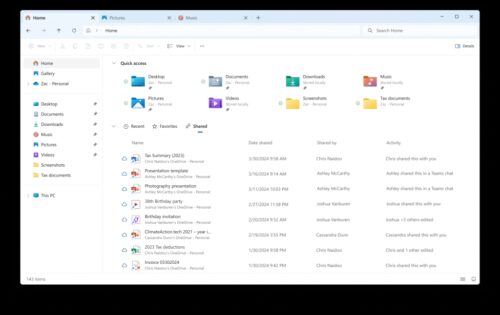
Shared content is now also displayed in File Explorer under Start. “File Explorer now gives you quick access to files that have been shared with you. In Windows, when you're signed in with your Microsoft account, you can view files that have been shared with your account, such as email, Teams chat, and more. Additionally, if you're a commercial customer signed in with their Microsoft Entra ID account, you can view files that have been shared with others. You can access this feature by launching File Explorer Home and clicking the Shared tab.”
Known issues with KB5040550
- Taskbar and system tray [NEU] If the “Show notification icon” option is grayed out under Settings > System > Notifications – simply turn “Notifications” off and back on and it should no longer be grayed out.
- File Explorer:
- NEW]Files shared with you may not appear if there has been no interaction with that file.
- [NEU] Keyboard focus may be lost when selecting a non-selected tab item.
- [NEU] Narrator may not work as expected when navigating the Recent, Favorites, and Shared tabs.
- Text input We're working on fixing an issue that causes hardware keyboard text suggestions to not work properly with the previous build (selecting an item unexpectedly causes chaining).
- Widgets
- The swipe call for widgets may not work if the taskbar is centered instead of left aligned.
- Unmounting widgets from the taskbar may not work if the taskbar is centered instead of left aligned.
-The widgets board is incorrectly positioned when Copilot is in side-by-side mode.
Corrections and improvements made by KB5040550
- Taskbar and system tray
- We're trying out a simplified taskbar that highlights the date and time in a shortened form and shows the notification bell icon depending on the DND status. Without the notification bell icon, you can access your notifications by clicking on the date and time in the Notification Center. We showed you here before
- We updated the preview images that appear when you hover over apps in the taskbar. We also improved the animations for showing these previews in the taskbar based on Insider feedback.
- When the keyboard focus is set to the taskbar (WIN+T), you can press a letter to jump to the open or pinned application whose name starts with that letter. Pressing the letter multiple times will jump to the next application that starts with that letter if there are multiple applications for that letter. For those using a non-combined taskbar, the window name will be used to navigate to the first letter rather than the application name. Additionally, pressing Home and End now moves the keyboard focus to the first and last item on the taskbar, respectively.
- Windows Studio Effects Windows Studio Effects brings AI-based camera and audio enhancements to devices equipped with a Neural Processing Unit (NPU). Today, you can access Studio Effects from the Quick Settings in the taskbar. To further simplify things, an icon now appears in the taskbar when you're using an application with a Studio Effects-enabled camera. Simply click that icon to open the Studio Effects page in Quick Settings. Additionally, hovering over the icon displays a tooltip indicating which application is using the camera.
- Windows Sharing: We're updating the UI in the Windows Share window for sharing content on an Android device that rolled out with Build 22635.3785. The option is now also under “Nearby Share” in the Windows Share window. This feature requires you to pair your Android device with your Windows PC by using the Link to Windows app on Android and Phone Link on your PC.
- Voice output We've made several changes to improve the performance of Narrator's Scan mode. Responses are expected to be much faster in Scan mode, especially when using Microsoft Edge and reading large documents. To try Scan mode, first turn on Narrator (Win key + Ctrl + Enter), then enable Scan mode by pressing Caps Lock + Spacebar during Narrator.
- Miscellaneous The system info (msinfo32) has been updated to follow the text size you set in Settings > Accessibility > Text Size.
- Corrections:
- Start menu
- Fixed an issue where the All Apps list was not being read aloud by screen readers in recent builds.
- Fixed an issue that caused some apps in the All Apps list to not sort correctly when using certain display languages.
- Taskbar and system tray
- Fixed an issue where keyboard focus could be lost when using Shift+Tab to navigate the taskbar.
- We fixed the issue that causes you to be unable to see or interact with the taskbar after installing KB5039302. This issue occurs on devices running Windows N edition. This edition is the same as the other editions, but lacks most of the media-related tools. The issue also occurs if you turn off “Media Features” in Control Panel.
- blogs.windows