The first signs of “speak for me” were already included in Windows 11 26052. In the new 26063 all functions (hidden) are now available and can be tried out. This new function of writing a text and having it read out with your own voice will probably appear in Windows 11 24H2.
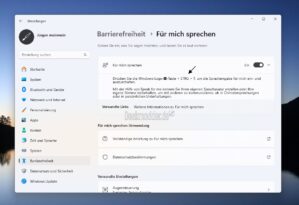
Speak for Me appears in Settings -> Accessibility. The function can then be activated there. The associated app then appears as a system app in the start menu. If you choose the natural voice, it is downloaded and installed via the Store app. After that you can get started.
If you choose your own voice, you have to log in with your Microsoft account and can then record your own voice and start the voice training. Using the keyboard shortcut Windows key + Ctrl + T, the bar starts at the bottom. You can enter your text there and it will then be read out. Another voice can then be added via the menu.
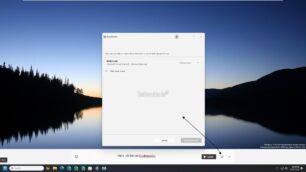
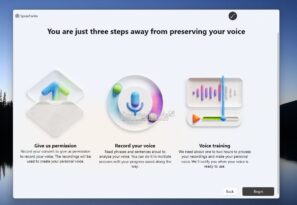
Record and use your own voice
It's an interesting new feature that's particularly important for accessibility. This function is currently hidden in the 26063 and I assume that it will be released in one of the next updates. Until then, it still needs to be activated.
- Download and unpack ViVeTool
- Right-click in the folder while holding down Shift + Ctrl and open the terminal
- Command Prompt or PowerShell then the command
.vivetool /enable /id:44950080,47123936,47405131,47976395,48002155,48339425,48624087,48812316,48900033
Enter, press Enter and then restart
– The function now appears in the settings and can be activated.