
Mods don’t always make everything better, but this article can help.
On September 26th, just a few days from now, Phantom Liberty, the long-awaited expansion for the role-playing game Cyberpunk 2077, will be released. However, in order to experience it with as few problems as possible, you have to keep one thing in mind.
The development studio CD Projekt Red recommends removing all installed mods and to use the simple 2.0 version. This doesn’t mean the in-game mods for equipment and weapons, but rather game-changing mods from the cyberpunk community. In this article we will explain to you how you can start the upcoming DLC mod-free with as little effort as possible.
How do I remove all installed mods?
Below you will find out step by step how to uninstall all Cyberpunk 2077 mods. Although it takes some time, it is the quickest method and works almost every time. And if it works the first time, it saves time. So, let’s go!
- Make a backup of your save data from the user/Saved Games/CD Projekt Red/Cyberpunk 2077 folder
- Optional: Turns off the cloud storage features. It often works without turning off cloud storage.
- Uninstalled Cyberpunk 2077.
- Deletes the following folders:
- The Cyberpunk 2077 folder in your Steam or GoG directory:
Steam/steamapps/common/Cyberpunk 2077
respectivelyGOG GalaxyGames
. Users/Saved Games/CD Projekt Red/Cyberpunk 2077
.Users/AppData/Local/REDEngine
.Users/AppData/Local/CD Project Red
.
- The Cyberpunk 2077 folder in your Steam or GoG directory:
- Restart your PC, restore your saves and reactivate the cloud save functions if you turned them off.
If you want to further prepare for the release of Phantom Liberty, we recommend this trailer. The history of the expansion is revealed there:
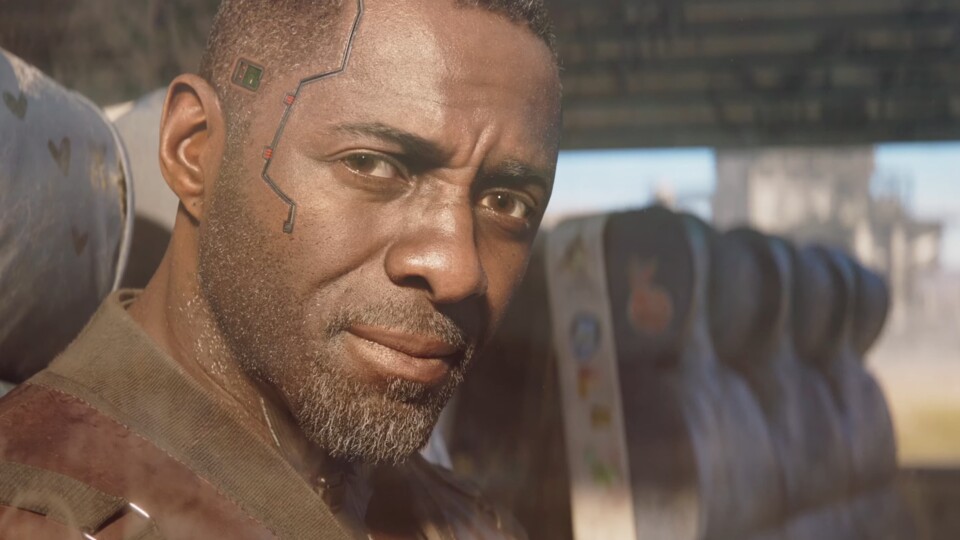

3:28
Cyberpunk 2077: New trailer reveals the backstory of the Phantom Liberty add-on
More information
As already described, step 2 is optional, as it usually works to uninstall all mods without turning off the cloud storage functions. So if you don’t know how to do it or just don’t feel like it, you can skip this step for now.
CD Projekt also recommend that you start a new save game for Phantom Liberty. First of all, to avoid errors and also because Update 2.0 cleans up the game so much that you can expect a completely new playing experience. If you don’t want to play everything from the beginning again, you can also create a new savegame and fast forward to the beginning of the expansion.
You can find more interesting articles about Cyberpunk 2077 and Phantom Liberty here:
Do you use mods for Cyberpunk 2077? If yes, which ones and if no, why? Are you looking forward to the upcoming expansion? Will you buy them or would you rather skip them? If you’re going to play Phantom Liberty, what platform did you choose to play it on? We are very interested in your opinion, so feel free to write it in the comments!