While the PC version of EA FC 24 starts on Friday, September 22 at 6 a.m., many players are experiencing problems, whether it’s a crash at launch or a bug linked to the EA Anti Cheat program, preventing them from launching the game. Here are our solutions.
Update : Current Friday, September 22 at 10 a.m.
Extremely long first load
If your game seems to freeze on a mostly white screen, it has difficulty displaying on your screen or the latter regularly changes resolution, it’s normal. Let EA FC 24 launch, it could take up to 5 minutes the first time, depending on the power of your PC.
We recommend going into the game settings and changing the resolution from the default to the maximum size of your screen. Also, if you are playing on dual or triple screens, EA FC 24 might have some issues, we recommend only turning on one screen when first starting the game.
Solution to the EA Anti Cheat bug on the PC version of EA FC 24
When you launch EA FC 24, EA’s Anti Cheat software launches and blocks your game. An error message then appears.
The solution is relatively simple. First, restart your PC. The EA App must not launch automatically when the PC is launched, otherwise the solution will not work (deactivate this option in the EA app settings). Once the PC has rebooted, click on the EA App icon in your Desktop (or its location in your folders, Program Files > Origin) and via a right click, open the submenu to find “ run as Administrator “.
Then launch EA app, Windows will ask you for confirmation to launch in Administrator mode. Validate and the software will launch as usual. There, start EA FC 24, the error message should be gone.
Note that as mentioned above the first launch will be very long, with a loading period and potentially black screen of well 1 minute (or even more with a fairly old PC).
The solution in summary:
- Restart your game
- Click on the EA App icon (or the EAApp.exe file in the folder)
- Enable launching in Administrator mode (“ run as Administrator “)
- Launch EA App and accept Windows Admin mode
- Start EA FC 24, the first launch will take a long time
Note that it is important to update the EA App as well as your graphics drivers, the game being much more demanding than last year.
Reinstalling anti-cheat software
Another solution is to uninstall and reinstall EA’s anti-cheat software. For this, you must follow the following technique.
- Go to the EA FC 24 installation folder (Program files > Origin)
- Open the _Installer folder
- There, open the EAAntiCheat folder
- Run EAAntiCheat software to uninstall
- Restart your PC and launch Origin in Administrator mode
- By launching EA FC 24, the software will reinstall itself
Digital signatures for the Anti Cheat bug
One of the regular problems concerns the digital signatures of the software. Doesn’t that speak to you? No problem, we have a solution that will take you 5 minutes.
The steps of the solution:
- Go to the official EA website for anti-cheat: EA help (in English)
- Download the software via the button: “ download the EA anticheat installer »
- Find the software you just downloaded (in your documents > downloads)
- Right click on it and activate the option: “ launch in Administrator mode »
- In the software menu, choose UNINSTALL ALL
- Open the drop-down menu and select EA FC 24 then “INSTALL”
- There, launch the EA App
- Click on EA FC 24 (without launching the game) and go to the “Manage” option
- Select “View properties” then the “Browse” option
- You should find two files with the following name: “EAAntiCheat.GameServiceLauncher”
- One is an .exe file the other is a .dll
- Select the .exe and go to “properties”
- In the menu, go to the “Digital Signatures” submenu
- Double-click on the line in the menu (see our image below)
- In the menu that has just opened, click on “view certificates”
- Click on “install certificate”
- Install it (twice “next” then “finish”)
- Potentially you will need to do this manipulation for the digital signature on both files
- Launch EA FC 24
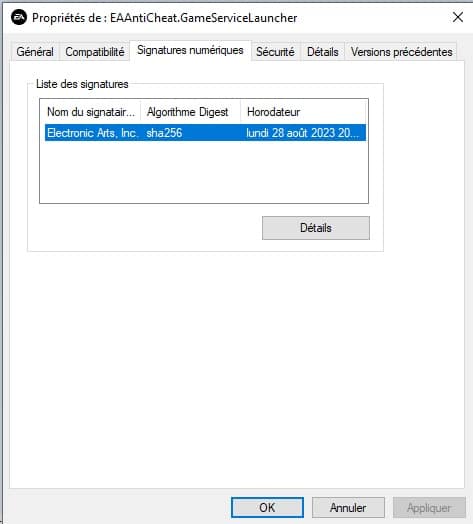
Please note, if you perform this method THEN you reinstall your game or the anti-cheat software, you will need to repeat this technique.
Incompatibility with anti-cheat software like FACEIT, Valorant
A priori, several readers have confirmed to us that deactivating their anti-cheat software intended for other games (in particular FACEIT, or that of Valorant), allows you to resolve the problem.
The method to follow:
- Disable other anticheat software like FACEIT
- Uninstall the EAAntiCheat software (see point above)
- Run EA App in admin mode
- Launch EA FC 24
- Reinstall the Anticheat EA
- The first launch should be relatively long
Note that here again, it is necessary to launch EA App (from its initial launch) in Administrator Mode and that you will have to deactivate the other software each time you launch EA FC 24.
Secure Boot issue for EA FC 24
This problem is based on the Windows 11 version. To correct it, you will have to restart your PC and go to the Bios menu of your PC.
The method to follow:
- Go to the BIOS (when the PC boots)
- Go to the “Advanced” section of the BIOS or the “Boot” section depending on the motherboard
- Click on the “Windows Operating System Configuration” option
- Check that in the “UEFI BIOS / CSM Mode” section the “UEFI” setting is chosen
- Then select “Secure Boot”
- Click “Secure Boot Mode” and choose “Custom”. Be careful if a warning regarding security codes appears, click “Yes”
- Head to “Enroll All Factory Default Keys” to establish Secure Boot keys
- Finally, click “Secure Boot” and choose “Enabled”
This should allow EA FC 24 to be launched. Be careful, however, the bug in the game listed above could occur, you just need to carry out the first solution.
Xbox controller detection problem on EA FC 24
How often when FIFA is launched on PC, the controllers are not well recognized. One of the solutions is to unplug your gaming peripherals (secondary controller, steering wheel, joystick) but potentially also your mouse before starting the game. Thus, EA FC 24 will recognize your game controller as the main device.
This is a problem that mainly affects certain Xbox models but also sometimes affects PlayStation 5 controllers.
Persistent bug and error
If the solution does not work, the problem is probably related to one of your software. Try deactivating your anti-virus, creating an exception for EA FC 24 or even deactivating as much software as possible.
Otherwise, only EA will be able to resolve the problem via a patch.
Here are our solutions to the crash and the bug of the EA Anti Cheat in order to be able to play the PC version of EA FC 24. Don’t hesitate to ask us in the comments if you still have a problem or if a solution is not clear.