YouTube only supports multi-channel audio on smart TVs, and the web version of the service does not have surround sound.But this does not mean that it cannot be achieved with an emulator, and of sufficient quality.This short tutorial shows how to make the sound in almost any YouTube video 3D.You will need a computer, a multi-channel sound card (for example, with 5.1 or 7.1 outputs), several speakers with amplifiers or a receiver, a program PotPlayerbrowser Chrome and internet.
Install the extension in Chrome PotPlayer YouTube Shortcut.It allows you to play YouTube videos in PotPlayer (how to do this is described in this article).
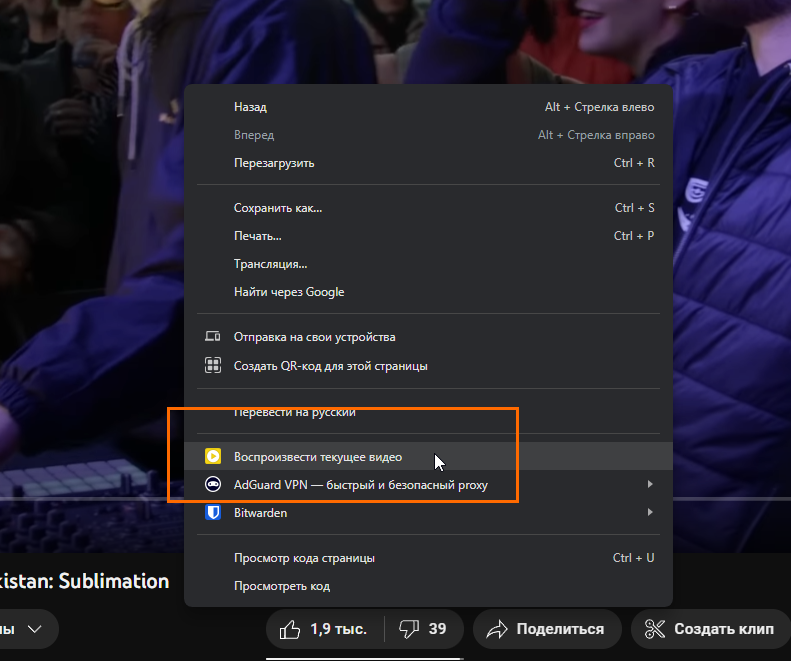
Open the YouTube website and launch the desired video in PotPlayer.Open the PotPlayer settings (F5) and go to the Audio tab.Select to output sound through a multi-channel sound card.In the Speakers menu, specify the speaker configuration you have (for example, 5.1 – two front speakers, two rear speakers, a center channel and a subwoofer).If you only have two pairs of stereo speakers, choose a 4.0 setup (two in front and two in back).
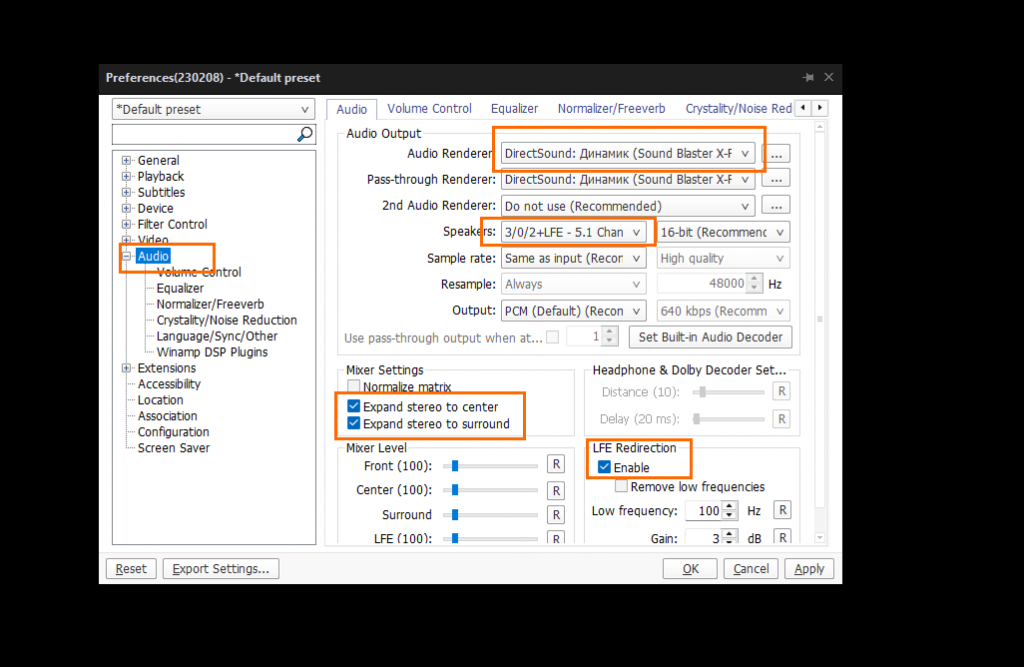
Check the boxes for Expand stereo to center, Expand stereo to surround, and LFE Redirection.These options will allow the player to upmix multi-channel audio from stereo sound.PotPlayer has a surprisingly good upmix – quite at the level of professional studio processing, and sometimes even better.If the audio in the video is monaural, there will be no multi-channel audio.Stereo sound is converted into a multi-channel sound stream with a full surround effect.If your computer and acoustic setup allows, give it a try – it’s impressive!